
IRMA: tasks and notifications
This page is for everyone who picks up, sets up or monitors actions in the IRMA app: action holders, risk owners, control owners, managers and administrators. It explains where your tasks come from, how to handle them, how recurring work shows up as a task by itself and how IRMA reminds you of a deadline.
New to IRMA? Start with IRMA: getting started. If you only work in IRMA now and then, for example because you received a questionnaire or an action, also read IRMA: guide for occasional users.
The IRMA app is in Dutch. This page quotes its labels in Dutch, with an English gloss in parentheses. What you see depends on the modules turned on for your organization and on your role. If you do not have the right to change a task, IRMA says so. Ask your administrator.
Where you find it
Section titled “Where you find it”| What | Where |
|---|---|
| The action list and the task board | Menu → Mijn taken (My tasks) |
| Requests for approval from an agent | Menu → Goedkeuringen (Approvals) |
| Your notifications | Account menu at the top right → Meldingen (Notifications) |
| Managing recurring tasks | Beheer (Administration) → Taaksjablonen (Task templates) |
| The statuses of the action list and the periods for reminding and escalating | Beheer → Taakstatussen (Task statuses) |
| Which notifications are sent and to which roles | Instellingen (Settings) → Notificaties (Notifications) |
My tasks
Section titled “My tasks”Mijn taken is your organization’s action list: actions from risk treatment, controls, reviews, data breaches and privacy requests, plus the tasks that recurring templates create. You see all tasks you may read, not only your own. If your organization has read access per department turned on, you see the tasks of your own departments.
At the top are counters: Totaal (Total), Openstaand (Outstanding), Afgerond (Completed) and Te laat (Overdue). Below that is the Verdeling per status (Distribution per status).
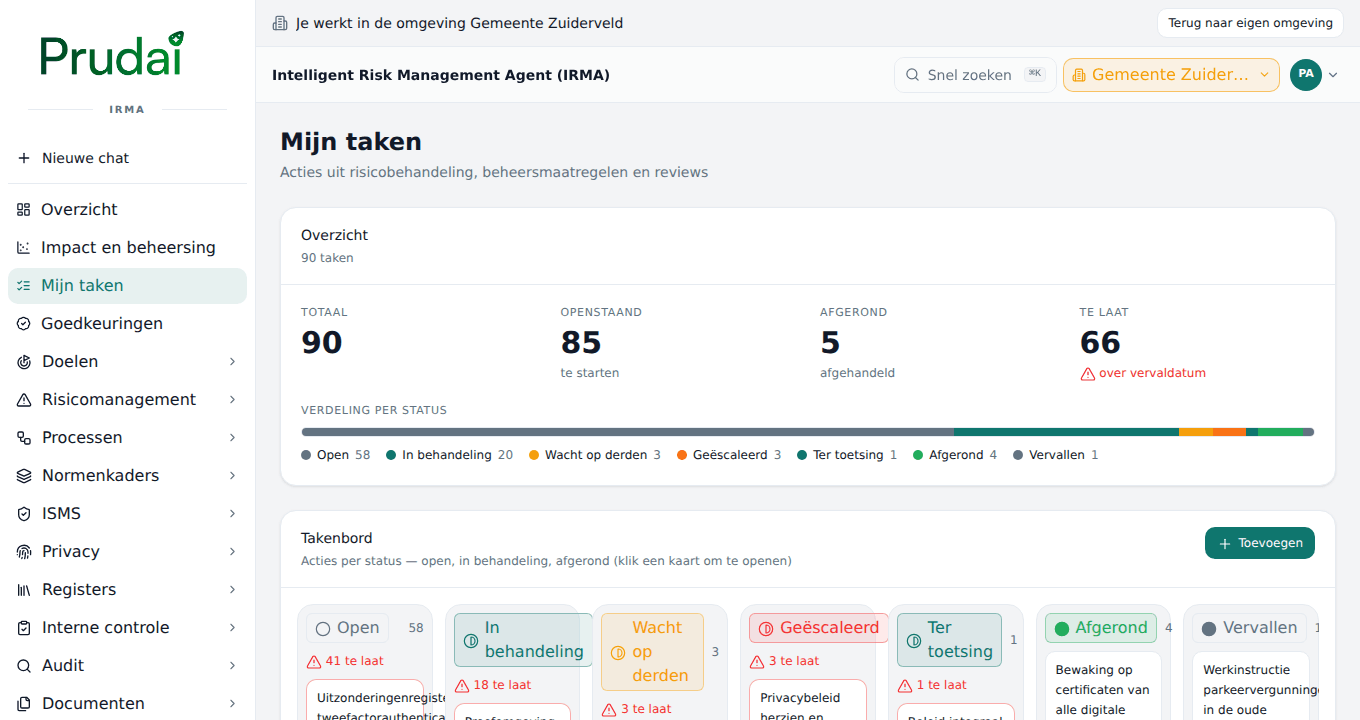
On the Takenbord (Task board) every task is a card in the column of its status.
- Click a card to open the task.
- Drag a card to another column, or move it with Alt+left arrow or Alt+right arrow. If moving fails, the board says so and the card stays where it was.
- Tasks without a date show Geen datum (No date). A task whose date has passed and that is not completed is marked Te laat.
Opening a task
Section titled “Opening a task”Taakdetails (Task details) shows the Beschrijving (Description), Vervaldatum (Due date), Eigenaar (Owner), Prioriteit (Priority: Laag, Normaal or Hoog), Status and the Gekoppeld risico (Linked risk) if the task comes from a risk. If the task has been escalated, it shows Escalatie with the Niveau (Level).
Under Actiehouders (Action holders) are the people who work on the task. The main action holder is the owner. With Toevoegen (Add) you add a person, or a role (the task then applies to everyone with that role), and choose under Deelname (Participation):
- Actiehouder (Action holder): works on the task. You can fill in a Bijdrage (Contribution: what this person does). Every action holder has an Eigen status (Own status), and IRMA shows when this person afgerond (completed) their part.
- Meelezer (Reader): reads along and does not work on the task.
Adding or editing a task
Section titled “Adding or editing a task”Click Toevoegen above the task board. The Taak toevoegen (Add task) window opens. Fill in the Titel (Title), if you like an Omschrijving (Description), choose the Status and the Prioriteit, and set a Deadline. Under Eigenaar-afdeling (Owning department) you choose the department that manages the task. With Bewerken (Edit) in the task details you change this later.
You do not create many tasks yourself. They arise from the section where the work happens, and then have that section as their origin:
- On the page of a risk, a control and a process you see the open actions linked to it. You manage them in Mijn taken.
- With a data breach and a privacy request you set up an action with Opvolg-actie uitzetten (Set up follow-up action). With a privacy request the statutory deadline is the deadline.
- A recurring template creates its task by itself every period.
Handling a task
Section titled “Handling a task”- Open Mijn taken and click the task.
- Do what the task asks. If evidence is needed, add it in the section the task belongs to.
- Set the Status to an end status, by default Afgerond, or drag the card to that column.
Your administrator decides what counts as an end status under Task statuses.
Recurring tasks
Section titled “Recurring tasks”You record recurring work, such as a monthly access review, as a template. The template puts itself in the action list as a task every period.
- Go to Beheer → Taaksjablonen and add a template with Sjabloon toevoegen (Add template).
- Choose the Frequentie (Frequency): Maandelijks (Monthly), Per kwartaal (Quarterly) or Jaarlijks (Yearly).
- Fill in the Deadline (dagen na aanmaak) (Deadline, days after creation). Empty means: no deadline on the task.
- Under Toewijzen aan rol (Assign to role) choose a role, or under Toewijzen aan persoon (hoofd-actiehouder) (Assign to person, main action holder) a person.
- Under Status choose Actief (materialiseert automatisch) (Active, creates tasks automatically) or Inactief (alleen handmatig) (Inactive, manual only).
An active template creates at most one task per period, even if the daily check and a manual run overlap. With Nu uitvoeren (idempotent) (Run now) you create the task for this period right away. If it already existed, IRMA says nothing was created.
Task statuses
Section titled “Task statuses”Under Beheer → Taakstatussen you decide the statuses of the action list. The columns of the task board follow this set. By default they are Open, In behandeling (In progress) and Afgerond (Completed).
- Rename, reorder (Omhoog, Omlaag), give a Kleur (Color) and add a status with Status toevoegen (Add status).
- Tick Eind-status (End status) for a status that counts as completed. There must be at least one end status and one non-end status.
- Every status has a unique Naam (slug) of letters, digits,
_or-. - A status that is still on existing tasks cannot be deleted. IRMA says the set was not saved.
Reminders and escalations
Section titled “Reminders and escalations”IRMA checks the open tasks every day. Under Beheer → Taakstatussen, in the block Reminders en escalatie (Reminders and escalation), you set two periods for the whole organization:
- Reminder (dagen vóór deadline) (days before the deadline): the action holders get a reminder as soon as the task falls within this number of days. Seven days by default.
- Escalatie (dagen ná deadline) (days after the deadline): if a task is this many days past its deadline and not completed, it escalates. Three days by default.
How it works:
- A reminder goes to the main action holder, the action holders and the roles you chose under Actie-reminder (deadline nadert) (Action reminder, deadline approaching). An escalation goes to the roles under Actie-escalatie (deadline overschreden) (Action escalation, deadline passed) and to the task’s escalation target. So an escalation goes up, not to the action holders themselves.
- Choose a role for both, as described under Setting up notifications. Without a chosen role or escalation target, an escalation has no recipient.
- Per deadline you get one reminder and one escalation. If the deadline moves, a new window begins. At the first escalation the task’s Niveau goes up.
- A reminder or escalation moment of its own per task and an escalation target per task are set through the API; the task form does not have these fields.
Setting up notifications
Section titled “Setting up notifications”Under Instellingen → Notificaties you choose per kind whether IRMA creates a notification and which roles receive it. For what happens with a notification, see Notifications.
| Kind | When |
|---|---|
| Wekelijks ISMS-overzicht (Weekly ISMS overview) | One overview mail per week with what has to be done for the ISMS. |
| Documentreview verloopt (Document review expires) | A document’s review date is approaching or has passed. |
| Certificeringsdeadline (Certification deadline) | An audit or recertification in the certification cycle is approaching. |
| Nieuwe afwijking (New nonconformity) | A new nonconformity has been recorded. |
| Actie-reminder (deadline nadert) | A task comes within the reminder period. |
| Actie-escalatie (deadline overschreden) | A task is past the escalation period. |
Set the switch per kind to Aan (On) or Uit (Off) and choose under Ontvangende rollen (Receiving roles) which roles get the notification. If there are no roles yet, first create one under Beheer → Rollenbeheer (Role management). The overview mail is prepared weekly; the deadline notifications are checked daily. A kind that is Uit is not created.
Notifications
Section titled “Notifications”Notifications about IRMA are read in the same inbox as in the rest of the Prudai platform.
- At the top right a red number appears on your avatar as soon as you have unread notifications. In the account menu is the row Meldingen; it opens the list.
- The list has the zones Wacht op u (Waiting for you) and Ter kennisgeving (For your information), filters and per notification the buttons Openen (Open) and Markeer als gelezen (Mark as read). An IRMA notification opens in IRMA itself.
- How you set per category whether you get a notification in the app or by mail is described on Notifications.
A notification from IRMA appears in the list for the kinds in the table above: document review, recertification, new nonconformity, an action that is approaching and an action that has been escalated.
If under Instellingen → Integraties (Integrations) the integration Outlook / e-mail (notificaties) is on, the action holder also gets a mail on a new action, a completed action, a reminder, an escalation and a new data breach. These mails name the task and point you to Taken or Datalekken in IRMA. Whether a mail arrives depends on the email address IRMA knows for the recipient. Ask Prudai how this is set up for your organization.
Approvals
Section titled “Approvals”The menu item Goedkeuringen is for approving actions by an agent, the CLI or another system that wants to change or delete something in IRMA on someone’s behalf. It is not about approving a document or a risk.
- The tab Te beoordelen (To review) shows requests from colleagues for which a second person has to approve. Mijn verzoeken (My requests) shows what your agents have asked.
- Open a request to see exactly what will happen (Wat de agent wil doen, What the agent wants to do) and choose Goedkeuren (Approve) or Afwijzen (Reject). When rejecting you can give a reason that the requester sees.
- The Niveau (Level) says who may approve: with Bevestigen (Confirm) the requester confirms this exact action themselves, with Tweede persoon (Second person) someone else with the right role has to approve. So you cannot approve your own request if a second person is needed.
- A request expires after a time without a decision. Nothing is then carried out.
- If a code belongs to the request, you enter it through Code invoeren (Enter code).
If Goedkeuringen is not in your menu or the page says the function is not available yet, it has not been turned on for your organization. The technical side is covered in IRMA for developers.