
Prudai For Word
Prudai For Word is the Word add-in of the Prudai Platform. Your assistant opens in a task pane next to your document and reads along: with the text you select, or with the whole document. Have your draft summons or advice reviewed without leaving Word. The assistant puts its proposals into your document as tracked changes and comments, and you accept or reject them the way you are used to in Word.
Review proposals in Word work in the LEO, LEO Fiscaal, ZIA, VERA and BEVER personas; IRMA and MAIA have no Word review function.
Also available: Prudai for Outlook and Prudai for Excel.
What the add-in can do
Section titled “What the add-in can do”- send your selection along as context with your question,
- send the text of the whole document along (up to 25,000 words),
- insert an answer into your document, right after your selection or cursor,
- place comments on a passage,
- propose replacements as tracked changes, so you accept or reject them via Track Changes.
Supported Word clients
Section titled “Supported Word clients”- Word for Windows and Mac (desktop),
- Word on the web.
The add-in requires the Word requirement set WordApi 1.7. That is why older, one-time-purchase Word versions drop out: they do not reach that level, so they never see the add-in.
Installing
Section titled “Installing”Usually your administrator makes the add-in available. There are three routes:
- Microsoft AppSource: the listing is called Prudai For Word;
- central deployment by your administrator via the Microsoft 365 Admin Center (recommended for organizations);
- sideloading the manifest in Word, for instance for a pilot or a test group.
For administrators: manifest and network
Section titled “For administrators: manifest and network”The production manifest URL is:
https://app.prudai.com/word-addin/manifest.production.xml
The steps in the Admin Center are the same as for Outlook, including the assignment choice and the wait of up to 24 hours. See the administrator guide for Prudai for Outlook and enter the Word manifest URL there.
What the manifest requests:
- Office permission ReadWriteDocument (read and edit the document),
- requirement set WordApi 1.7 (see above).
Current manifest version: 1.0.0.8.
Network access: allow outbound HTTPS to app.prudai.com, api.prudai.com, api.account.prudai.com and login.prudai.com. If your organization signs in via Microsoft, also allow login.microsoftonline.com. That is the same list as for Outlook; see the table in the administrator guide.
Opening and signing in
Section titled “Opening and signing in”- Open a document in Word and start Prudai For Word via Add-ins on the Home tab.
- Click Sign in in the task pane. A separate sign-in window opens. Many identity providers block sign-in inside an embedded frame, hence the pop-up.
- Sign in with your Prudai account, the same account as for the web app. The sign-in window closes and the task pane picks up your session.
Your session is kept only inside the task pane, not in browser cookies. That way strict browser cookie settings do not block sign-in.
Which personas you see depends on your organization’s licenses. See Sign-in & persona selection.
Working with your selection and the whole document
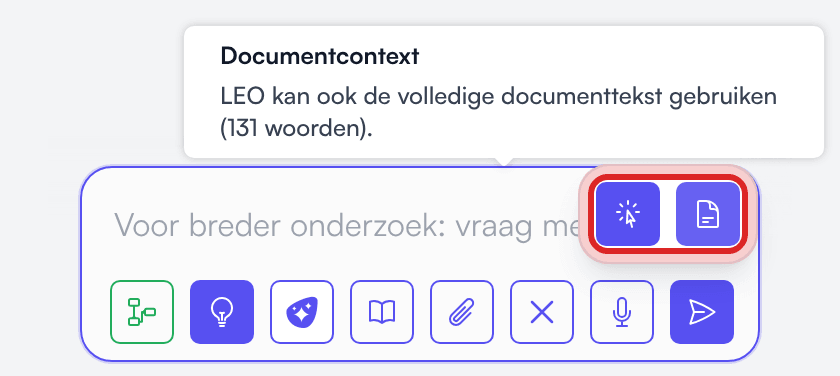
Section titled “Working with your selection and the whole document”The Selection context and Document context buttons sit next to the input field. If you do not see them, click Show action buttons (☰).
Selection
Section titled “Selection”Select text in Word and ask your question. The selection is sent along automatically, for example with:
- “Rewrite this paragraph in a formal style.”
- “Turn this into a bullet list of risks.”
The Selection context button lights up as soon as you have selected text. Hover over it to see which text is sent. A selection can be at most 50,000 characters; if you select more, you get a notice and pick a smaller passage.
Whole document
Section titled “Whole document”The Document context button sends the full document text along. It is on by default when your document has 25,000 words or fewer; click it to switch it off or on again. The tooltip shows how many words your document has.
- If your document has more than 25,000 words, the button is greyed out. The tooltip reads: “Disabled: this document has N words (> 25,000). Use selection instead.” If the document grows past that line while the button was on, the add-in switches it off for you. Work with a selection instead, or put the document into a project as a separate file.
- On top of that there is a hard maximum size for the document text of about 600,000 characters. It sits well above the word limit; in practice the word limit decides when the button goes off.
- The document text only serves as context for that one question. It is not kept in your conversation history.
Getting an answer into Word
Section titled “Getting an answer into Word”Open the Export menu on an assistant answer. That menu appears once the answer is complete. There you choose:
- Insert into Word: the answer goes into the document right after your selection or cursor, with formatting. This option is only there when you work in the task pane in Word, not in the web app;
- Download Word (.docx): the answer as a separate Word file.
Tip: ask for headings and consistent numbering. That works better in Word.
Review proposals: tracked changes and comments
Section titled “Review proposals: tracked changes and comments”Ask your assistant to review your document, for example “Go through the liability section and propose improvements”. The assistant can then:
- propose a replacement: it lands in your document as a tracked change. You get the notice Suggestion added as a tracked change. Accept or reject it via Review › Track Changes, like any other revision;
- place a comment on the passage concerned.
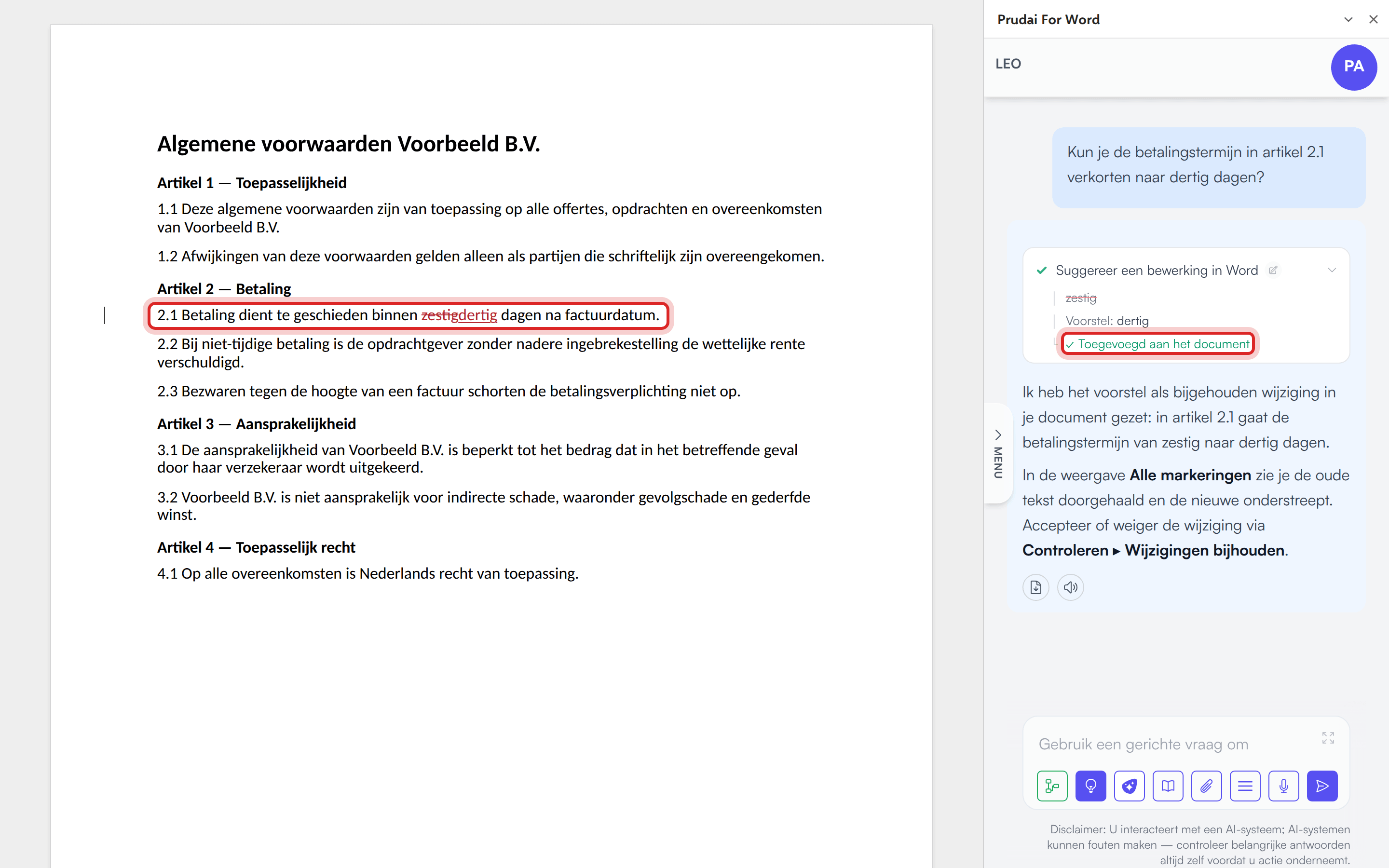
This works when Word review suggestions is switched on. You find that switch on the Knowledge page, Tools tab; it is on by default.
How a proposal lands in the right place
Section titled “How a proposal lands in the right place”Every proposal carries the original text with it. The add-in applies it only to exactly that passage:
- if that passage is your current selection, the proposal lands there;
- otherwise the add-in looks for the passage in the document. Small differences in capitalization, spaces and typographic characters (such as curly quotes or a long dash) do not matter. Other punctuation and digits must match exactly: “article 35” is not “article 3-5”.
In these cases the add-in changes nothing and you see Could not apply suggestion in Word:
- the passage occurs more than once in the document;
- the passage runs across more than one paragraph;
- the passage cannot be found (any more), for instance because you edited the text in the meantime.
Select the intended passage and ask for a new proposal.
For a replacement, the add-in switches Track Changes on for that single change only. Afterwards it restores your own setting, also when applying fails.
What you see in the chat
Section titled “What you see in the chat”For each proposal the chat shows a line Suggest an edit in Word (or Add a comment in Word). Below it you see, for a replacement, the original text struck through with the Suggested text, or, for a comment, the Comment. Then comes the outcome:
| Outcome | Meaning |
|---|---|
| Added to the document | The change or comment is really in your document. |
| Could not be applied | Nothing was changed; the reason follows. |
| Could not confirm — check your document | The add-in received no confirmation. Check your document yourself. |
| Proposed — awaiting confirmation in Word | The proposal was made but has not been confirmed yet. |
A green check mark only appears once the change is really in your document.
Troubleshooting
Section titled “Troubleshooting”| Symptom | Likely cause | Fix |
|---|---|---|
| Prudai For Word is not among your add-ins | Add-in not (or only just) deployed; rollout can take up to 24 hours | Ask your administrator to deploy it, or install it via AppSource if your organization allows that |
| ”The Word sign-in window could not open or load.” | Pop-up blocked or a glitchy Office webview | Try again; if that does not help, click Reload or restart Word |
| ”Sign-in succeeded, but Word could not receive the response.” | The sign-in window could not pass on its result | Close the sign-in window and sign in again |
| Document context is greyed out | The document has more than 25,000 words, or the word count could not be determined | Work with a selection, or put the document into a project as a separate file |
| Insert into Word is missing | You are viewing the chat outside the task pane in Word (for example in the web app), or the answer is still being written; the Export menu only appears once the answer is complete | Open the chat via Prudai For Word in Word and wait until the answer is complete |
| Proposal: Could not be applied | The passage occurs more than once, runs across paragraphs, or was edited | Select the intended passage and ask for a new proposal |
More: Knowledge (sign-in required) · Chat · Troubleshooting & support.