
IRMA: getting started
This page is for everyone who works in the IRMA app: risk managers, CISOs, data protection officers, compliance officers, auditors and risk owners. It explains how to get in, how to find your way, and how to use the app and the IRMA assistant together. If you are an administrator, also read IRMA: administration.
The IRMA app is in Dutch. This page quotes its labels in Dutch, with an English gloss in parentheses.
The app and the assistant
Section titled “The app and the assistant”IRMA consists of two parts that belong together:
- The IRMA app at app.prudai.com/irma. This is where you record your ISMS in registers: risks, controls, standards frameworks, documents, audits and more.
- The IRMA assistant in chat. This is the IRMA persona in the Prudai web app. You ask questions, have documents drafted and let the assistant read along in your registers. See The personas.
You sign in to both with the same Prudai account. When you chat with IRMA, the IRMA item in the sidebar opens the app. In the app, Nieuwe chat (New chat) at the top of the menu opens a conversation with the IRMA assistant.
In a few places you can choose English; see Languages.
Access
Section titled “Access”- Go to app.prudai.com/irma.
- Sign in with your Prudai account. See Sign-in & persona selection.
Your organization must have IRMA. If access does not work, you see a single screen instead of the app, with one of these headings:
- Geen toegang tot IRMA (No access to IRMA): your organization has no active IRMA subscription.
- Toegang tot IRMA is geblokkeerd (Access to IRMA is blocked): access is temporarily blocked, the subscription has expired, or IRMA cannot determine your organization’s access right now. The text under the heading tells you which of the three it is. If access is blocked or the subscription has expired, your data is kept.
- IRMA is nu niet bereikbaar (IRMA cannot be reached right now): IRMA’s access check is temporarily unavailable. Try again in a few minutes.
The message applies to the whole organization, not just your account. Choose Opnieuw proberen (Try again) or Uitloggen (Sign out). If the screen stays, contact your administrator or support@prudai.com. See also Troubleshooting & support.
What you can do depends on your role. Every user needs a role in IRMA, such as Risicomanager (Risk manager), CISO or Risico-eigenaar (Risk owner). Without a role you can read but not change anything. Ask your administrator for a role. See Roles and rights.
First steps
Section titled “First steps”The guided tour
Section titled “The guided tour”The Rondleiding (Guided tour) shows the main parts in seven steps: Welkom in IRMA (Welcome to IRMA), Risico’s (Risks), Beheersmaatregelen (Controls), Normenkaders en SoA (Standards frameworks and SoA), Documenten (Documents), Werken met de assistent (Working with the assistant) and Eerst oefenen met demodata (Practise with demo data first). In the last step, Naar de demo-omgeving (To the demo environment) takes you to an environment with sample data.
- The tour starts by itself the first time you reach Overzicht (Overview), but only in a new organization, in an organization you created yourself, or in an environment you create with Nieuwe omgeving (New environment). In an existing organization that Prudai set up for you earlier, you start it yourself.
- You can always start it again from the account menu at the top right → Rondleiding (Guided tour).
- When you chat with IRMA, Redo onboarding tour in the user menu opens the app and starts the tour there. See Guided tour in IRMA.
- Move through it with Vorige (Previous) and Volgende (Next), and end with Afronden (Finish). You can stop at any time with Rondleiding overslaan (Skip the tour) or Escape.
Practise first in a demo environment
Section titled “Practise first in a demo environment”Want to look around in a filled-in environment before you enter your own data? Create an extra environment. Every user can do this.
- At the top right, click Omgevingen (Environments).
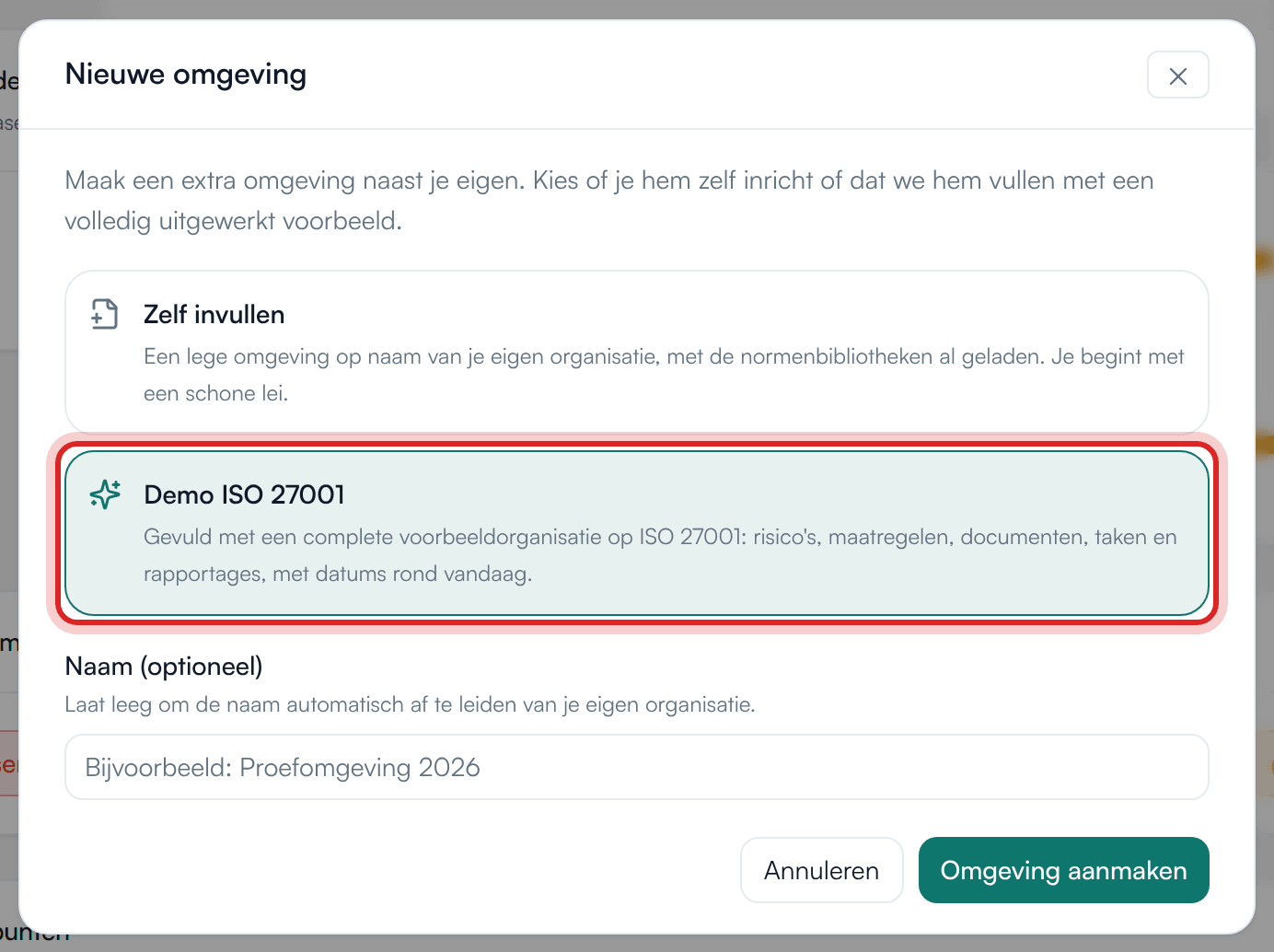
- Choose Nieuwe omgeving (New environment).
- Choose how to fill the environment:
- Demo ISO 27001: a complete sample organization on ISO 27001, with risks, controls, documents, tasks and reports. The dates are around today.
- Zelf invullen (Fill in yourself): an empty environment in your organization’s name, with the standards libraries already loaded.
- Optionally enter a name under Naam (optioneel) (Name (optional)). If you leave it empty, IRMA derives the name from your organization.
- Click Omgeving aanmaken (Create environment). Filling it takes a moment; do not close the window.
How extra environments work:
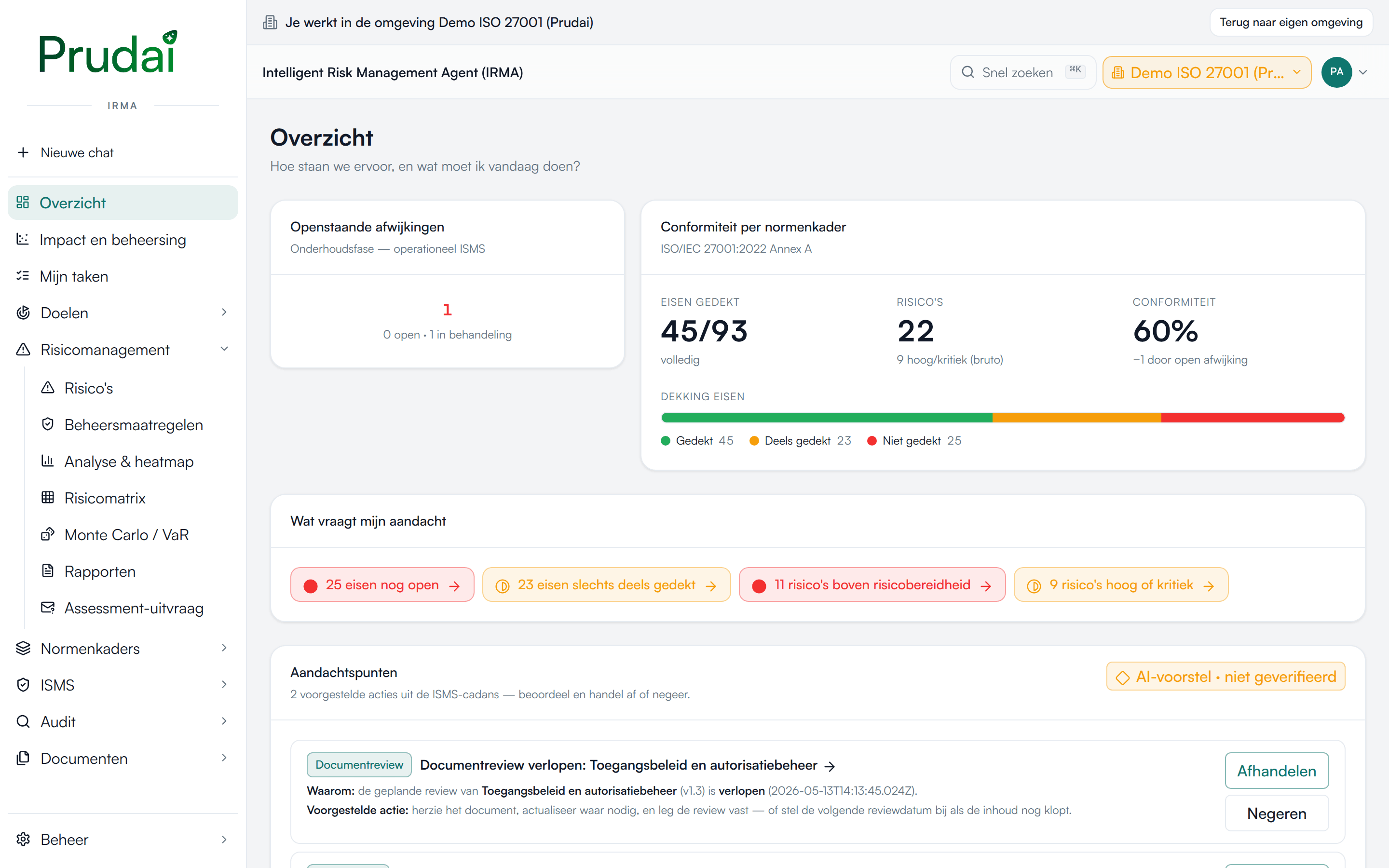
- When you work in an extra environment, a grey bar at the top says Je werkt in de omgeving … (You are working in the environment …). The button at the top right then shows that environment’s name. Click it to go back; your own environment is marked in the list as Je eigen omgeving (Your own environment).
- An extra environment is separate from your organization’s environment. What you do there does not end up in your real registers.
- Only you have access to an environment you create, and you are its Beheerder (Administrator).
- You can create up to 10 environments of your own. If you need more, contact support.
In an empty IRMA chat, the starter card Explore the demo environment opens your demo environment. If you do not have one yet, the Nieuwe omgeving (New environment) window opens with Demo ISO 27001 already selected.
Setting up your ISMS
Section titled “Setting up your ISMS”In a new organization, IRMA asks an administrator the set-up question Richt je ISMS in (Set up your ISMS) once:
- Under Op wat voor soort model wil jij je ISMS inrichten? (What kind of model do you want to base your ISMS on?), describe your organization, for example “care institution”, “SaaS company” or “municipality”.
- Under Aanbevolen startpunt (Recommended starting point), IRMA immediately shows the Aanbevolen registers (Recommended registers) and Aanbevolen normenkaders (Recommended standards frameworks) that fit.
- Click Inrichten en doorgaan (Set up and continue). IRMA takes you to the registers. Under Standaard registers (Standard registers), use Toevoegen (Add) to add the registers you want to use. Later closes the question without choosing.
You can change the model later via the account menu → Instellingen (Settings) → ISMS-model (ISMS model). The recommendations follow automatically.
The ISMS phase
Section titled “The ISMS phase”IRMA has two phases: Opzetten (Set up: you are building the ISMS) and Onderhoud (Maintenance: you keep it running). The phase determines which items the menu shows under ISMS and Documenten (Documents):
- In Opzetten (Set up), items that only belong to a running ISMS are hidden: Certificering (Certification), Directiebeoordeling (Management review), Bewustwording (Awareness), Jaarplanning (Annual planning), Publicatieoverzicht (Publication overview) and Bewijs (Evidence).
- In Onderhoud (Maintenance), Classificaties (Classifications) is hidden.
The phase applies to the whole organization. An administrator changes it via Instellingen (Settings) → Weergave (Display) → ISMS-fase (ISMS phase). Without administrator rights you do not see this option.
The menu
Section titled “The menu”The menu is on the left. At the top is Nieuwe chat (New chat). Below it are Overzicht (Overview), Impact en beheersing (Impact and control) and Mijn taken (My tasks), followed by the main items. Click a main item to expand it.
| Main item | Items | Read more |
|---|---|---|
| Doelen (Objectives) | Doelstellingen & meetprogramma (Objectives & measurement programme), Context | IRMA: controls and audit |
| Risicomanagement (Risk management) | Risico’s (Risks), Beheersmaatregelen (Controls), Analyse & heatmap (Analysis & heatmap), Risicomatrix (Risk matrix), Monte Carlo / VaR, Rapporten (Reports), Assessment-uitvraag (Assessment survey) | IRMA: risk management; controls on IRMA: controls and audit |
| Processen (Processes) | Processen (Processes), with the process editor | IRMA: controls and audit |
| Normenkaders (Standards frameworks) | Normenkaders, each standard with its statement of applicability (SoA) | IRMA: controls and audit |
| ISMS | Beleid (Policy), Certificering (Certification), Directiebeoordeling (Management review), Competentie (Competence), Bewustwording (Awareness) | Beleid (Policy) on IRMA: controls and audit |
| Privacy | Verwerkingsregister (Record of processing), Datalekken (Data breaches), Privacyverzoeken (Privacy requests), Algoritmeregister (Algorithm register), DPIA | |
| Registers | Leveranciers (Suppliers), Subverwerkers (Sub-processors), Verplichtingen (Obligations), Contracten (Contracts), Assets, Informatiesystemen (Information systems), Incidenten (Incidents), Afwijkingen (Nonconformities), Verbeteringen (Improvements), Personenregister (People register), Projecten (Projects), Informatiebeheer (Records management), Belanghebbenden (Interested parties), Organisatiedoelen (Organizational objectives) | Working with registers |
| Interne controle (Internal control) | Controlejaren (Control years), Controleplannen (Control plans), Deelwaarnemingen (Partial observations), VIC-bevindingen (Internal control findings) | IRMA: controls and audit |
| Audit | Audits, with the internal audit by IRMA | IRMA: controls and audit |
| Documenten (Documents) | Alle documenten (All documents), Bewijs (Evidence), Documentinventaris (Document inventory), Jaarplanning (Annual planning), Classificaties (Classifications), Publicatieoverzicht (Publication overview), Documentbeheer (Document control) | IRMA: controls and audit |
| Beheer (Administration) | administrators only, at the bottom of the menu | IRMA: administration |
Quick search. With Snel zoeken (Quick search) at the top right, or ⌘K (Ctrl+K on Windows), you search for pages and for items such as risks, controls, documents and suppliers.
Account menu. At the top right is a circle with your initials. Click it for Instellingen (Settings), Rondleiding (Guided tour) and Afmelden (Sign out).
Why you do not see everything
Section titled “Why you do not see everything”Not everyone sees the same menu. This depends on:
- Your organization’s sections. Which main items your organization has is agreed with Prudai. Overzicht (Overview), Documenten (Documents) and Beheer (Administration) are always part of the app.
- Your role. Which main items you see by default also follows from your role. Beheerder (Administrator) and Bestuurder (Board member) see all of your organization’s main items. You only see Beheer (Administration) with administrator rights.
- The ISMS phase. See The ISMS phase.
- Your view lens. See below.
Your own view
Section titled “Your own view”Under Instellingen (Settings) → Weergave (Display) you set for yourself:
- Weergavelens (View lens): Alles (Everything), Risicomanager (Risk manager), Risico-eigenaar (Risk owner), CISO or Kwaliteitsmanager (Quality manager). A lens shows only the menu items for that kind of work. Your rights do not change. If a lens other than Alles (Everything) is on, a small label with the lens name appears at the bottom of the menu. Click it to change the lens.
- Thema (Theme): Licht (Light), Donker (Dark) or Systeem (System).
Overview and My tasks
Section titled “Overview and My tasks”Overzicht (Overview) is your start page: “Hoe staan we ervoor, en wat moet ik vandaag doen?” (Where do we stand, and what do I need to do today?). Among other things you see Wat vraagt mijn aandacht (What needs my attention), Audit-gereedheid (Audit readiness), Conformiteit per normenkader (Conformity per framework), Risicobeeld (bruto) (Risk picture, gross), Top-5 risico’s (Top 5 risks), Aandachtspunten (Points for attention) and ISMS-gezondheid (ISMS health), the input for the management review.
Impact en beheersing (Impact and control) is a second dashboard. For each information system it sets the importance for your business objectives against the degree of control. See The business impact and control dashboard.
Mijn taken (My tasks) is your organization’s action list: actions from risk treatment, controls and reviews.
- At the top you see counts, such as Openstaand (Outstanding) and Te laat (Overdue).
- On the Takenbord (Task board), each task is a card in the column of its status. Drag a card to another column, or move it with Alt+left arrow or Alt+right arrow.
- Click a card to open the task.
- The columns follow the task statuses your administrator sets up.
Working with registers
Section titled “Working with registers”All registers in IRMA work the same way.
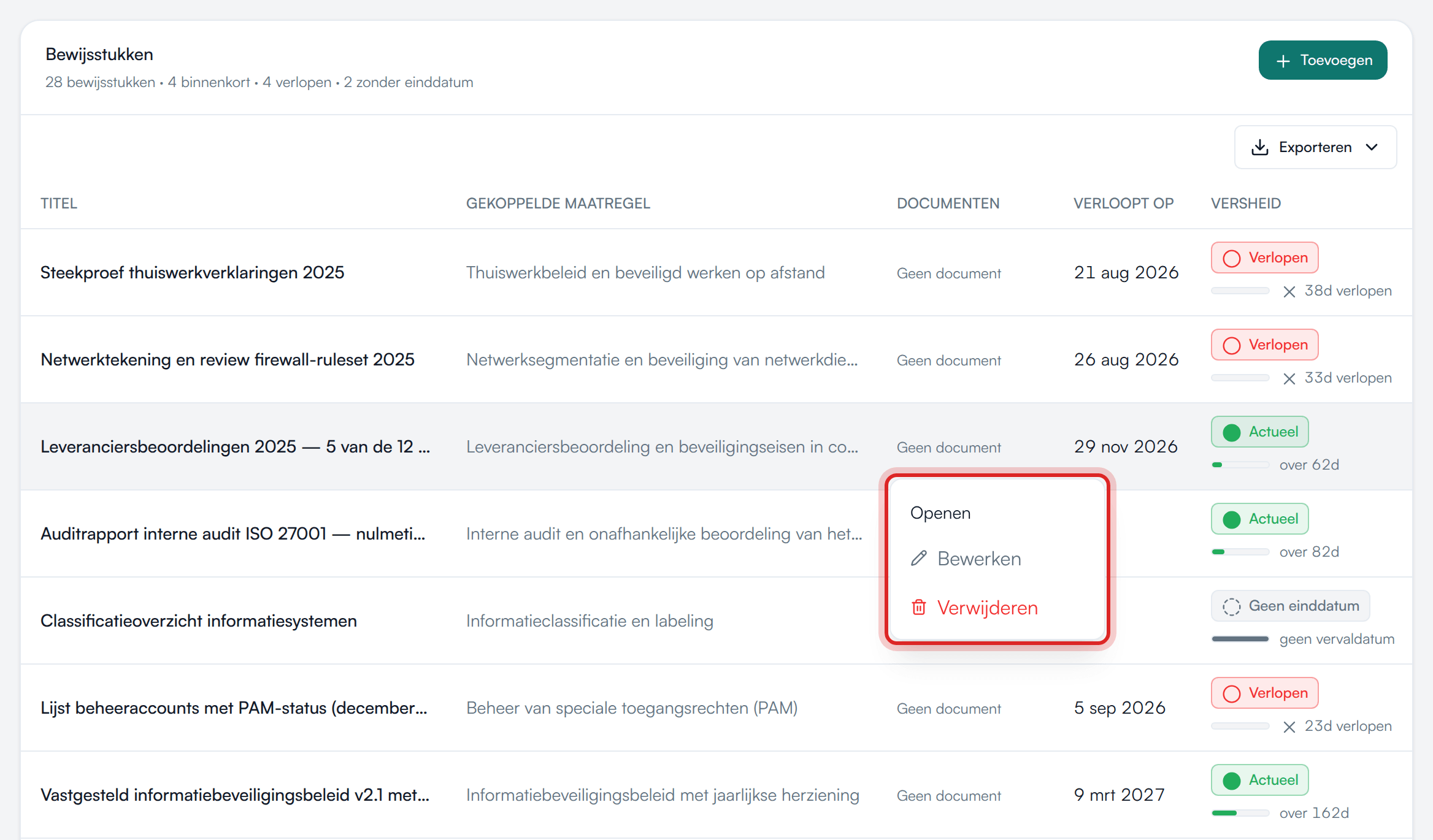
- Opening an item. Click a row. A menu opens at that spot with Openen (Open) and the other actions for that row, such as Bewerken (Edit) and Verwijderen (Delete). Escape closes the menu.
- Details. An item opens in a window in the middle of the screen. Close it with Escape or by clicking outside the window.
- Pick lists. Every pick list is searchable. You first see five options. Meer (More) shows up to fifteen; type in the search field to search further.
- Choosing an owner. In Assets, Informatiesystemen (Information systems), Context, Competentie (Competence), Bewustwording (Awareness) and Doelstellingen & meetprogramma (Objectives & measurement programme), among others, you pick the owner from a list. If you want no owner, choose Geen eigenaar (No owner).
- Statuses. Each status has its own icon with its own shape, so you can read the status without relying on colour.
- Export. Click Exporteren (Export) and choose Excel (.xlsx) or CSV (.csv).
- Import. Already have a list, for example in Excel? Bring it into IRMA with Importeren (Import). See Importing risks from Excel or CSV.
- Deleting. IRMA asks for confirmation first. You cannot undo a deletion. If you do not have the rights, IRMA tells you.
If your organization has turned on read access per department, you only see the items of your own departments and the departments below them. A register then shows how many items you can read: Toegang tot … van … items in dit register (Access to … of … items in this register). See Read access per department.
Languages
Section titled “Languages”The IRMA app itself is in Dutch. In three places you can choose English:
- Requirement titles of a standards framework. In the window of a framework, set Normtitels (Requirement titles) to English. The requirements, for example the ISO 27001 Annex A titles, are then shown in English. If a requirement has no English title, it stays in Dutch. IRMA remembers your choice in your browser. See Opening a standards framework.
- The page for assessment respondents. People who assess risks via the survey email choose Nederlands or English at the top. Answers already entered are kept when you switch. Amounts and dates stay in Dutch notation. See What the respondent sees.
- The Trust Center. Visitors to your public Trust Center can also choose between Nederlands and English. See Trust Center.
Working with the IRMA assistant
Section titled “Working with the IRMA assistant”You open the assistant with Nieuwe chat (New chat) at the top of the app menu. Or you choose the IRMA persona in the web app. See Chat.
Getting started. An empty IRMA chat shows How to get started with IRMA, with four cards:
- Help me set up my ISO 27001 ISMS
- Propose risks based on my documents
- Put my risk list in the register
- Explore the demo environment
The first three cards only put the question into your input field. Add your documents first if needed, adjust the question and send it yourself. Explore the demo environment opens your demo environment in the app; see Practise first in a demo environment. When you start on a new topic, start a new chat.
Reading along in your registers. The assistant fetches the current state from the IRMA app, such as the risk register, the statement of applicability, audit readiness, the controls, your processes and internal control. In the conversation you see these steps as lines, for example Fetch the risk register from IRMA. The assistant reads with your account: it sees what you are allowed to see in IRMA.
Writing a document together. If you ask for a policy or procedure, the assistant writes it in the document panel next to the chat, where you finish it together. Such a draft does not end up in Documenten (Documents) in the app by itself. See Drafts.
Recording in the app. By default the assistant only reads along. If you ask it to put something in a register, it explains how to do it yourself, for example with Importeren (Import). On request, the assistant can also record things itself; see Letting the assistant record.