
Troubleshooting & support
This page covers common issues. If you can’t resolve it, you can reach Prudai support directly or use your organization’s designated IT contact.
Support channels
Section titled “Support channels”- Support portal: support.prudai.com — open a ticket or follow up on existing ones.
- Email: support@prudai.com. This is the support address for all customers, including escalation of an open ticket.
- Status page: status.prudai.com — current status of Prudai platform services.
- Self-service: the documentation at docs.prudai.com, which you are reading now. Some pages require sign-in. The public pages also appear in the knowledge base at support.prudai.com.
Response times: the Service Level Agreement sets out, per priority (P1 through P4), how quickly we respond to a ticket and during which office hours those windows run. The SLA in the Legal Center is the binding source.
AI-first support
Section titled “AI-first support”When you open a ticket via support.prudai.com, our AI support assistant looks at it first. Specifically:
- The assistant answers only from our documentation and stays in the thread with you until your question is resolved.
- You don’t need to phrase questions “for the AI” — just write as you would to a colleague.
- If the documentation cannot answer your question reliably, the assistant sends no answer. A Prudai Support agent then picks up your ticket.
- For these topics the assistant passes your ticket straight to a support agent, with priority:
- security questions or reports;
- an outage or platform-wide incident;
- account access or identity issues;
- billing;
- problems with your data or a customer file;
- anything that sounds urgent or risky.
When that happens you immediately see a message in the same thread saying your question has been passed to a support agent. That agent then replies personally.
Quick checks
Section titled “Quick checks”- Refresh the page (Ctrl+R / Cmd+R).
- Sign out and sign back in.
- Check that you are working in the right persona. You switch with Switch persona in the user menu or under Settings → Persona.
- Try another browser (Chrome or Edge preferred).
Sign-in issues
Section titled “Sign-in issues”Common causes:
- SSO session expired or blocked by browser settings.
- Third‑party cookies or tracking protection interfering with sign-in.
- Your account isn’t fully set up yet (role or organization missing).
What to try:
- Try an incognito or private window.
- Check whether you can sign in to other apps that use the same login in the same browser.
- Ask your admin to check your role and organization.
Do you get in, but see a screen about your subscription or access? Read the next section.
Access screen: subscription expired or access blocked
Section titled “Access screen: subscription expired or access blocked”Prudai only gives access to organizations with a running subscription or an active trial. If that is not (or no longer) the case, you see one of these screens after signing in instead of the app:
| Screen | What it means |
|---|---|
| Subscription expired | Your organization’s subscription or trial has ended, or the organization has been archived. |
| Access temporarily blocked | Prudai has temporarily blocked your organization’s access, for example because a sign-up with a personal email address is still being reviewed. See Signing up with a personal email address. |
| Access cannot be determined | Your organization’s access status cannot be determined right now. |
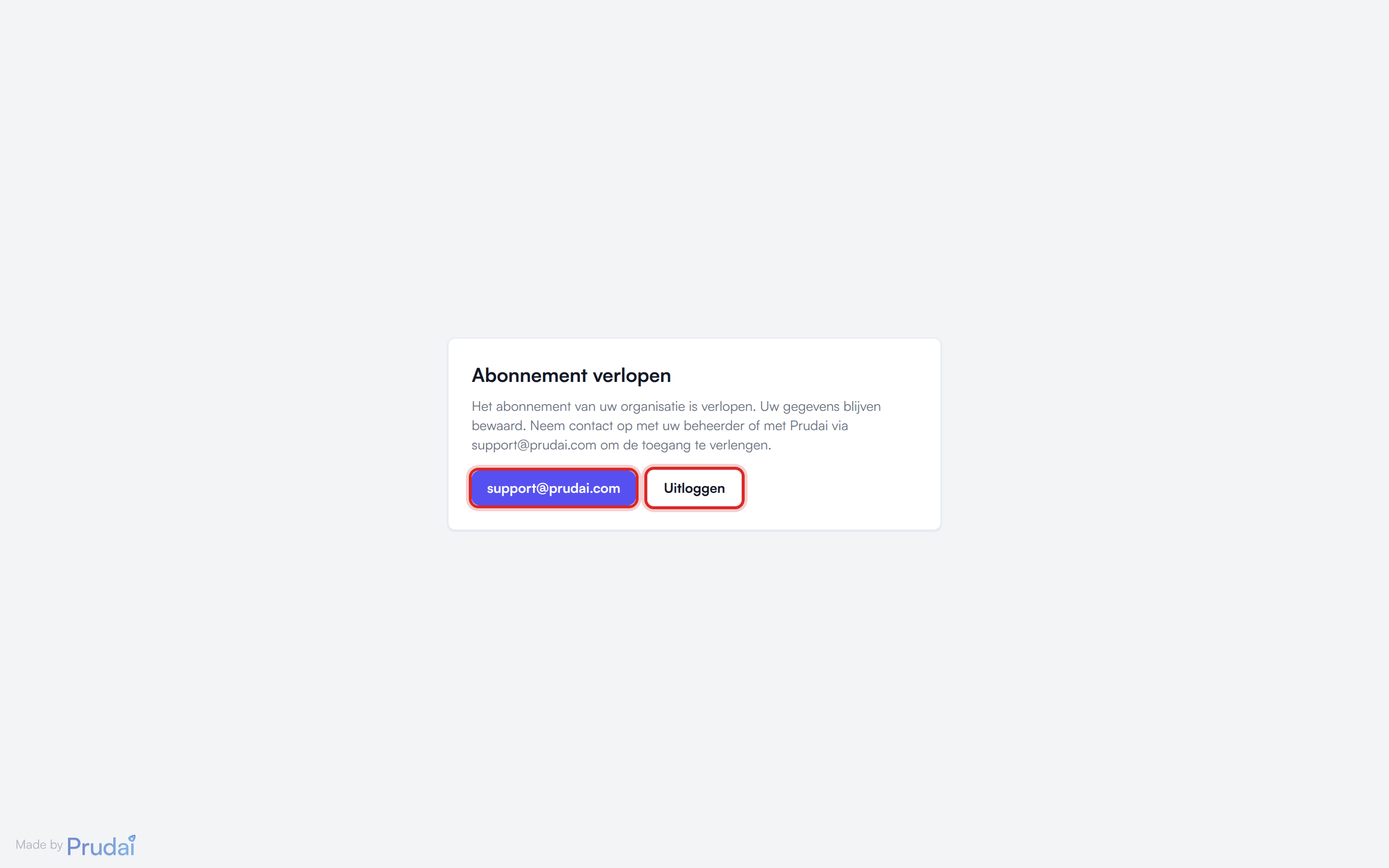
What you should know:
- The screen applies to your whole organization. It is not an outage and not a problem with your own account, so reloading or switching browsers will not help.
- If the subscription has expired or access is blocked, your data is kept.
- The explanation on the screen itself is in Dutch.
- Click support@prudai.com on the screen, or contact your administrator. Only Prudai can extend or restore access.
- Sign out signs you out, for example to continue with a different account.
- You see the same screen in the add-ins for Word, Excel, and Outlook.
- In the IRMA app (Dutch only) this screen is called Toegang tot IRMA is geblokkeerd (Access to IRMA is blocked). If your organization has not purchased IRMA, it says Geen toegang tot IRMA (No access to IRMA).
“Choose your persona” or “This page is only available in …”
Section titled ““Choose your persona” or “This page is only available in …””- Choose your persona appears when you have access to more than one persona. Pick the persona you want to work in; later you switch with Switch persona in the user menu or under Settings → Persona.
- This page is only available in … means the page does not belong to your current persona. Workflows and research, for example, exist only in LEO and LEO Fiscaal. The message always points to LEO. If your account has LEO, you see the button Switch to LEO. If not, the message says your account does not have access to LEO. If you work with LEO Fiscaal, switch to LEO Fiscaal yourself with Switch persona. See Workflows and research (sign-in required).
The answer stalls or does not start
Section titled “The answer stalls or does not start”In the chat you may see two messages:
- The response took too long to start. Please try again. The assistant did not get going.
- The response stalled. Please try again. No new text arrived for a few minutes and the chat stopped waiting. On Ultra the chat waits longer, because that setting may think for longer.
If you see Still working — this answer is taking a bit longer. while you wait, nothing is wrong: the answer is still coming. Long answers, including a document of thousands of words on Thorough or Ultra, stream in as they are written.
What you can do after either message:
- Send your question again.
- Pick a lower thinking depth, for example Standard instead of Thorough.
- Ask for a very long piece in parts, for example chapter by chapter.
- If it happens on every question, check status.prudai.com and report it to support, with the time.
Documents stuck in processing
Section titled “Documents stuck in processing”Check:
- Whether the upload succeeded (the document is in the list).
- Whether the status is still changing: from Pending through Processing to Processed.
What you can do:
- Wait a few minutes (large PDFs and ZIPs take longer).
- Upload again if the document ends up as Failed.
- Add metadata later; it does not affect whether the document can be processed.
SharePoint not working
Section titled “SharePoint not working”First check which message you see:
- SharePoint integration is not enabled for your organization. Prudai switches on the SharePoint integration on request. Your admin requests it through support or through your account manager; see step 1 of SSO (Microsoft) + SharePoint setup.
- SharePoint integration is not configured. The Microsoft connection is not set up on Prudai’s side. Contact Prudai support.
- Not connected, with the hint Make sure you are signed in with your organization account to use SharePoint. You are not signed in with your Microsoft account. There is no connect button: sign out and sign back in with the Microsoft button on the sign-in screen. If everyone in your organization suddenly sees Not connected, ask your IT administrators to take a look; see SSO (Microsoft) + SharePoint setup.
What you can do next:
- Go to your dossier or project and check whether SharePoint is linked.
- Click Sync now on the connection. The Check for changes button exists only on an organization knowledge base; a dossier or project checks by itself and has no such button.
More: SharePoint.
Word add-in: sign-in or suggestions not working
Section titled “Word add-in: sign-in or suggestions not working”Common:
- The add-in runs in a Word task pane, so sign-in happens in a separate, secure Office sign-in dialog.
- Not every Word version supports all suggestion and revision features.
What to try:
- Click Sign in in the add-in, complete sign-in in the dialog that opens, then return to Word.
- Reload the task pane (or close and reopen Word).
- Check that your Word version supports add-ins.
More: Prudai For Word.
Maintenance screen
Section titled “Maintenance screen”During planned maintenance the app may show a maintenance screen (Scheduled Maintenance) that asks for an access code. Sometimes it also shows when the app is expected to be available again (Expected back online).
- If you were given a code, enter it and click Unlock access.
- If you don’t have a code, wait until maintenance is over. You can follow the current status at status.prudai.com.
Faster help: what to include
Section titled “Faster help: what to include”With these details support can find your issue faster:
- the date and time of the problem;
- the persona you were working in (for example LEO, LEO Fiscaal, ZIA, VERA, BEVER, or IRMA);
- what you were doing (which screen, which button) and the exact error message;
- a screenshot, if useful.
Do not send confidential case-file content. A description and the time are enough; keep client names and data off any screenshot.