
Export (PDF, Word and Excel)
You can take assistant output into your matter file in a few ways.
Export from chat
Section titled “Export from chat”An analysis you want to send straight to your client or file in the dossier? Under every assistant answer there is a button row, and it holds one export button. Click it and you get a menu with:
- Download PDF: opens your browser’s print window. Choose Save as PDF there (sharing and archiving).
- Download Word (.docx): for further editing.
- Copy as text
- Copy as markdown
- Turn this into a document: puts the answer as a draft in the document panel next to the chat, so you keep writing on it together with the assistant. You see this item in the products with Drafts, not in ZIA and MAIA and not in the Word add-in.
So copying lives in the same menu, not as a separate button next to it. Citations travel along in the export. To have the answer read out loud, use the separate Play response button in the same row; see Chat.
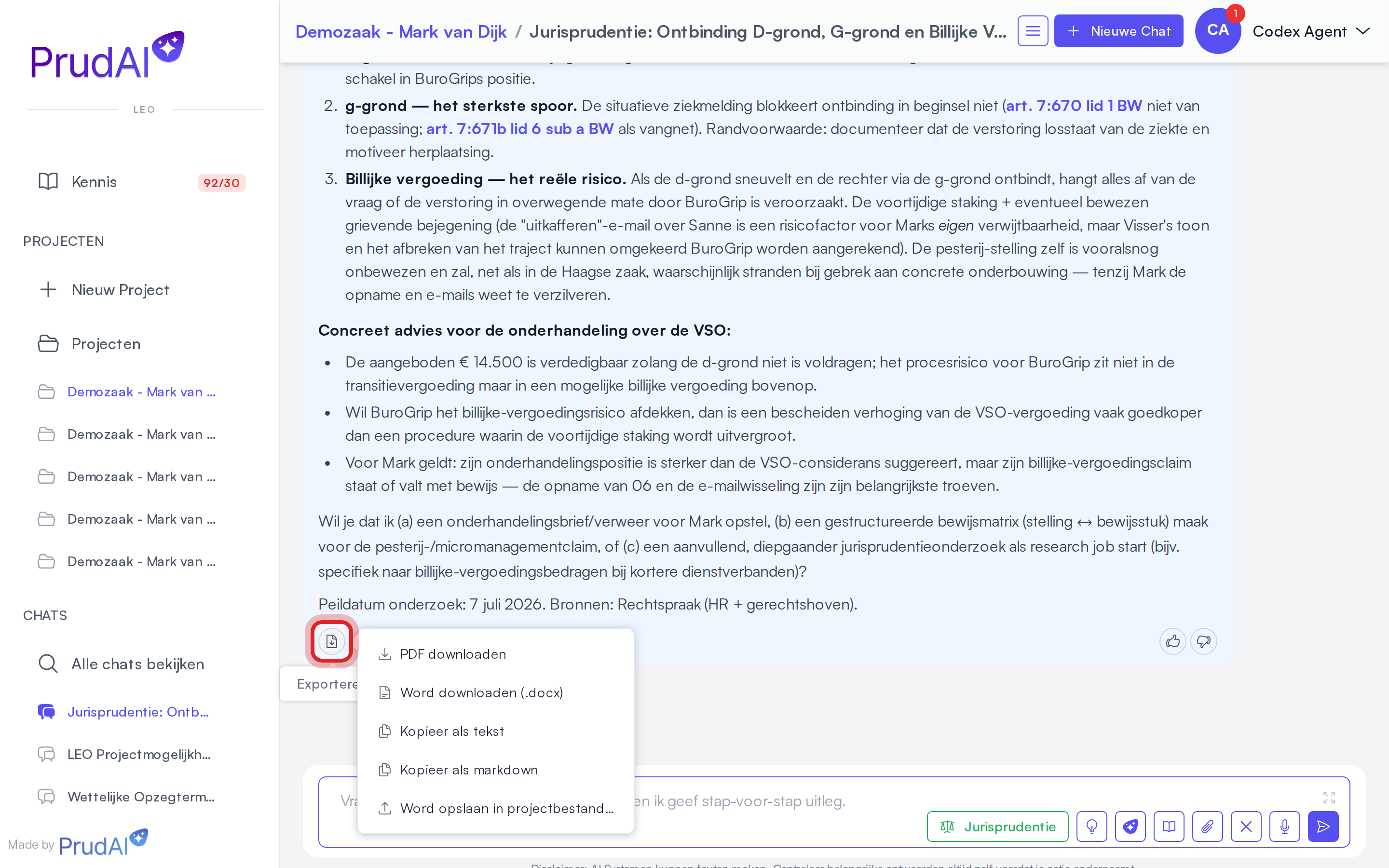
Inside a dossier one more item joins the menu:
- Save Word to project files (stores the document straight into the dossier’s documents)
That item only appears inside a dossier, and not when your organization has switched off file uploads: it writes a new document into the dossier’s knowledge base. After saving you go to the dossier. When you work in the Word, Excel or Outlook add-in, the actions for that program appear in this menu too; see From the add-ins.
Only the final answer goes along
Section titled “Only the final answer goes along”What the assistant writes along the way while it consults sources sits as interim steps in the sources bar above the answer, for example “3 steps · 5 sources used”. Those interim steps and the rows of the sources bar do not go along. The source references in the text of the answer do go along when you copy or export; in Word they become footnotes. Copying, PDF, Word, the add-in actions and read-aloud take only the final answer.
Tip: ask for a clean structure (headings, numbering, tables) for better exports.
Word export: layout and sources
Section titled “Word export: layout and sources”Word export uses your organization branding in the document template:
- your organization’s logo is placed in the top-right header;
- the title sits at the top, with the date and time of the export below it;
- the left footer shows Made by with the product name (for example Made by LEO), followed by the Prudai logo;
- the footer center shows the export date;
- the right footer shows the page number.
If your organization does not have a logo configured yet, update the organization branding first.
Source references become footnotes. In the chat, sources are clickable references; in the Word file they become ordinary footnotes:
- a verbatim quote stays in the text between quotation marks, with a footnote after it;
- the footnote gives the short reference (for example a statutory article or an ECLI number), the site and, where possible, the link;
- when a reference stands on its own line or in a table cell, the reference is written into the text there.
The export does not fetch anything from the source for this. So it also works when a source site is briefly unavailable. This applies to Download Word (.docx), Save Word to project files, Download .docx on a draft and Word deliverables of workflows.
Export filename
Section titled “Export filename”The filename is the conversation title with the date and time of the export. Characters that are not allowed in a filename are dropped; accents and other special characters are kept. If the browser cannot take over the name, the download gets a readable default name so it always saves correctly.
Tables and worksheets to Excel
Section titled “Tables and worksheets to Excel”A table from an answer
Section titled “A table from an answer”When an answer contains a table, that table gets its own export button: a download icon appears at its top right (Export to Excel (.xlsx)). What you get is not a bare table but a formatted worksheet:
- your organization’s logo (or its name, if there is no logo) and the title at the top;
- a styled header row, with an autofilter and a frozen header, so you can sort and filter right away;
- amounts and numbers in Dutch notation (for example ”€ 7.900,00”) become real numbers, so Excel can calculate with them;
- a footer with the confidentiality marking, the export moment and your name, plus the line stating that values are (partly) AI-generated and that you should verify the source passages.
Mind what the export does not carry: merged cells are read as single cells, which can shift columns. So check such a table afterwards.
The worksheet
Section titled “The worksheet”When the assistant puts figures in a worksheet, it opens as a panel next to the chat (see Charts, worksheet and maps). The Excel button at the top of that panel downloads the whole workbook (on a narrow screen you only see the download icon):
- every tab goes along, including what you changed yourself;
- formulas stay formulas;
- the confidentiality marking and the AI line sit in the print footer.
The chart of a worksheet does not go to Excel; you only see it in the panel via Show chart. A separate chart in the conversation stays in the chat.
Exporting drafts
Section titled “Exporting drafts”When you work on a draft in the document panel, you find Export at the top with:
- Download .docx: a Word file with the same organization branding and sources as footnotes;
- Print / PDF: through your browser’s print window;
- Save to dossier: stores a Word version among the documents of the dossier. This item only appears when the draft belongs to a dossier, and does not work when your organization has switched off file uploads.
Downloading and saving use the saved version of the draft; your latest changes are saved first. If that fails, you get the message Save first and you try again once the draft has been saved. More about the document panel: Drafts.
Export from workflows and research
Section titled “Export from workflows and research”You export the result of a workflow run with Export at Result: Download PDF, Download Word (.docx) and, when the run belongs to a dossier and your organization has not switched off file uploads, Save Word to project files. There too, source references become footnotes in Word. Workflows exist in LEO and LEO Fiscaal.
More: Workflows and research jobs (login required).
From the add-ins
Section titled “From the add-ins”When you work in an add-in, the actions for that program appear in the same export menu:
- Word: Insert into Word places the answer in your document, after your selection. In Word the assistant can also make proposals as tracked changes or comments. More: Prudai For Word.
- Excel: Place in Excel puts the largest table from the answer on a new, marked worksheet. You see a preview first; nothing is written until you confirm. More: Prudai for Excel.
- Outlook: while writing an email, Insert as draft reply places the answer in your draft. With an email open, choose Open as reply in Outlook or Open as reply to all; Outlook then opens a reply window that you check and send yourself. More: Prudai for Outlook.