
Quick start (Prudai Platform)
This is the shortest route to a good first experience in the Prudai web app.
0) Pick your persona on purpose
Section titled “0) Pick your persona on purpose”| If you mainly want to… | Pick |
|---|---|
| do broad legal research, run workflows, or work with partner-office flows | LEO |
| do tax advisory work, including tax workflows | LEO Fiscaal |
| work from healthcare guidelines, internal knowledge, and case files | ZIA |
| work on Omgevingswet, IPLO, and official publications | VERA |
| work on public decision-making and council information | BEVER |
| work on risk management, information security, and ISMS | IRMA |
You only see the personas your organization has access to. What sets each one apart is described in The personas. LEO and LEO Fiscaal are two separate personas. Which of the two you see depends on what your organization has. If you have both, you choose yourself, through Choose your persona or later through Switch persona. There is no separate question up front about whether you work on legal or tax matters.
If you use the IRMA app for your registers, also start at IRMA: getting started.
1) Sign in and confirm your persona
Section titled “1) Sign in and confirm your persona”- Open the web app at
https://app.prudai.com. - Sign in via SSO.
- If you have access to more than one persona, Choose your persona appears. To switch later, use the user menu (Switch persona) or Settings → Persona.
On the chat start screen (outside a dossier, before you open a conversation), the top bar shows the full name of your persona, for example “Lex Explanata Oraculo (LEO)” or “Lex Explanata Oraculo (LEO Fiscaal)”. That is the surest way to tell which persona you are in. Once you open a conversation, a dossier, or another page, the top bar shows its title instead. The sidebar shows a short name: “LEO Fiscaal” in LEO Fiscaal, and usually “LEO Legal” in LEO. If you earlier picked tax in LEO’s specialization questions, the sidebar in LEO also says “LEO Fiscaal”; check the top bar on the chat start screen in that case. If your organization has set its own name for the product, you see that instead.
More: Sign-in & persona selection and Settings.
2) Walk through the specialization stepper once
Section titled “2) Walk through the specialization stepper once”The first time you reach the chat, the specialization stepper appears. It tunes your persona to your work. It has three steps:
- Role. In LEO and LEO Fiscaal: “What kind of legal professional are you?”. In ZIA: “What kind of healthcare professional are you?”. In VERA: “What kind of construction professional are you?”. In BEVER: “What is your role in public decision-making?”. In IRMA: “What is your role?”. You pick exactly one.
- LEO Fiscaal has its own roles: Tax adviser, Accountant, Tax manager (in-house), Payroll adviser, and Entrepreneur / owner-director.
- Practice areas or fields. In LEO and LEO Fiscaal this step reads “Which legal practice areas do you cover?”. In ZIA: “Which fields do you work in?”. In VERA: “Which construction areas do you work in?”. In BEVER: “Which policy areas do you work in?”. In IRMA: “Which sector and ISMS phase do you work in?”.
- LEO Fiscaal shows its own tax structure here, with branches such as Tax returns & compliance, Tax procedure & disputes, and VAT & indirect taxes.
- Some personas add an extra choice in this step:
- LEO: industries, but only if you picked In-house counsel in step 1;
- ZIA: a profile choice, but only for doctors and allied health professionals (art. 34);
- BEVER: layer of government, always;
- IRMA: ISMS phase, always;
- LEO Fiscaal and VERA: no extra choice.
- Summary. “Ready to start?” shows what you picked and how many sources and documents that yields. Nothing to fill in here; you confirm with Done — begin.
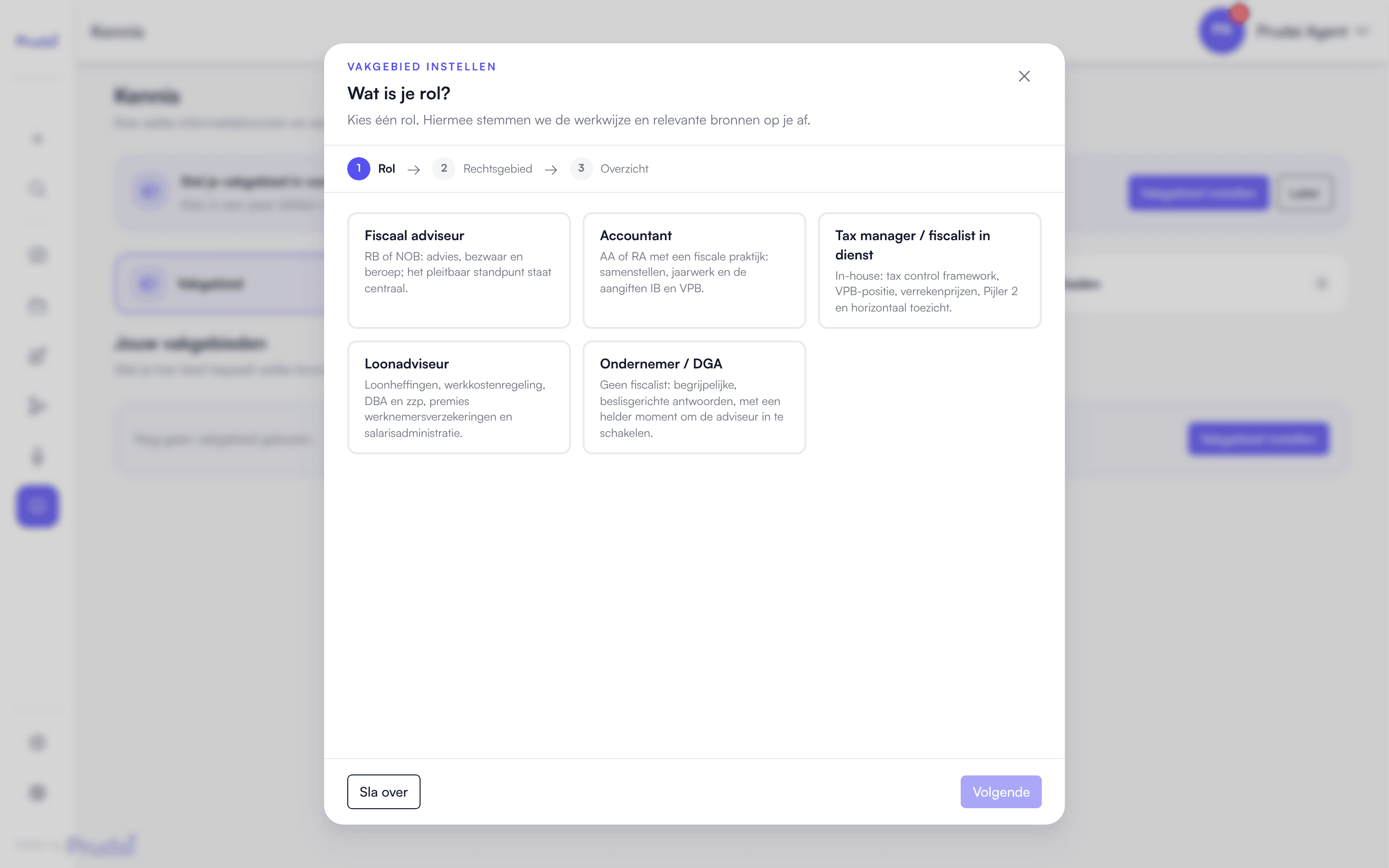
If you skip the stepper, the chat asks again in a later session for as long as you have not picked a role and specialization. Your profile shapes answers, suggested sources, and research suggestions.
You adjust it later on the Knowledge page, on the Specialization tab, not in Settings. If you picked a role in LEO Fiscaal earlier that is not in the list above, choose your role again there. See Knowledge (sign-in required).
3) Create a dossier or project
Section titled “3) Create a dossier or project”- In the sidebar, click Dossiers (LEO and LEO Fiscaal) or Projects (ZIA, VERA, BEVER, and IRMA).
- Click New dossier. The button has this name in every persona.
- Enter a clear name such as
Client - Matter - Year, and confirm with New Dossier (in ZIA, VERA, BEVER, and IRMA: New Project). - Open it immediately.
Why this is the default route:
- the documents in the dossier become the main chat context;
- tasks, timeline, and collaboration all attach to the dossier;
- sharing with colleagues happens at dossier level.
More: Projects.
4) Upload the core files first
Section titled “4) Upload the core files first”The same upload rules apply to:
- Files (personal),
- documents in a dossier or project,
- chat attachments.
Supported examples:
- documents such as
.pdf,.docx,.xlsx - presentations such as
.pptxand.ppt - audio such as
.mp3,.m4a,.wav - images, email files, CAD, and
.zip
Important:
- wait until files show Processed;
- chat will block sending while new attachments are still processing;
- ZIP files are unpacked first; the supported content is processed after that.
More: Files.
5) Enable only the right knowledge
Section titled “5) Enable only the right knowledge”Go to Knowledge. The page has three tabs:
- Sources: the sources the assistant consults. Your organization’s knowledge bases are listed here too. Turn on only what fits the task.
- Tools: extra capabilities of the assistant itself, such as memory, the task board, and the calculator.
- Specialization: your profile from the stepper.
Rule of thumb:
- LEO: the broadest legal source set, plus workflows and research jobs.
- LEO Fiscaal: core tax sources that LEO does not have, such as the Dutch Tax Authority Knowledge Groups, tax knowledge bases, and DG TAXUD, plus legal sources where they touch on tax. Workflows and research jobs work here too, with their own tax templates; see Workflows and research jobs (sign-in required).
- VERA: Omgevingswet, IPLO, official publications, RvA, and BIM (IFC/DWG).
- ZIA: internal documents, guidelines, tasks, calculator, and Word review. A Nedap ONS connection is available on request.
- BEVER: council information, decentralised regulation, audit offices, the national budget.
- IRMA: standards frameworks, regulators, and sector sources.
More: Knowledge (sign-in required).
What your organization can switch off
Section titled “What your organization can switch off”Not every feature described in this documentation is necessarily visible to you. On top of the subscription, Prudai can deliberately switch features off per persona at your organization’s request. That is a setting, not a fault. If you cannot find something that is described here, this is usually the explanation.
Three switches are directly noticeable as a user.
Restrict uploads
Section titled “Restrict uploads”When this is on, you can no longer add new documents in that persona. Specifically blocked:
- adding files (single and as ZIP), also as chat attachments and in your personal knowledge base;
- uploading documents in a dossier or project;
- saving an Outlook conversation as a document;
- saving an answer as a Word document (DOCX) in a dossier;
- keeping a draft with Save to dossier, or opening a Word file with Edit in document view;
- attaching a new SharePoint source to a dossier or project, also when you ask LEO or LEO Fiscaal in the chat to fetch documents from SharePoint.
One exception: the owner of your organization may still add documents to an organization knowledge base and attach a SharePoint source to it. That also works straight away when creating the knowledge base, with Import from SharePoint and Create and import. For dossiers, the personal knowledge base, chat, Outlook saving, exports, and drafts, the restriction applies to the owner too.
What stays:
- every document that is already there, including editing its metadata;
- running SharePoint syncs for links that were already set up.
The upload buttons disappear from the interface, and the server refuses the action even if a stale tab still tries.
Restrict sharing
Section titled “Restrict sharing”When this is on, Share disappears from the interface and the server rejects new share actions. Existing shares simply stay: nothing is revoked. Only new shared access becomes impossible.
Fix the thinking depth
Section titled “Fix the thinking depth”When this is on, the thinking-depth choice (Quick, Standard, Thorough, Ultra) disappears from the chat entirely. Not greyed out, but gone: a control that offers a single value is not a choice. Every message then runs on that persona’s fixed default.
How this differs per persona
Section titled “How this differs per persona”These three switches are set per persona. Your organization can block uploads in ZIA while allowing them in LEO, or the other way round. They are available for LEO, LEO Fiscaal, ZIA, VERA, and BEVER, and also for MAIA (on request); not for IRMA.
As an owner, you can see what is switched on for your organization in the Account Dashboard under Capabilities. Changes go through Prudai support.
Rule of thumb: if you hit a restriction you did not expect, it is a deliberate setting by your organization and not a malfunction. Ask your organization’s owner what is enabled for your persona.
6) Work in chat with explicit context
Section titled “6) Work in chat with explicit context”Prefer:
@to mention documents,#to mention tasks in a dossier chat,- clear instructions about goal, audience, and format.
Examples:
- “Summarize this matter in 10 bullets with risks and next steps.”
- “Find the relevant regulations and cite the articles.”
- “Use only @contract.docx and @briefing.pdf.”
More: Chat.
7) Finish the output
Section titled “7) Finish the output”Common end steps:
- export an answer to Word or PDF;
- write a piece together with the assistant in a document beside the chat (not in ZIA); see Drafts;
- show figures as a chart or in a worksheet with Excel export; see Charts, worksheet and maps;
- translate an existing document through Translate;
- save a Word export into your dossier’s files;
- work through your notifications in Notifications if you use partner or collaboration flows.
More: Export, Translate, and Notifications.