Drafts: writing together in a document
A draft is a document you write together with your assistant, in a panel beside the conversation. The assistant writes or proposes changes, you keep typing yourself, and you decide which proposals stay. That way you finish a letter, memo, advice, agreement or policy document without copying text back and forth between the chat and Word.
In the sidebar this part is called Drafts. The document itself opens in a panel beside the chat. If you closed the panel, you bring it back with the Drafter handle.
Dossier or project? LEO and LEO Fiscaal say dossier; VERA, BEVER and IRMA say project. This page uses “dossier”. The menu item Save to dossier has that name in every persona. Where a button or notification carries the name of your persona (Ask LEO about this, LEO is writing…, Changes from LEO), this page uses LEO as the example; in VERA it says VERA, and so on.
Which personas have drafts
Section titled “Which personas have drafts”| Persona | Drafts |
|---|---|
| LEO and LEO Fiscaal | yes |
| VERA | yes |
| BEVER | yes |
| IRMA | yes, as a writing desk (see Drafts in IRMA) |
| ZIA and MAIA | no |
There is nothing to switch on: if your persona has drafts, you see Drafts in the sidebar. Prudai For Word, the Word add-in, has no document panel. There you work directly in your own Word document.
Starting a draft
Section titled “Starting a draft”This is how you start a draft. Every route ends in the same place: the chat with the document beside it.
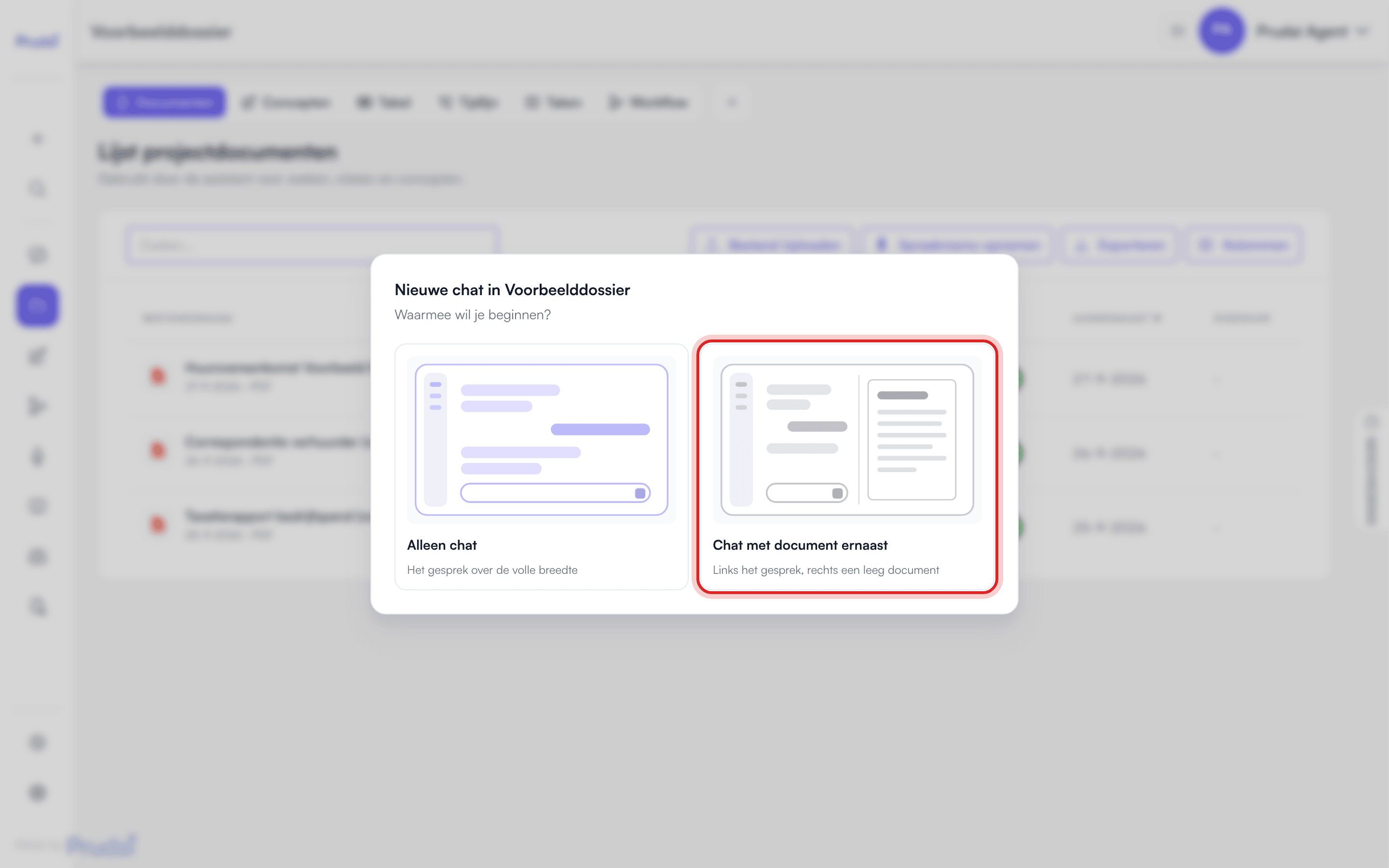
- With the plus button in a dossier. Next to a dossier’s view pill there is a + (New chat in this dossier). You then choose between Chat only and Chat with a document beside it (“The conversation on the left, a blank document on the right”). Pick the second. The chat opens in the dossier, with a blank document beside it.
- With + New draft. This dashed row sits at the top of every drafts list. If you are inside a dossier, the draft goes straight into that dossier. If you are outside one, the app first asks Which dossier does this draft belong to?. Pick a dossier, or Without a dossier (personal draft).
- From an answer. Open the export menu under an answer from the assistant and choose Turn this into a document. The answer becomes a new draft beside the chat, in the conversation’s dossier (or as a personal draft if the conversation has no dossier). If the answer has a heading, the first heading becomes the title. More about that menu: Export.
- From a Word file. Add exactly one .docx in the chat, by dragging it into the chat, through Attachments → Add files, or with the paperclip on a phone, and the app asks Add a Word document:
- Add as an attachment: the assistant reads the file alongside the conversation. This is the regular attachment (see Files).
- Edit in document view: the file opens as a draft beside the chat, “formatting preserved”. Headings, bold and italic, lists, tables and block quotes stay. Images are dropped. Footnotes do not stay footnotes: the footnote text lands as plain text at the end of the document, with a loose marker such as
[^1]in the running text. This does not also add the file to the dossier’s documents; you do that later with Save to dossier.
- By asking for it. Ask the assistant for a document (“draft a letter to the landlord about…”) and it writes it in the document panel, not as a wall of text in the chat. If your question calls for a stand-alone document but you did not ask for one, it first asks with a question card: Ja, maak een document (yes, make a document) or Nee, antwoord in de chat (no, answer in the chat).
- From a voice memo. After a voice memo in a dossier, the assistant suggests follow-up steps. If you choose Draft a document or Use in a report, a new document opens beside the dossier chat, with the question already in your input field. You send it yourself. See Follow-up steps after a voice memo.
The document panel
Section titled “The document panel”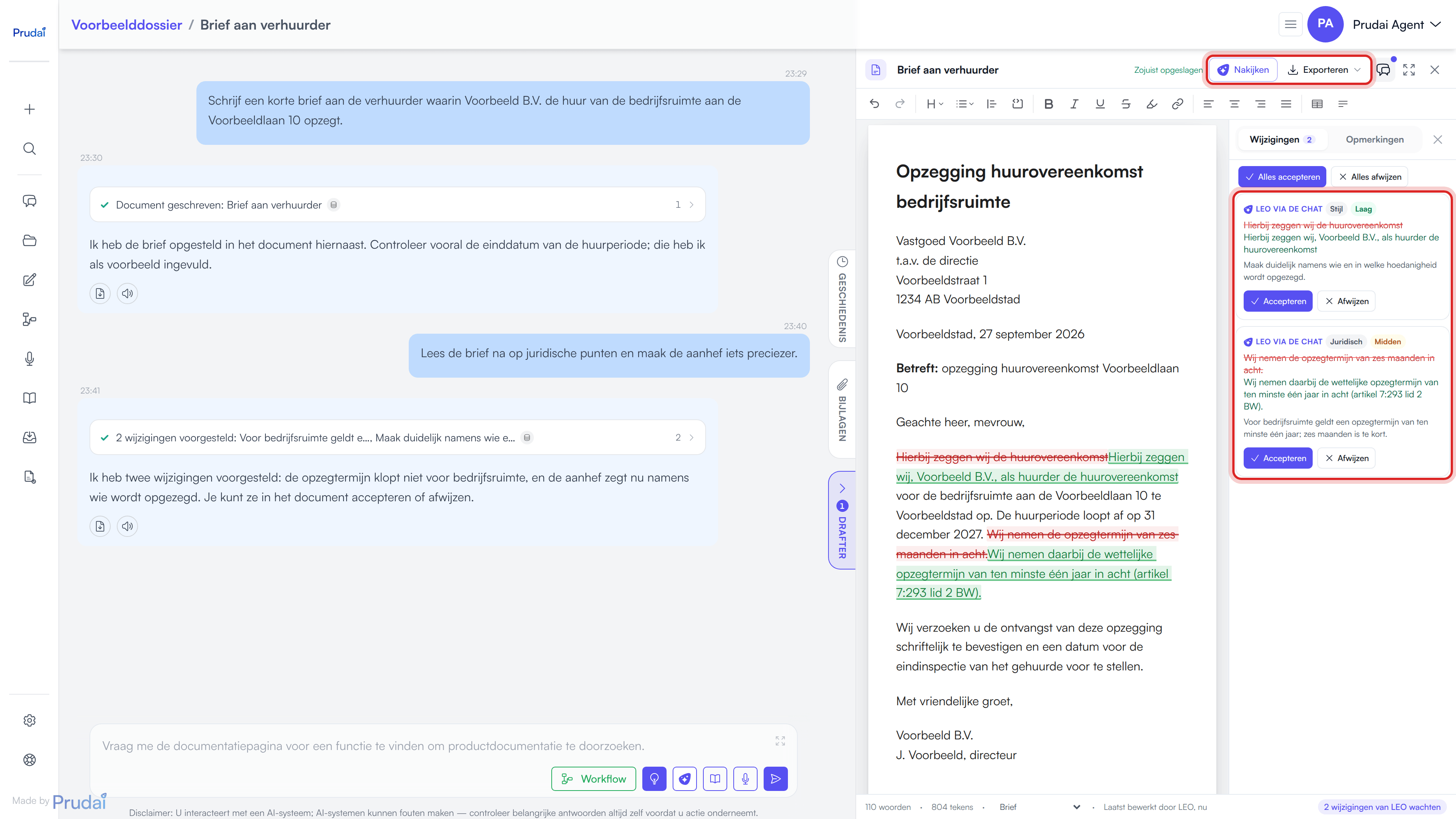
At the top of the panel you find:
- the title, which you change by clicking it;
- Switch document, as soon as this conversation has more than one document;
- Review and Export (see below);
- the button for the side panel with changes and comments, with the tabs Changes and Comments;
- Focus: collapse the chat, to give the document the full width (back with Leave focus; large screens only);
- the cross that closes the document. On a phone the document fills the screen and the arrow takes you back to the chat.
Below that is a toolbar with the usual formatting: heading level, lists, quote, bold, italic, underline, strikethrough, highlight, link, alignment, Insert table and Clear formatting, plus Undo and Redo. You can drag the edge between the chat and the panel.
At the bottom is a status line with the number of words and characters, a drop-down for the document type and Last edited by with a name and time. The drop-down shows No type until you pick one: Letter, Memo, Advice, Agreement, Court filing, Email or Other. When proposals from the assistant are waiting, you see for example 3 changes from LEO pending. Click it and the side panel opens on Changes.
Closed the panel and want it back? On the right edge of the chat there is the Drafter handle, with the number of documents in this conversation. On a narrow screen you find Drafter as a menu item.
Source references. When the assistant refers to a source in the document, it appears as a compact source pill in the text. One backspace removes the whole reference. With Download .docx every reference becomes a footnote.
Writing together with the assistant
Section titled “Writing together with the assistant”While the document is open, the assistant reads the last saved version with every question, including the open comments. Automatic saving follows your typing within seconds, so you never need to paste anything. If you see Saving failed, the assistant reads an older version; save first (see Automatic saving).
- A new document. While the assistant writes, you see LEO is writing…. If a fact is missing, such as a name, amount or date, it puts a visible placeholder in the text (for example
[amount]) and says so in the chat. Assumptions and what you still need to check go in the chat, not in the document. - Changing it via the chat. Ask, for example, “make the second paragraph more formal”. The assistant proposes that as a tracked change: the old text struck through, the new text beside it. You get the notification Changes from LEO. Nothing changes for good until you accept it.
- Starting over. If you have the whole document rewritten, the assistant replaces the text in one go. That is not a proposal you accept. Open proposals are dropped, and so are your own edits in the panel. The assistant says beforehand what will be lost. If you only want to add something, ask for an addition instead.
- Honest confirmation. The assistant only says a change is in your document once the panel has confirmed it. If it did not work, it says so.
Reviewing proposals
Section titled “Reviewing proposals”You judge each proposal in the text itself, or in the side panel under Changes:
- Accept or Reject per proposal;
- Accept all or Reject all in one go.
A card under Changes shows where the proposal came from (LEO via the chat, Review or Rewritten: Shorter), with the old and new text and a short explanation. Click the card to jump to that spot in the document.
If the passage the assistant wanted to replace is not (or no longer) in the document like that, you see Passage not found. Choose Insert at cursor to place the new text where your cursor is anyway, or Dismiss.
Working with a selection
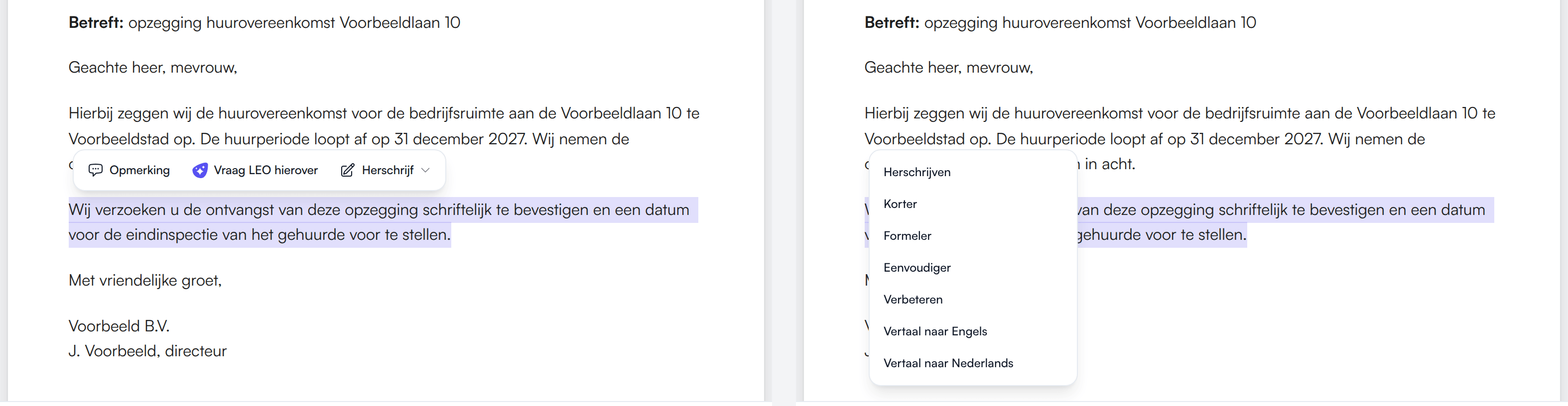
Section titled “Working with a selection”Select some text and a small menu appears:
- Comment: type your comment on this passage and choose Post.
- Ask LEO about this: the passage lands in your input field as a quote, after “About this passage from the document:”. You type your question after it and send it yourself.
- Rewrite: choose Rewrite, Shorter, More formal, Simpler, Improve, Translate to English or Translate to Dutch. The new version appears as a proposal you accept or reject.
Review
Section titled “Review”With Review the assistant reads the whole document. Its proposals appear as changes you accept or reject, each with a kind (Language, Legal, Structure, Consistency or Style) and a weight (Low, Medium or High). You get a notification such as Review done: 5 proposals are in the document as changes., or LEO has no proposals: the document looks good. While it works, the top of the document shows LEO is reviewing the document… with Cancel to stop.
Comments
Section titled “Comments”Your own comments you place through a selection (see above). In the side panel under Comments you can:
- Reply to a comment;
- Resolve a comment, and Reopen it later;
- delete a comment;
- show resolved comments with Show resolved.
Comments from the assistant. If you ask for feedback without saying it may change the text (“what do you think?”, “add your comments”), the assistant places comments at the right passages instead of changing the text. You see the notification Comments from LEO, and the author is the name of your persona. A comment from the assistant starts with Fout (error), Aandachtspunt (point of attention) or Suggestie (suggestion).
Let LEO handle this. This button sits under every open comment, yours or the assistant’s. It immediately sends a message in the chat with the comment and the passage. The assistant then proposes a change and resolves the comment as soon as the proposal is in the document, so even before you accept it.
If the text a comment belongs to is no longer in the document, the comment shows Passage is no longer in the document.
Working together in one draft
Section titled “Working together in one draft”- Who sees what. Everyone with access to a dossier sees and edits the drafts in that dossier. A personal draft is visible only to you.
- Who else is here. If a colleague has the same document open, the top shows Also here: with their name.
- One person typing at a time. If a colleague is editing the document, you see [name] is editing this document and the document is Read-only for you. Need to continue anyway? Choose Edit anyway and confirm Take over editing?. Your colleague can then no longer save and sees the document read-only, with Reload and Edit anyway. Nothing is lost: what they typed stays on their screen.
- Who touched it last. Last edited by is in the document’s status line, and the lists show “by” with a name.
- Renaming and deleting you do through the ⋯ menu of a row in a drafts list (Open, Rename, Delete). Everyone with access to the dossier may delete a draft. Deleting is permanent; a Word version already saved to the dossier stays. Renaming does not work while a colleague is editing the document.
If you see Collaboration status unknown, the server could not check who else has the document open. Saving works as usual; just keep an eye on colleagues yourself.
Saving and exporting
Section titled “Saving and exporting”Automatic saving
Section titled “Automatic saving”You never need to press save. The top of the panel shows the state: Unsaved changes, Saving… and then Saved just now. When you open the document again later, it shows for example Saved at 14:32.
- Saving failed: your work is still on screen. Choose Try again. If the document cannot be saved at all, for example because it is too large, automatic saving stops with a single message, so you do not see the same error over and over. Your next edit or Try again tries again. If it keeps failing, contact support.
- Changed by someone else: someone else saved a newer version in the meantime. Choose Reload to see it. Your own changes since the last save are then lost.
- Save first: Review, rewriting, downloading and Save to dossier work on the saved version. If saving fails, they refuse with this message. That way the assistant never judges an older version, and your download never differs from what you see.
Export
Section titled “Export”Export holds three outputs:
- Download .docx: a Word file with your organisation’s logo and the Made by footer with the product name, just like the Word export from the chat (see Export). Source references become footnotes.
- Print / PDF: opens your browser’s print dialog. Choose “Save as PDF” there if you want a PDF. Proposals that are still open print as if they were accepted, so review them first.
- Save to dossier: puts a Word version among the dossier’s documents. You get Saved to the dossier as with the file name, and in the drafts list the draft gets the label Saved to dossier. If the dossier already has a file with that name, the new one gets a sequence number; the earlier one stays.
You only see Save to dossier for a draft that belongs to a dossier. A personal draft you download. If your organisation has turned off file uploads, Save to dossier is greyed out and you cannot open a Word file in document view either. Downloading and printing still work.
Where to find your drafts
Section titled “Where to find your drafts”| Place | What you see |
|---|---|
| Drafts in the sidebar | The Drafts tab of My work: all your drafts from every dossier, grouped by period (Today, Yesterday, Last 7 days, Last month, Older), most recently updated first. Columns Title, Dossier (or Personal), Words and When, with a search field. |
| The Drafts segment in a dossier | In the dossier’s view pill, next to Documents: the drafts of this dossier. See Drafts inside a dossier. |
| The Drafter handle in a chat | The documents of this conversation. |
| The history drawer | A Drafts tab here too. |
When you open a draft, it opens in the conversation it belongs to, with the document beside it. If it has no conversation yet, a new one starts in the draft’s dossier.
Drafts in IRMA
Section titled “Drafts in IRMA”In IRMA you write policies, procedures, registers and templates in the same document panel, with the same buttons: proposals, comments, Review and export.
The panel is the writing desk, not the archive. A draft does not end up in the Documenten (Documents) module of the IRMA app by itself. Recording it there is a separate step in IRMA itself; see IRMA. A change in the panel also does not alter a document that is already in Documenten.
When something goes wrong
Section titled “When something goes wrong”| Message | What is going on and what to do |
|---|---|
| LEO cannot edit this document here | The conversation or dossier belongs to another persona. The document stays open, but the assistant does not write in it from this conversation. Open the draft from the persona it belongs to. |
| Document belongs to another dossier | The document was detached from this conversation. Open it from its own dossier. |
| This document is too large to open in document view. | Add the Word file as an attachment. |
| Converting it took too long. | Try again, or add the file as an attachment. |
| The document is still empty. | Exporting and saving to the dossier only work once there is text in it. |
| LEO is busy right now; please try again shortly. | Wait a moment and try Review or Rewrite again. |
See also
Section titled “See also”- Chat: the conversation beside your document
- Projects: dossiers and the view pill
- Export: exporting single answers
- Citations & source availability: checking source pills (login required)
- The personas