IRMA: controls and audit
This page is for everyone who brings and keeps the ISMS in order in the IRMA app: CISOs, compliance officers, quality managers, auditors and owners of controls or processes. It explains how to test controls, how to maintain standards frameworks and the Statement of Applicability, how to collect evidence and how audits work.
New to IRMA? Start at IRMA: getting started: it explains how to open the app at app.prudai.com/irma, how the menu works and how registers work in general. Risks, the heatmap and Monte Carlo are on IRMA: risk management. Roles, modules and settings are on IRMA: administration.
The IRMA app is in Dutch. This page quotes the Dutch labels with an English gloss. Which parts you see depends on the modules enabled for your organization, on your role and on the ISMS phase (Opzetten, set up, or Onderhoud, maintenance). If you don’t see a button, or IRMA says you have no rights for it, ask your administrator.
Where to find it
Section titled “Where to find it”| Menu | Menu items | On this page |
|---|---|---|
| Risicomanagement (Risk management) | Beheersmaatregelen (Controls) | Controls |
| Normenkaders (Standards frameworks) | Normenkaders | Standards frameworks, Statement of Applicability |
| Processen (Processes) | Processen | Processes and the process editor |
| Documenten (Documents) | Alle documenten, Bewijs, Documentinventaris, Jaarplanning, Classificaties, Publicatieoverzicht, Documentbeheer | Documents and evidence |
| ISMS | Beleid (Policy) and the ISMS items | Policy documents |
| Audit | Audits | Audits and CAPA |
| Registers | Afwijkingen (Nonconformities), Verbeteringen (Improvements) | Nonconformities and improvements |
| Interne controle (Internal control) | Controlejaren (Control years), Controleplannen (Control plans), Deelwaarnemingen (Sample observations), VIC-bevindingen (Internal control findings) | Internal control |
| Doelen (Objectives) | Doelstellingen & meetprogramma (Objectives & measurement programme), Context | Objectives and context |
Controls
Section titled “Controls”Open Risicomanagement → Beheersmaatregelen (Controls). At the top you see where you stand at a glance:
- Maatregelen (Controls), Geïmplementeerd (Implemented) and Gem. ingeschatte effectiviteit (Average estimated effectiveness).
- Volwassenheid maatregelen (Control maturity): a circle showing the distribution over implementation status. Click a part of the circle or a status to see only those controls in the register.
- Waar sta ik — toetsing van maatregelen (Where do I stand — control testing): how many controls have been tested per stage and pass.
Below that is the Maatregelenregister (Control register), grouped by Herkomst (Origin): first the controls from standards frameworks such as ISO 27001 or BIO, last the controls you devised yourself. For each control you see, among other things, Status, Ingeschatte effectiviteit (Estimated effectiveness), Bewijs (Evidence), Toetsing (Testing) and Eigenaar (Owner).
Filtering
Section titled “Filtering”- Status: Geïmplementeerd (implemented), Gedeeltelijk (partial), Gepland (planned), Niet geïmplementeerd (not implemented) or Niet van toepassing (not applicable).
- Bewijs (Evidence): for example only controls with expired evidence or without evidence.
- Toetsing (Testing): choose per stage, for example Werking: voldoet (Operation: passes) or Werking: nog te doen (Operation: still to do).
Opening and editing a control
Section titled “Opening and editing a control”Click a control and choose Openen (Open). The Maatregeldetails (Control details) window shows:
- Deze maatregel voldoet aan (This control satisfies): the requirements the control covers, each marked Volledig afgedekt (Fully covered) or Deels afgedekt (Partly covered). This block only appears when the control is linked to requirements.
- Risico’s, bewijs & normeisen (Risks, evidence & requirements): the linked risks, the linked evidence and the standard’s text for the covered requirements.
- Implementatie (documenten) (Implementation, documents): the policy documents that put the control into practice. Search for a document and click Koppelen (Link).
- Toetsing (opzet · bestaan · werking) (Testing: design · existence · operation): see below.
Bewerken (Edit) lets you change the Titel (Title), Status, Ingeschatte effectiviteit (Estimated effectiveness) and Eigenaar-afdeling (Owner department). Verwijderen (Delete) removes the control.
Estimated effectiveness and testing: two different things
Section titled “Estimated effectiveness and testing: two different things”- Ingeschatte effectiviteit (Estimated effectiveness) is your own estimate, from 0 to 100%, of how well the control limits the risk. If you leave it empty, it says Niet beoordeeld (Not assessed). IRMA uses the percentage for the proposed mitigation effect on linked risks and in the management review.
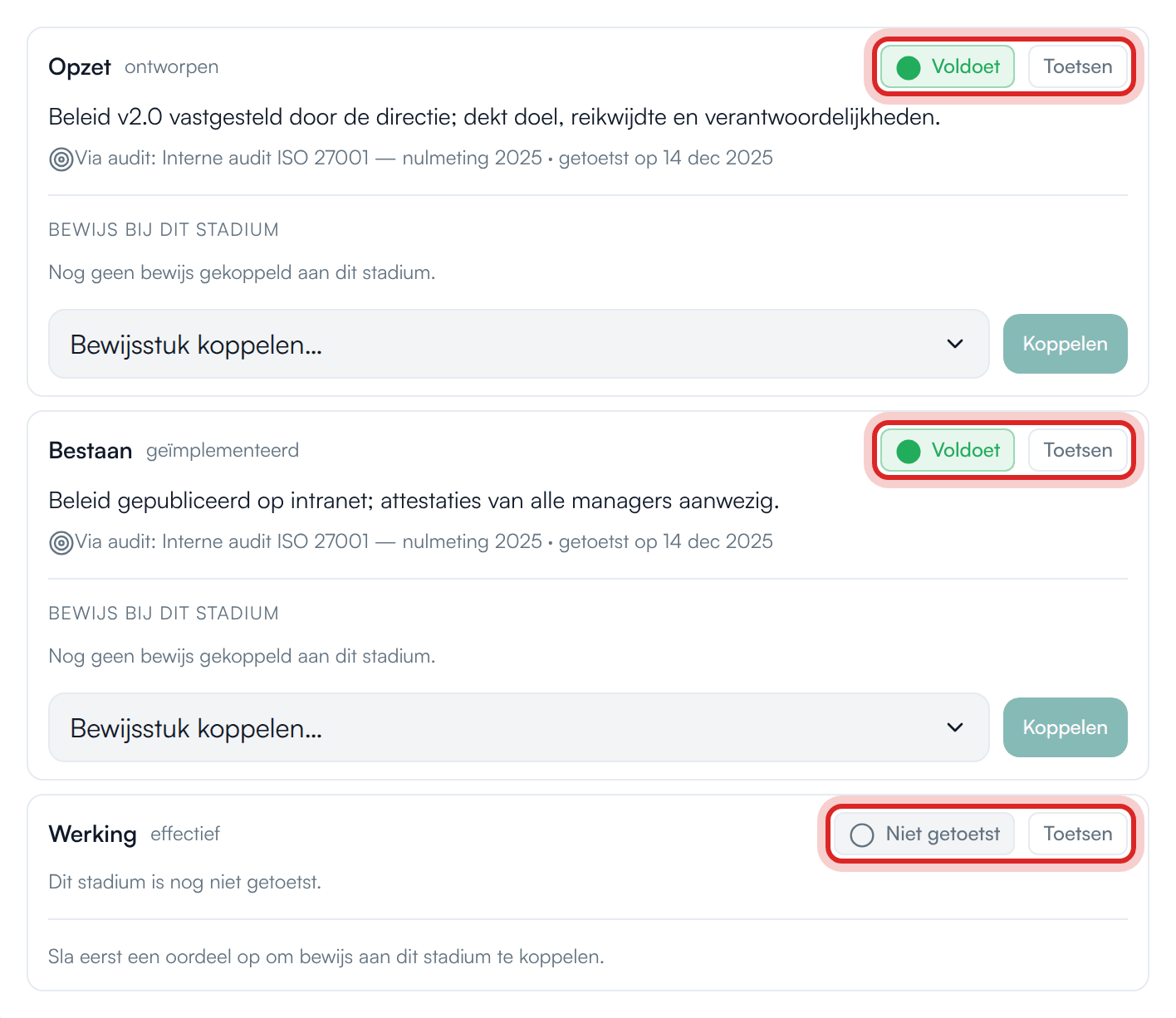
- Toetsing (Testing) records what has been shown with evidence, in three stages: Opzet (Design: well designed), Bestaan (Existence: actually implemented) and Werking (Operation: demonstrably effective).
Keep them apart. A high estimate without tested operation is a promise, not evidence. In the internal audit, a control with current evidence but an estimate below 50% counts as partial for operation.
Testing: design, existence, operation
Section titled “Testing: design, existence, operation”- Open the control and go to Toetsing (opzet · bestaan · werking).
- Click Toetsen (Test) next to a stage.
- Choose the Oordeel (Verdict): Niet getoetst (Not tested), Voldoet (Passes), Voldoet deels (Partly passes) or Voldoet niet (Fails).
- Write a Toelichting (Explanation) and optionally choose an Audit-referentie (Audit reference).
- Save. Then link the evidence under Bewijs bij dit stadium (Evidence for this stage) with Bewijsstuk koppelen… (Link evidence item).
New controls
Section titled “New controls”You put a list of controls into the register with Importeren (Import), from an Excel or CSV file. The steps are the same as for importing risks; only the Titel (Title) is required.
Standards frameworks
Section titled “Standards frameworks”Open Normenkaders (Standards frameworks). You see:
- Actieve normenkaders (Active standards frameworks): per framework how many requirements are covered, partly covered or open, with a readiness percentage.
- Conformiteit vergeleken (Conformity compared): all frameworks on one scale from 0 to 100%.
- AI-voorgestelde crosswalk-koppelingen (AI-suggested crosswalk links): suggestions to link a control to a requirement. Approve or reject them.
- Eén maatregel, meerdere normenkaders tegelijk afgedekt (One control, several frameworks covered at once): which controls count in several frameworks.
- Rode lijn — één onderwerp, meerdere normen (Red line — one topic, several standards): topics you implement once for several standards.
Opening a standards framework
Section titled “Opening a standards framework”Click a standards framework. The window shows:
- Certificeringsgereedheid (Certification readiness): the percentage of covered requirements, with partly covered counting for half. This is Prudai’s estimate, not a guarantee that you comply or will be certified.
- Certificeringsstatus (Certification status): choose Alleen volgen (Track only), Nastreven (Pursuing) or Reeds behaald (Already achieved). If you already hold a standard, IRMA counts overlapping requirements in other frameworks as Overgenomen (Carried over).
- Eisen (Requirements): each requirement with its Bijdragende maatregelen (Contributing controls).
- Normtitels: Nederlands | English (Requirement titles): shows the requirement titles in English, for example the ISO 27001 Annex A titles. A requirement without an English title stays in Dutch. The rest of the screen stays in Dutch. Your browser remembers the choice.
- Verklaring van toepasselijkheid (Statement of Applicability): opens the SoA, filtered on this framework.
Statement of Applicability (SoA)
Section titled “Statement of Applicability (SoA)”The Statement of Applicability records which controls apply, whether they have been implemented and why a control is excluded. In the app it is called Verklaring van Toepasselijkheid. You open it via Normenkaders → Verklaring van toepasselijkheid, or from the window of a single framework.
- Choose the Norm (Standard) at the top.
- Look at the cards Maatregelen (Controls), Van toepassing (Applicable), Uitgesloten (Excluded) and Niet onderbouwd (Not substantiated).
- Open a control in the table. Under Onderbouwing (verhaal) (Justification, narrative), write why it applies or why it is excluded.
- Under Gekoppelde risico’s (onderbouwing) (Linked risks, justification), link the risks that make the control necessary. Such a link counts as justification.
The rule is: every applicable control cites at least one risk or a legal or contractual obligation. Every exclusion has a justification. As long as that is not the case, the control is listed under Niet onderbouwd (Not substantiated).
Processes and the process editor
Section titled “Processes and the process editor”Under Processen (Processes) you record your organization’s main processes: primary (value creation) and secondary (supporting).
- Click Proces toevoegen (Add process) and fill in Naam (Name), Type, Status, Eigenaar (Owner) and optionally an Omschrijving (Description).
- Open the process. In Procesdetails (Process details) you link goals, information systems, risks and other items, such as a supplier or contract.
- Click Flow-editor openen (Open flow editor) to draw the process.
IRMA’s process editor is something different from the workflows in LEO. Here you draw a business process; nothing is executed automatically.
Drawing in the flow editor
Section titled “Drawing in the flow editor”- Stap toevoegen (Add step) places a step. Choose its Type: Start, Stap (Step), Beslissing (Decision), Subproces (Subprocess) or Einde (End). Per step you also fill in Invoer (Input), Uitvoer (Output), Rol (Role) and Applicatie (Application).
- Drag steps to move them. Connect the connection points to record the order.
- Under Richting (Direction), choose Van links naar rechts (Left to right) or Van boven naar beneden (Top to bottom). The whole flow is rearranged straight away; positions you dragged by hand are lost.
- Herschik automatisch (Rearrange automatically) puts all steps in tidy layers in the chosen direction.
- Does a step work out another process? Link it under Onderliggend proces (Underlying process) with Proces koppelen (Link process) and open it with Procesflow openen (Open process flow).
- Click a connection for Verbinding bewerken (Edit connection). Give it a Label and describe under Voorwaarde (Condition) when that route is followed, for example “on approval”. This is a description, not a rule that IRMA executes.
- Under Koppelingen (Links) you attach the supplier, contract, system, risk or document that belongs to a step.
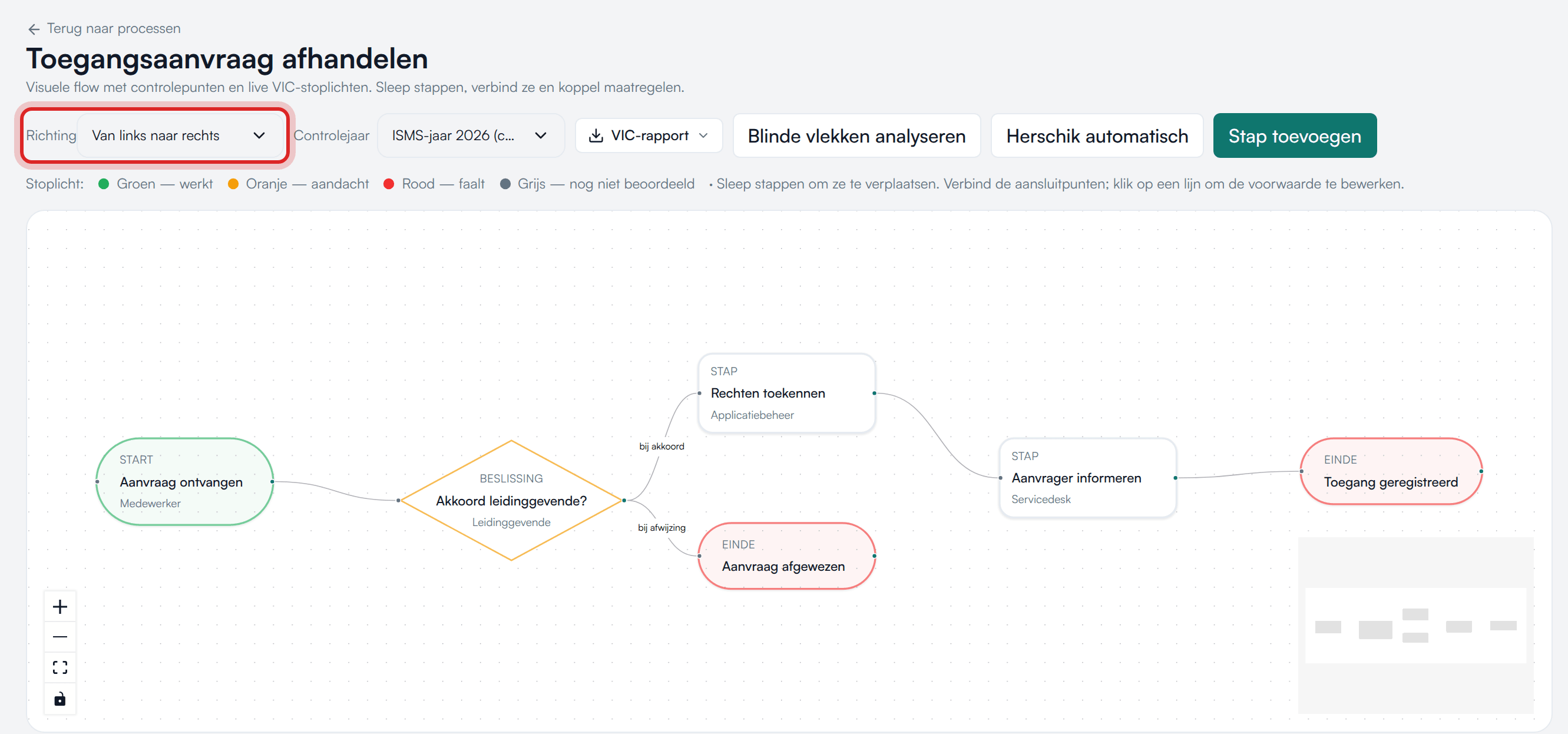
The editor warns when steps are left unconnected, or when the setup is not complete yet.
Suggestions and control points
Section titled “Suggestions and control points”- Blinde vlekken analyseren (Analyse blind spots) makes IRMA look for steps where a risk or control seems to be missing. Suggestions appear per step, with Waarom (Why) and Bron (Source). A suggestion only becomes a real link once you approve it.
- Click a step and add a control point with Controlepunt toevoegen (Add control point), with the Beheersmaatregel (Control) it tests. A control point without a control is a Blinde vlek (Blind spot). Each control point gets a traffic light: green (works), orange (attention), red (fails) or grey (not yet assessed). The traffic lights follow from internal control.
- If there are control years, choose the Controlejaar (Control year) at the top. VIC-rapport (Internal control report) downloads this process’s report for that year.
Documents and evidence
Section titled “Documents and evidence”The Documenten (Documents) menu brings together everything you keep as documented information:
| Menu item | What it is |
|---|---|
| Alle documenten (All documents) | Policy documents, evidence and the archive in one place, filterable by module. |
| Bewijs (Evidence) | The evidence repository. Only visible in the Onderhoud (Maintenance) ISMS phase. |
| Documentinventaris (Document inventory) | Per document the status, owner, visibility, review frequency and retention period. |
| Jaarplanning (Annual planning) | The review and retention calendar. Only in the Onderhoud phase. |
| Classificaties (Classifications) | Document classes with their default review and retention period. Only in the Opzetten (Set up) phase. |
| Publicatieoverzicht (Publication overview) | Documents that go outside the organization, with a final review before publication. Only in the Onderhoud phase. |
| Documentbeheer (Document control) | How your organization controls documented information. |
An administrator chooses the ISMS phase under Instellingen (Settings) → Weergave (Display) → ISMS-fase (ISMS phase). Without administrator rights you do not see this option. See The ISMS phase.
Policy documents
Section titled “Policy documents”Policies, procedures, templates and working documents are under ISMS → Beleid (Policy); you see the same documents in Alle documenten (All documents).
- Document toevoegen (Add document) creates a document with, among other things, Documenttype (Document type), Versie (Version), Eigenaar (rol) (Owner, role), Zichtbaarheid (Visibility), Classificatie (Classification) and Herzieningsdatum (Review date).
- A document goes through the statuses Concept (Draft), In uitvoering (In progress), Goedgekeurd (Approved), Vervangen (Superseded) and Archief (Archive). You change the status with the buttons in the document; you only see the transitions that are allowed.
- Drafts and working documents are only visible to people who may edit documents.
- You write the content in the In-app Markdown-editor. Start with Nieuwe werkversie beginnen (Start new working version); the published version stays valid until you publish.
- With Publiceren (Publish), the designated role makes a version live, with a Handtekening (Signature). The previous version then becomes Vervangen (Superseded). Choose Markeren als herziening (Mark as review) if this is the periodic review; the period until the next review then starts again.
- Versies vergelijken (Compare versions) shows line by line what changed.
- Beantwoordt normen (Answers standards) shows for which requirements the document serves as an answer.
Want to draft a policy together with the IRMA assistant? You can also do that in a draft next to the chat. Such a draft does not end up in Documenten (Documents) by itself; you record it in the app yourself. See Drafts in IRMA.
Collecting evidence
Section titled “Collecting evidence”Open Documenten → Bewijs (Evidence). The Bewijsrepository (Evidence repository) lists all your evidence items with their Versheid (Freshness): Actueel (Current), Verloopt binnenkort (Expires soon), Verlopen (Expired) or Geen einddatum (No end date).
- Click Toevoegen (Add). The Bewijs toevoegen (Add evidence) window opens.
- Fill in the Titel (Title), and optionally a Verwijzing / opslaglocatie (Reference / storage location), Verzameld op (Collected on), Verloopt op (Expires on) and the Bewaartermijn (maanden) (Retention period in months).
- Save and open the evidence item.
- Under Bewijsdocumenten (Evidence documents), add the evidence itself with Document toevoegen (Add document): a write-up, screenshot, printout or report.
Allowed are PDF, images (PNG, JPEG, WebP or GIF), text, CSV, Word and Excel, up to 10 MB per file. You view PDFs, images and text straight away with Bekijken (View) or In nieuw tabblad (In new tab). Downloaden (Download) saves a file; every download is recorded in the audit trail.
In an evidence item’s window you also link it to policy documents and standards. That way you use one evidence item for several standards. In the list, the Documenten (Documents) column shows how many files are attached to each evidence item.
You link evidence to a control from that control’s testing, with Bewijsstuk koppelen… (Link evidence item).
Audits and CAPA
Section titled “Audits and CAPA”Open Audit → Audits. The Audits & CAPA page shows:
- Programma (Programme): how many audits there are this year, how many are completed and how many findings are open.
- Auditprogramma (Audit programme): all audits. Open an audit for its scope, period and findings.
- Bevindingen & CAPA (Findings & CAPA): each nonconformity as a card in the stages Geïdentificeerd (Identified), Oorzaakanalyse (Root cause analysis), Maatregel gepland (Action planned), In uitvoering (In progress), Effectiviteitstoets (Effectiveness check) and Gesloten (Closed). Drag a card to change its stage.
- Lijst bevindingen (List of findings): all findings across all audits.
Open a finding to act on it:
- Document koppelen (Link document): attach a document to the finding.
- Verbetering starten (Start improvement): put the improvement point in the improvements register, linked to the finding.
- Taak aanmaken (Create task): create a task with a deadline and link the objects it affects, such as a process, risk or control. Those objects then show the task under their open actions.
Internal audit by IRMA
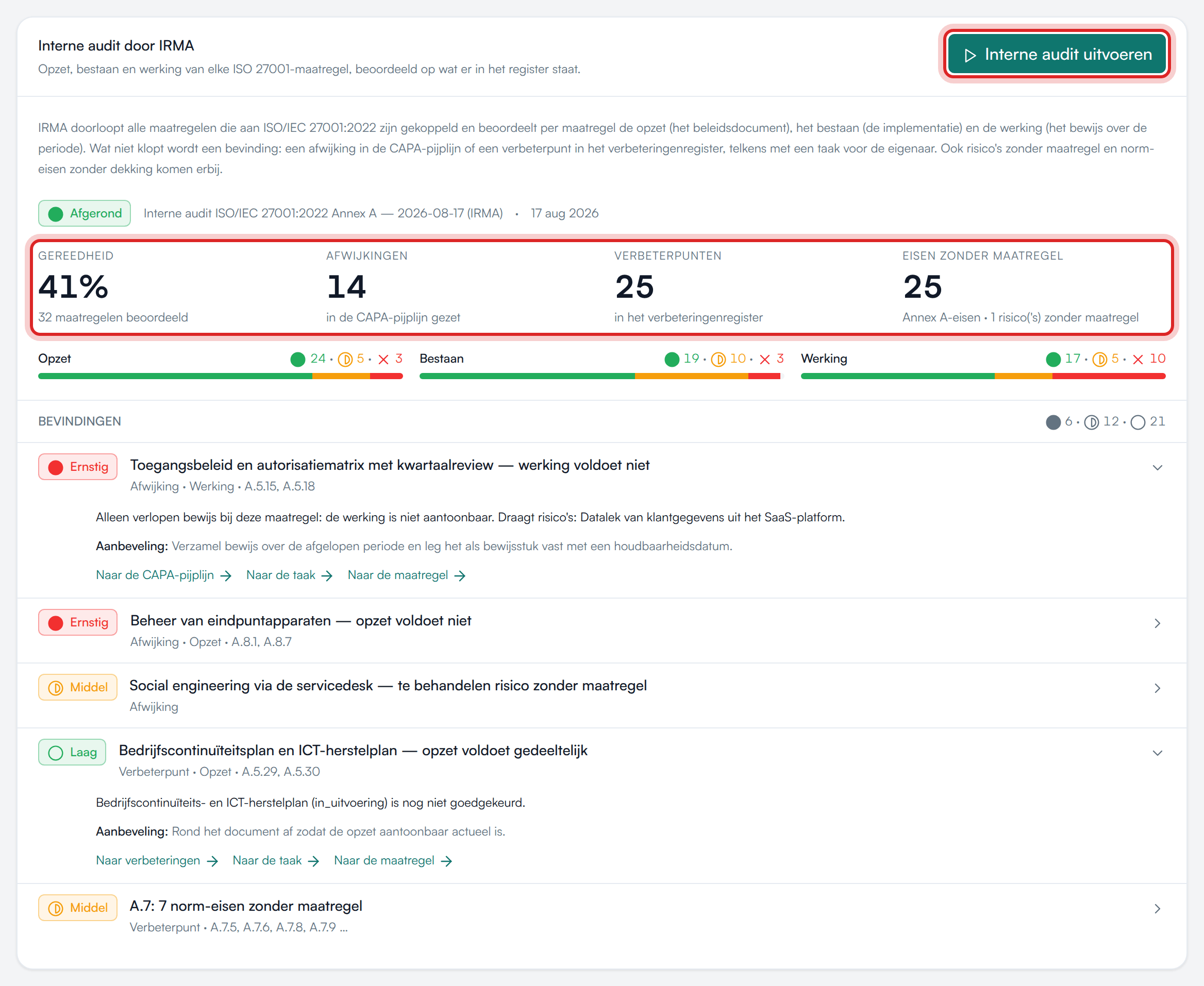
Section titled “Internal audit by IRMA”The Audits & CAPA page has the card Interne audit door IRMA (Internal audit by IRMA). With it, IRMA performs an internal audit in one go.
- Click Interne audit uitvoeren (Run internal audit). The button shows Audit loopt… (Audit running) while IRMA works.
- IRMA goes through all controls linked to ISO/IEC 27001:2022. For each control, IRMA assesses the design (the policy document), the existence (the implementation) and the operation (the evidence over the period).
- Anything that does not hold up becomes a finding: an Afwijking (Nonconformity) in the CAPA pipeline or a Verbeterpunt (Improvement point) in the improvements register, each with a task for the owner.
The card then shows Gereedheid (Readiness), the number of Afwijkingen (Nonconformities) and Verbeterpunten (Improvement points) and the Eisen zonder maatregel (Requirements without a control), plus risks without a control. Under Bevindingen (Findings) you click through with Naar de CAPA-pijplijn (To the CAPA pipeline), Naar verbeteringen (To improvements), Naar de taak (To the task) or Naar de maatregel (To the control).
Good to know:
- The verdict follows from fixed rules applied to what is in your registers. No language model is involved.
- The audit really writes to your registers: an audit, findings, nonconformities, improvements and tasks.
- Only people who may edit audits can start the internal audit.
- If read access per department is on, the internal audit is only available to people who may read the whole organization.
Nonconformities and improvements
Section titled “Nonconformities and improvements”Under Registers there are two registers that belong with the audit:
- Afwijkingen (Nonconformities, the Afwijkingenregister): nonconformities and their corrective actions. Handling runs through the CAPA pipeline on Audits & CAPA.
- Verbeteringen (Improvements, the Verbeteringenregister): improvement opportunities from audits, management reviews and suggestions. Verbetering toevoegen (Add improvement) lets you record one yourself.
Internal control
Section titled “Internal control”If the module is enabled for your organization, you find the specific internal control (abbreviated VIC in the app, for verbijzonderde interne controle) under Interne controle (Internal control):
| Menu item | What you do there |
|---|---|
| Controlejaren (Control years) | Manage control years. A closed year remains available for reference. |
| Controleplannen (Control plans) | The sampling plan per control year: size, method and progress. |
| Deelwaarnemingen (Sample observations) | Record observations per control, stage and control year. The traffic light follows automatically. |
| VIC-bevindingen (Internal control findings) | Record findings, assign an action and track responses, with a log per finding. |
You see the traffic lights again in the process editor.
Objectives and context
Section titled “Objectives and context”Under Doelen (Objectives) you lay the foundation of your ISMS:
- Doelstellingen & meetprogramma (Objectives & measurement programme): your information security objectives with owner, target value and progress. Doelstelling toevoegen (Add objective) creates one; Metriek toevoegen (Add metric) links measurable metrics. For each objective you see whether it is Behaald (Achieved), Op koers (On track) or Achter (Behind).
- Context: your organization’s internal and external issues. Vraagstuk toevoegen (4.1) (Add issue) records one, with type, relevance, implication and owner.
Read more
Section titled “Read more”- IRMA: getting started: opening the app, the menu, the ISMS phase and registers in general.
- IRMA: risk management: risks, heatmap, Monte Carlo and reports.
- IRMA: administration: roles, modules, audit trail and settings.
- Drafts in IRMA: drafting policy together with the assistant.