
Sign-in & persona selection
The web app uses SSO via Keycloak (https://login.prudai.com). After signing in you choose, depending on your account, between the personas that are active for your organization: LEO, LEO Fiscaal, ZIA, VERA, BEVER, or IRMA, and on request MAIA.
Sign-in
Section titled “Sign-in”- Open your organization’s web app URL (usually
https://app.prudai.com). - If needed, you will be redirected to the Keycloak sign-in page.
- Choose your sign-in method:
- Microsoft / Entra ID (if your organization has it enabled);
- other federated identity providers (depending on your organization);
- or email + password.
- Complete the SSO flow.
Once signed in, you see your user menu at the top right. At the top it shows your name, your role (User, Owner, or Admin), and your email address. Below that you find, among other things, Notifications (with a counter for unread items), Settings, Redo onboarding tour, My Files, Support, Switch persona (if you have more than one persona), and Log out.
You choose your language under Settings → Language. That preference applies to every persona, so the UI language is the same everywhere.
With the same account you also sign in to Prudai’s separate apps, such as the IRMA app and ORDO, if your organization has them.
Activating a trial account
Section titled “Activating a trial account”Started a trial yourself through one of the product sites? Then first activation works like this:
- Fill in your details on the product site, using your business email address.
- Complete the checkout. That is where you accept the terms (see below).
- You receive an email to set your password. For a trial without payment details, that email arrives right after checkout. If a payment is needed first, it arrives once the payment is confirmed.
- Set your password through the link in the email.
- Then sign in via SSO to use the app.
Tip: if no email arrives, check your spam folder first. If it still does not arrive, email support@prudai.com.
Accepting the terms when you start a trial
Section titled “Accepting the terms when you start a trial”In the checkout you tick a single consent sentence, which is in Dutch: “Door je proefperiode te starten ga je akkoord met onze Algemene Voorwaarden, de Fair Use Policy, de Verwerkersovereenkomst (Data Pro Statement), de Service Level Agreement en het Privacybeleid.” (By starting your trial you accept our Terms and Conditions, the Fair Use Policy, the Data Processing Agreement (Data Pro Statement), the Service Level Agreement, and the Privacy Policy.) Each name in that sentence links to the document on legal.prudai.com.
Prudai records per organization which version of each document was accepted and when.
Accepting the terms at your first sign-in
Section titled “Accepting the terms at your first sign-in”If you got an account on or after 7 September 2026, Prudai asks for your acceptance of the terms once: at your first sign-in to the app or, if you signed in before, the next time you open the app. Until you accept, you see the One more step: our terms screen instead of the app. You cannot skip it, but you can Sign out, for example to sign in with a different account. Which screen you get depends on your role:
- Owner of a new organization. If your organization was created on or after 7 September 2026 and no acceptance has been recorded for it yet, you accept on behalf of the organization as its Owner. You fill in Organisation, Name and Email address; the organization’s name and your email address are prefilled, but you can change them. Then you tick this sentence: “On behalf of my organisation, I agree to our Terms and Conditions, the Fair Use Policy, the Data Processing Agreement (Data Pro Statement), the Service Level Agreement and the Privacy Policy. I declare that I am authorised to sign on behalf of the organisation entered above, or have been mandated to do so by an authorised signatory.” That also counts as your own acceptance.
- Every other new user. You tick one sentence, for yourself: “I agree to our Terms and Conditions, the Fair Use Policy, the Data Processing Agreement (Data Pro Statement), the Service Level Agreement and the Privacy Policy.” There is nothing to fill in, and you do not have to wait until your organization has accepted.
Each document name in the sentence links to the document on legal.prudai.com. Then click Accept and continue: you go straight to the app and the screen does not come back. If you see “The terms were just updated. Please read them again and tick the box again.”, a document changed in the meantime; read it again and tick the box again.
If you already had an account before 7 September 2026, you do not see this screen, unless you are the owner of an organization created on or after that date: you then still accept on behalf of that organization. If you already accepted in the checkout when you started a trial, you do not see the screen either.
If you open the IRMA app before accepting, it shows Ga eerst akkoord met onze voorwaarden (accept our terms first). You do not accept in IRMA itself: the button Akkoord geven in de PrudAI-app (accept in the Prudai app) takes you to the screen above. Once you have accepted, the notice in IRMA disappears by itself within a minute.
Signing up with a personal email address
Section titled “Signing up with a personal email address”A trial is meant for organizations. If you sign up with a personal or disposable address (for example one at gmail.com or hotmail.com), Prudai holds your organization’s access until we have reviewed the sign-up. In the app you then see the Access temporarily blocked screen (see below).
For users:
- Use a business email address of your organization.
- If you think your address was held back by mistake, email support@prudai.com.
When your organization’s access has expired or is blocked
Section titled “When your organization’s access has expired or is blocked”Only organizations with an active subscription or a running trial get access. If your organization’s subscription has expired, or access is blocked, you see a fixed screen after signing in instead of the app. The title tells you what is going on:
| Title | When |
|---|---|
| Subscription expired | your organization’s subscription has ended or the organization has been archived |
| Access temporarily blocked | Prudai has temporarily blocked your organization’s access |
| Access cannot be determined | your organization’s status cannot be determined right now |
What you see on that screen:
- a short explanation (in Dutch); for an expired subscription or a block it states that your organization’s data is kept;
- a button with support@prudai.com;
- Sign out, so you can sign in with another account.
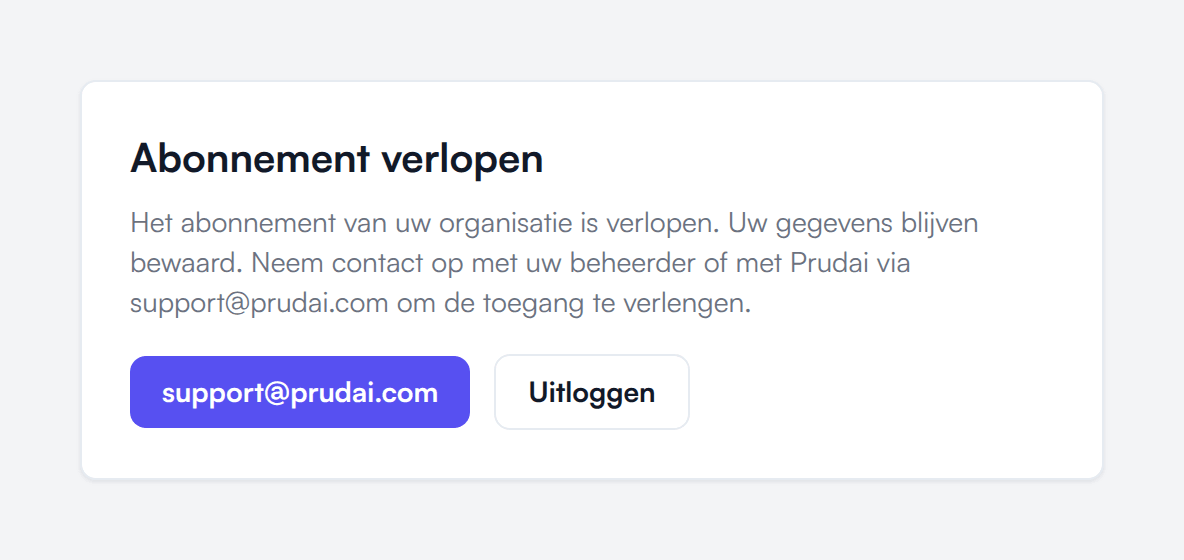
There is deliberately no retry button: only Prudai can extend or restore access. Contact support@prudai.com or your administrator. See also Access screen: subscription expired or access blocked.
The screen applies to the whole organization, not just to your account. You see the same screen in the Office add-ins. The IRMA app shows its own screen, Toegang tot IRMA is geblokkeerd (Access to IRMA is blocked); see IRMA.
Session check when returning to a tab
Section titled “Session check when returning to a tab”When you return to an already-open tab after some idle time, the app immediately validates whether your SSO session is still valid.
- If the session has expired, you are treated as signed out right away and redirected to sign-in.
- This surfaces the sign-in requirement earlier, instead of only on the next action (such as sending a chat message).
Account verification errors
Section titled “Account verification errors”After SSO, the app verifies your account.
- If verifying your session takes too long, you see We couldn’t verify your account. This can happen on mobile networks or when third-party cookies are restricted. Click Try again.
- If the profile service is temporarily unreachable, you see Temporary account verification issue with the Retry profile check button, instead of endless redirects or flashing.
- If your account has no active product access, sign-in stays blocked and you see No active product access, with the Go to leo.prudai.com button to re-order your subscription. The app does not keep reloading; you stay on this screen. That screen deliberately says product and not “persona”: it is about your subscription, not about which assistant you work with.
- If the persona you selected earlier no longer matches the personas you are allowed, that choice is cleared and you choose again.
Choosing a persona
Section titled “Choosing a persona”Some accounts have access to several personas. In that case the app asks you to choose with Choose your persona. What sets each persona apart is described in The personas.
Important:
- You only see personas that are active for your organization.
- Your choice is stored as a cookie for your session.
- Some pages belong to a specific persona (workflows and research, for example, only to LEO and LEO Fiscaal). If you see This page is only available in …, click Switch to … or switch via Settings → Persona. That button only appears if your account has access to that persona; otherwise the page says your account has no access and you ask your administrator.
- Access is per persona. Example: LEO Fiscaal does not grant access to LEO.
- Dossiers, projects, and chats belong to a persona. LEO and LEO Fiscaal share the same dossiers and chats. ZIA, VERA, BEVER, IRMA, and MAIA each have their own workspace.
You do legal or tax work in LEO or LEO Fiscaal; which one you see depends on what your organization has. The stepper does not ask about it separately.
LEO partner firms
Section titled “LEO partner firms”If your organization is a LEO partner firm (on request) and you have the Owner or Admin role, you see an Inbox item in the LEO sidebar. That is where second-opinion requests from other firms arrive. LEO Fiscaal does not have this item. See Projects.
Roles (what you can do)
Section titled “Roles (what you can do)”Your role is shown in the user menu next to your name:
- User: standard usage (chat, dossiers or projects, documents, tasks) within your permissions. In the Account Dashboard this role is called Member.
- Owner: additional management rights within your organization, such as managing users in the Account Dashboard.
- Admin: Prudai’s platform administrators. Prudai manages this role itself; in the Account Dashboard you only assign the Owner or Member role.
Examples of role-gated features:
- In the Prompt library, public prompts are managed by Prudai’s admins and organization prompts by owners.
- In Knowledge, owners and admins can create an organization knowledge base (if enabled).
- The Account Dashboard and RAG Dashboard shortcuts in the user menu are for Prudai’s admins only. As an owner, go straight to account.prudai.com. See Account & RAG dashboards.
Besides your role, your organization’s settings also determine what you can do. See What your organization can switch off.
Office add-ins: sign-in is different
Section titled “Office add-ins: sign-in is different”Inside a Word, Excel, or Outlook task pane the app runs in an iframe. Many SSO providers block sign-in inside iframes. That is why the add-ins sign in through an Office dialog and then hand the session over to the task pane.
More: Prudai For Word, Prudai for Excel, Prudai for Outlook, and Access & requirements.