
Prompt library
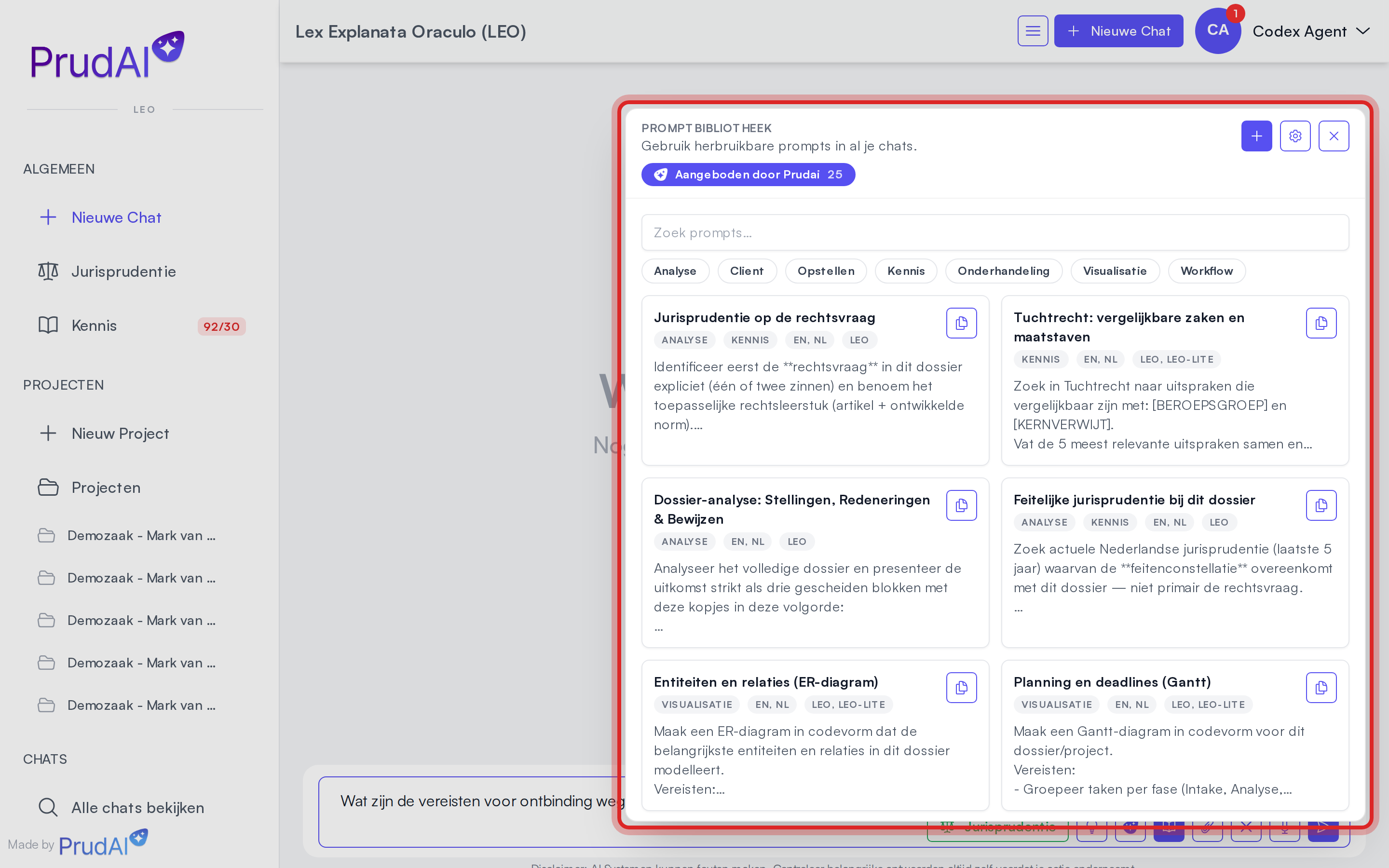
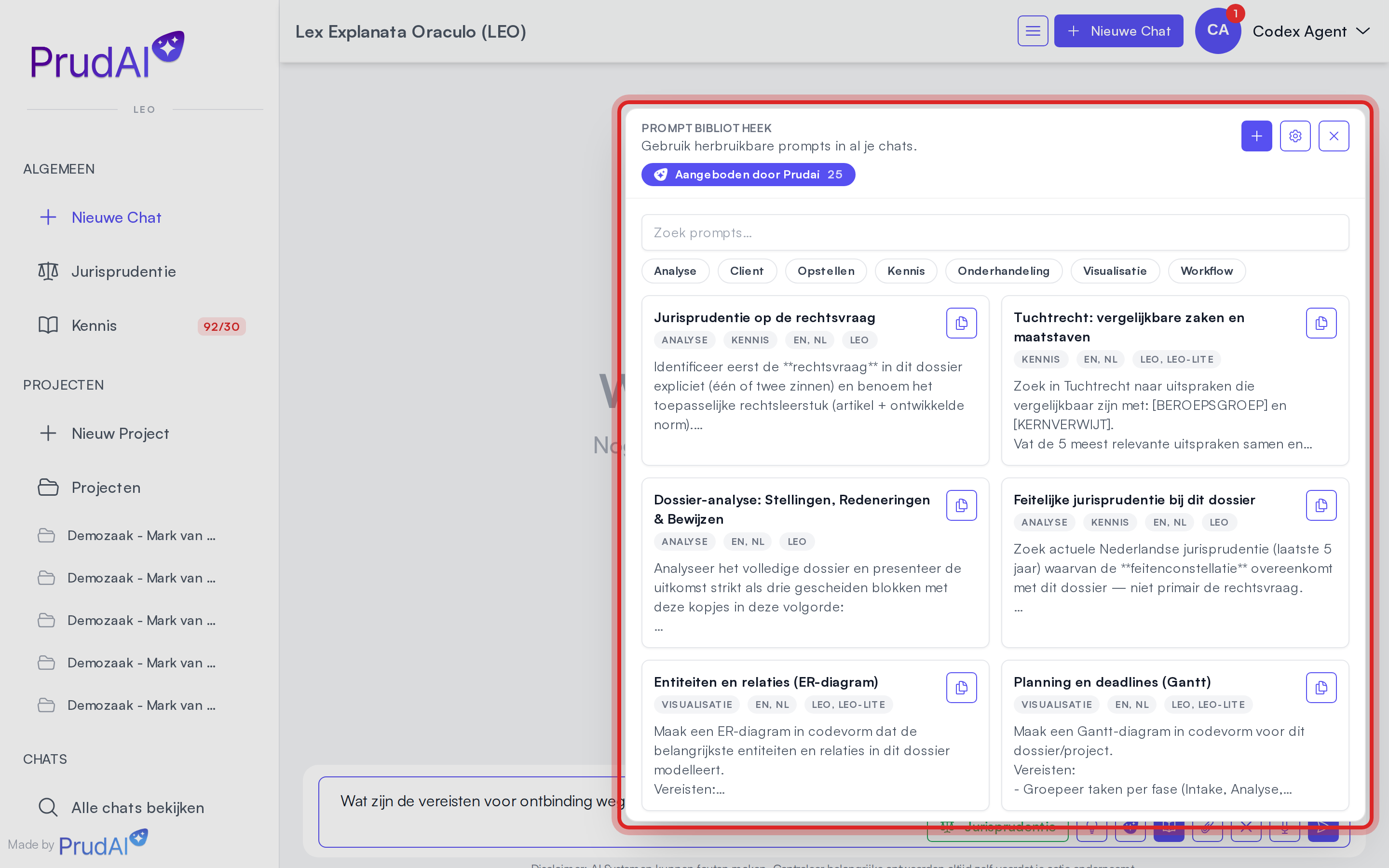
The prompt library is a collection of reusable prompts you can apply in chat. A three-block case analysis, case law for your exact legal question, a Gantt planning of your matter: the library is full of proven instructions you adopt with one click. You open it with the book button in the prompt bar, or type /prompts to open the library inside the conversation. If you have hidden the book button, it sits behind ☰ in the prompt bar; see Chat.
Why it matters
Section titled “Why it matters”A strong prompt template often beats “more context”. Templates give you:
- consistent deliverables (memos, timelines, draft letters),
- faster iteration,
- easier collaboration (organization prompts).
At the top you find the tabs:
- Provided by Prudai: ready-made prompts, managed by Prudai.
- Organization: your organization’s prompts, managed by your organization’s owners.
- Personal: your own prompts.
A tab only appears when it holds prompts for the product you are working in; the number next to it is the count. So you only see the Personal tab once you have your first own prompt. What is on offer differs per product: not every product has provided prompts.
Search and tags
Section titled “Search and tags”- The search field “Search prompts…” searches the title and text of the prompts in the open tab.
- Prompts can have tags such as Analysis, Drafting, Workflow, Knowledge and Visualization. Click a tag to see only those prompts. You filter on one tag at a time; click the tag again or choose Clear to remove the filter.
Recommended starting point:
- go to “Provided by Prudai” and filter by Visualization for timelines and diagrams.
Use a prompt
Section titled “Use a prompt”- Open the library.
- Search or filter until you see the right prompt.
- Click the card. The prompt text lands in your input field and the library closes.
- Customize it for your case (or ask the assistant to tailor it).
Tip: add constraints (length, structure, sources, tone) before sending.
Duplicate to personal
Section titled “Duplicate to personal”Prompts under Provided by Prudai and Organization carry a copy button on the card, Duplicate to personal. It puts a copy in your own tab, which you are then free to edit. The original stays untouched for everyone else. This is the clean route when a standard prompt is nearly right for the way you work.
Only prompts for your product
Section titled “Only prompts for your product”The library only shows prompts that are enabled for the product you are working in. A prompt that is only enabled for another product is therefore not listed here. A prompt can apply to several products at once; the card shows which. A new prompt belongs to the product you create it in, and a copy keeps the products of the original.
A prompt can have a Dutch and an English version. The card shows which languages exist. If the version in your language is missing, the card says so (“Missing EN translation”), and when you click it: “This prompt is not available in EN yet.” If you are allowed to edit the prompt, add the missing language version in the editor.
Reorder by dragging
Section titled “Reorder by dragging”Click Manage (the gear) to change the order. Then drag prompts by the handle on the card to move them up or down. Done (the check mark) closes manage mode again. The order is remembered, even after a reload. Owners manage the order of the organization prompts the same way.
Improve a prompt in chat
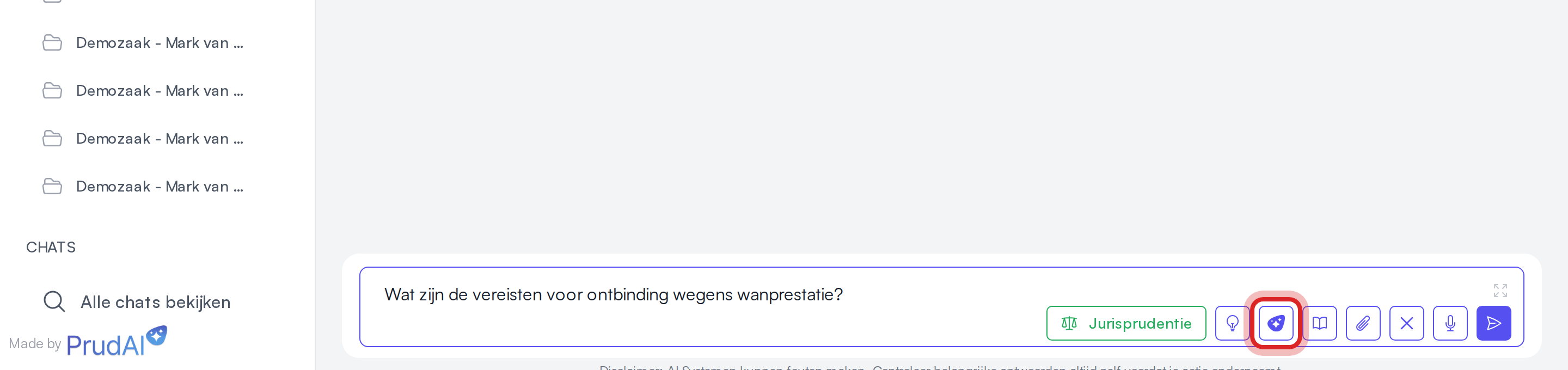
Section titled “Improve a prompt in chat”From the composer you can ask the assistant to sharpen your current draft, using the latest messages of the conversation as context. You do that with the Prudai button: the logo icon in the prompt bar, tooltip “Improve prompt with AI”. The improved version appears in the large Prompt editor so you can fine-tune it before sending. If you do not like it, Restore original brings your own text back. A big difference in answer quality, zero extra thinking.
Note: the bulb next to it is not this button. That is the Thinking depth button on its Standard setting.
Fixed starter prompts
Section titled “Fixed starter prompts”A few fixed flows use a starter prompt you do not have to maintain yourself: the case-law research (in LEO and LEO Fiscaal via /jurisprudence-prompt), the intake of a workflow and the onboarding tours. In your conversation you only read the short sentence you sent, for example “Help me fill in a comprehensive case-law research.”; Prudai fills in the full instruction itself.
Create and manage prompts
Section titled “Create and manage prompts”That one analysis format you use every week: capture it once as your own prompt. If you are an owner of your organization, you can also save it as an organization prompt, and the whole firm works from the same structure from then on.
Click + (New prompt). In the editor you fill in:
- the language: with the NL and EN buttons you pick or add a language version. At least one language version is required, and each version has a title and a prompt text;
- Prompt text;
- Title. Only have the text? The AI button next to the title field (Generate title with AI) writes a title for it;
- Scope: personal, or with the right permissions the organization or Prudai’s provided prompts. A scope you have no rights for cannot be selected;
- Tags (comma-separated).
Saving is Add prompt, and Save prompt on an existing one. You edit and remove prompts in manage mode (Manage) with Edit prompt and Delete prompt on the card. You can have at most 100 personal prompts.
A useful pattern:
- Create a “base” prompt (e.g. a memo structure).
- Create variants per output type (timeline, risk analysis, draft letter).
Import and export
Section titled “Import and export”On the Personal tab you can export your own prompts to a JSON file (Export) and import them again later (Import). Organization prompts and provided prompts are not included.
Note: importing replaces your personal prompts with the file contents. It does not merge. So export your current set first, so you can go back if the import does not give you what you expected.