
Chat
In every persona you mainly work in the chat. The persona you select determines which knowledge and tools are available behind that chat. This page explains how to have conversations, find them again and check them.
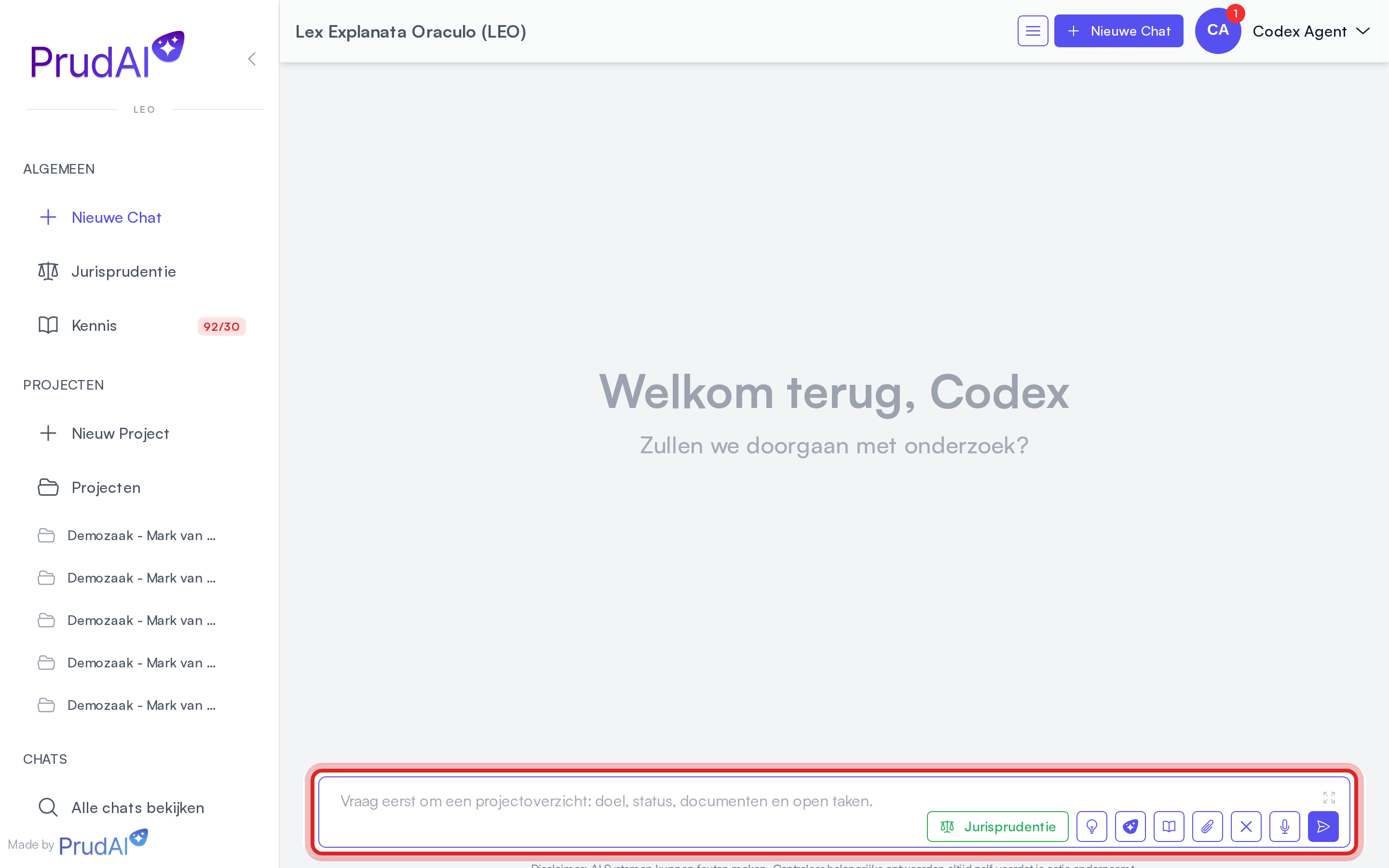
Conversations: new, finding them again, and titles
Section titled “Conversations: new, finding them again, and titles”- New conversation: click New chat at the top of the sidebar. Want the conversation to belong to a dossier straight away? Click the + on the dossier page (New chat in this dossier). In LEO, LEO Fiscaal, VERA, BEVER and IRMA you then choose Chat only or Chat with a document beside it (see Drafts).
- Pick up where you were: an empty conversation shows buttons such as Continue with last chat below the greeting, plus your most recent conversations.
- All conversations: Chats in the sidebar opens My work with all your conversations, newest first. You can search by title there.
- History: to the right of the chat sits the History handle. That drawer lists your chats and your dossiers (in VERA, ZIA, BEVER and IRMA: projects). In LEO, LEO Fiscaal, VERA, BEVER and IRMA it also lists your drafts, and in LEO and LEO Fiscaal your workflows. When you are inside a dossier, the Chats tab only shows that dossier’s chats, with a chip such as Dossier · Example dossier at the top. The cross on it (Show all chats) brings everything back. The dossier page itself carries the same handle (on desktop).
- Search: Search in the sidebar (or ⌘K) also searches your chats.
Titles are created automatically with your first message. After a few messages the assistant updates the title once more. Does the title no longer fit the conversation? Choose Generate AI Title in the menu with the three stripes (☰) at the top right of the chat, or in the chat’s ⋯ menu under My work → Chats.
If you are working in another browser tab in the meantime, the tab title shows Answer ready in front of it once the answer is there.
Stopping answers, reloading, and long conversations
Section titled “Stopping answers, reloading, and long conversations”- Stop generating or the Escape key stops a running answer immediately, on the server as well. Whatever was already written stays, labelled Interrupted. The input field is free again straight away. This also works on the first question of a new conversation.
- If you reload the page while an answer is still running, the assistant finishes it anyway. You then see Your previous question is still being answered, and the answer appears as soon as it is ready. If nothing arrives, you see No answer came back with the button Ask again.
- When an answer takes longer, you see “Still working — this answer is taking a bit longer.” Sometimes a tip is added to pick a lower thinking depth.
- Long answers, such as a document of several thousand words, simply run to the end. If nothing more arrives at all, the chat shows The response stalled. Please try again. or The response took too long to start. Please try again. Ask your question again. If it keeps happening, see Support.
- In long conversations the assistant summarises older messages automatically, so you can carry on without starting over. You then see the message Conversation summarised.
Before it comes to that, the chat warns you itself that the conversation is getting long. What those warnings mean, and why a new conversation per topic works better: Reliable answers.
Persona context in chat
Section titled “Persona context in chat”| Persona | What the chat mainly draws from |
|---|---|
| LEO | dossier documents, your personal and shared knowledge bases, a broad set of legal sources (legislation, case law, official publications), workflows and research |
| LEO Fiscaal | dossier documents, your knowledge bases, tax sources such as the Dutch Tax Administration alongside legislation and case law, tax workflows and research |
| VERA | project documents plus the Omgevingswet, IPLO, legislation, official publications and case law |
| ZIA | project documents, your knowledge bases and care sources such as clinical guidelines; no legislation or case law |
| BEVER | project documents, legislation, official publications, case law and council information from public bodies |
| IRMA | project documents and your IRMA environment: the assistant can read, among other things, your risk register and controls |
Every persona has a calculator for calculations. Exactly which sources and tools each persona runs on is listed under Knowledge sources.
Calculating statutory interest
Section titled “Calculating statutory interest”When you ask for the Dutch statutory interest (wettelijke rente) or commercial interest (handelsrente) on an amount, the assistant calculates it exactly. This works in every persona. In the sources bar you then see the row Calculate the statutory interest, with the interest amount and the total. If payments were processed, it shows what was paid and what is still owed.
- Compounded per interest year: each item runs from its own start date. After every interest year, counted from that date and so not from 1 January, that year’s interest is added to the principal. Within an interest year the calculation splits at every rate change. Days count as actual/365: the start date counts, the end date does not.
- Rates: for statutory interest (art. 6:119 BW) the assistant uses a built-in table from 01-01-2015 through 31-12-2026. That is the same table and the same method as in the Excel add-in. Only the rounding can differ: when an amount falls exactly on a half cent, Excel can come out one cent lower than the chat. Commercial interest (art. 6:119a BW), and interest over days outside that table, it only calculates with percentages from an official source: the assistant looks them up or asks you for them, and never estimates a percentage. A percentage that conflicts with the table is refused.
- Payments and advances: if you mention payments or advances with a date and an amount, the assistant allocates each payment on its own payment date, under art. 6:44 BW: first to the costs (such as extrajudicial collection costs), then to the interest accrued up to that day and not yet added to the principal, and then to the principal. Interest already added to the principal counts as principal; the interest year keeps its own anniversary. A general advance goes, after the costs and the interest of all items, to the principal of the oldest item on which interest is already running. That order is derived from art. 6:43(2) BW; for damage items the law does not state it explicitly. An advance meant for one item goes to that item; anything left over counts as a general advance. For commercial interest, interest runs up to and including the payment date, so the payment counts from the day after. If the creditor accepted a payment with the instruction that it goes to the principal first (art. 6:44(2) BW), say so: the assistant calculates it that way and adds a warning. This way an advance is deducted on its own payment date, not afterwards from the final total; the latter would give too high an amount. This only works in the chat: the Excel function
=PRUDAI.WETTELIJKERENTEdoes not take payments. - What you get back: per item the periods, the additions to the principal, the total and the calculation method. With payments you also get, per payment, how much went to costs, interest and principal, and what is still outstanding on the end date: the principal plus the running interest. The assistant warns when a percentage you supplied runs across 1 January or 1 July, when the calculation runs past today, when a payment only counts after the end date (it then does not process it) and when more was paid than was outstanding.
- What it does not do: it does not pick a start date itself, nor whether an advance is general or meant for one item. If that is missing, it asks you.
In LEO the personal injury workflow Damages schedule also calculates interest this way: per item, compounded per interest year, with the steps, the method, and for each item the start date and where it came from. A missing start date goes on the list of items to request. The workflow allocates an advance on its own payment date, not at the end of the total.
One chat list per persona
Section titled “One chat list per persona”Each persona has its own chat list. LEO and LEO Fiscaal share one list and the same dossiers. VERA, ZIA, BEVER and IRMA each have their own list, and so does MAIA (on request). That is why you see different conversations per persona.
IRMA: how to get started
Section titled “IRMA: how to get started”An empty IRMA conversation shows How to get started with IRMA, with a short explanation and four starter cards, such as Help me set up my ISO 27001 ISMS and Explore the demo environment. A card only puts the question into your input field. You can add documents or adjust the question first, and you send it yourself. Explore the demo environment opens the IRMA app. More about IRMA: IRMA.
Chat outside or inside a dossier
Section titled “Chat outside or inside a dossier”In LEO and LEO Fiscaal it is called a “dossier”; in VERA, ZIA, BEVER and IRMA it is called a “project”, and in MAIA (on request) a “folder”. It works the same way.
Chat without a dossier
Section titled “Chat without a dossier”A chat without a dossier mainly uses:
- your personal files and knowledge base;
- shared or public knowledge bases you enabled in Knowledge (login required).
Chat inside a dossier
Section titled “Chat inside a dossier”A chat inside a dossier mainly uses:
- the dossier documents as its main source;
- the dossier tasks, which you can mention with
#; - the shared history: colleagues with access to the dossier see the chat as well.
When you start a new chat from a dossier, a chip with the dossier name sits above the input field. The cross on it (Detach this dossier from this chat) lets you start without the dossier after all. That only works as long as you have not sent anything yet.
Move an existing chat into a dossier
Section titled “Move an existing chat into a dossier”This is how you put a personal chat into a dossier after the fact:
- In the chat, open the menu with the three stripes (☰) at the top right, or the chat’s ⋯ menu under My work → Chats. Note: the prompt bar has a ☰ menu of its own; you need the one at the top right.
- Choose Move to dossier (in VERA, ZIA, BEVER and IRMA: Move to project; in MAIA: Move to folder).
- Pick the dossier under Which dossier does this chat move to?.
You see Chat is now in the dossier. It keeps the same chat history, and the chat continues with the dossier documents added. Colleagues with access to the dossier can then see the chat too. Moving it back to personal is not possible. The option only appears on a chat that is not in a dossier yet.
LEO creates the dossier for you
Section titled “LEO creates the dossier for you”In LEO and LEO Fiscaal you can also simply ask: “make this into a dossier”. LEO creates the dossier and the conversation moves along with it. In the sources bar you then see Create dossier: ….
If your organisation has the SharePoint connection, LEO can also search and browse SharePoint (Search SharePoint: ’…’) and bring files or folders into the conversation’s dossier (Import from SharePoint into the dossier). Your request is the approval: there is no separate confirmation card. Only the dossier owner can import, using their own Microsoft permissions. LEO never writes anything back to SharePoint.
@ mentions and # mentions
Section titled “@ mentions and # mentions”Mention documents with @
Section titled “Mention documents with @”Use @ to explicitly include one or more documents.
How it works:
- type
@and start filtering; - choose from the list;
- use
@"..."for names with spaces.
Mention tasks with #
Section titled “Mention tasks with #”In a chat inside a dossier you can mention tasks with #. Tasks are labelled Tasks in the app; the legacy URL /kanban still works as an alias.
How it works:
- type
#and pick the task; - use
#"..."for names with spaces.
Edit and branch
Section titled “Edit and branch”You can take the conversation in a different direction without starting a new one:
- Edit one of your own messages to resend a revised version. The button appears when you hover over your own message. The original message and its original answer are preserved as a separate branch.
- As soon as more than one branch exists, the Previous version and Next version buttons appear. Use them to step through the versions (1/2, 2/2, etc.) without splitting the chat into separate conversations.
There is currently no button to regenerate an answer. Want a different answer anyway? Edit your own question: that creates a new branch, and your previous answer stays right where it was.
Attachments
Section titled “Attachments”Chat attachments go through the same document layer as Files and dossier documents. They are ordinary documents, not loose chat-only files.
Uploading
Section titled “Uploading”This is how you add files:
- On desktop: drag files into the conversation, or open the Attachments handle to the right of the chat and choose Add files.
- On a phone or narrow screen: use the paperclip in the prompt bar.
The Attachments drawer lists the files In this conversation. In a chat inside a dossier, the Dossier documents follow below.
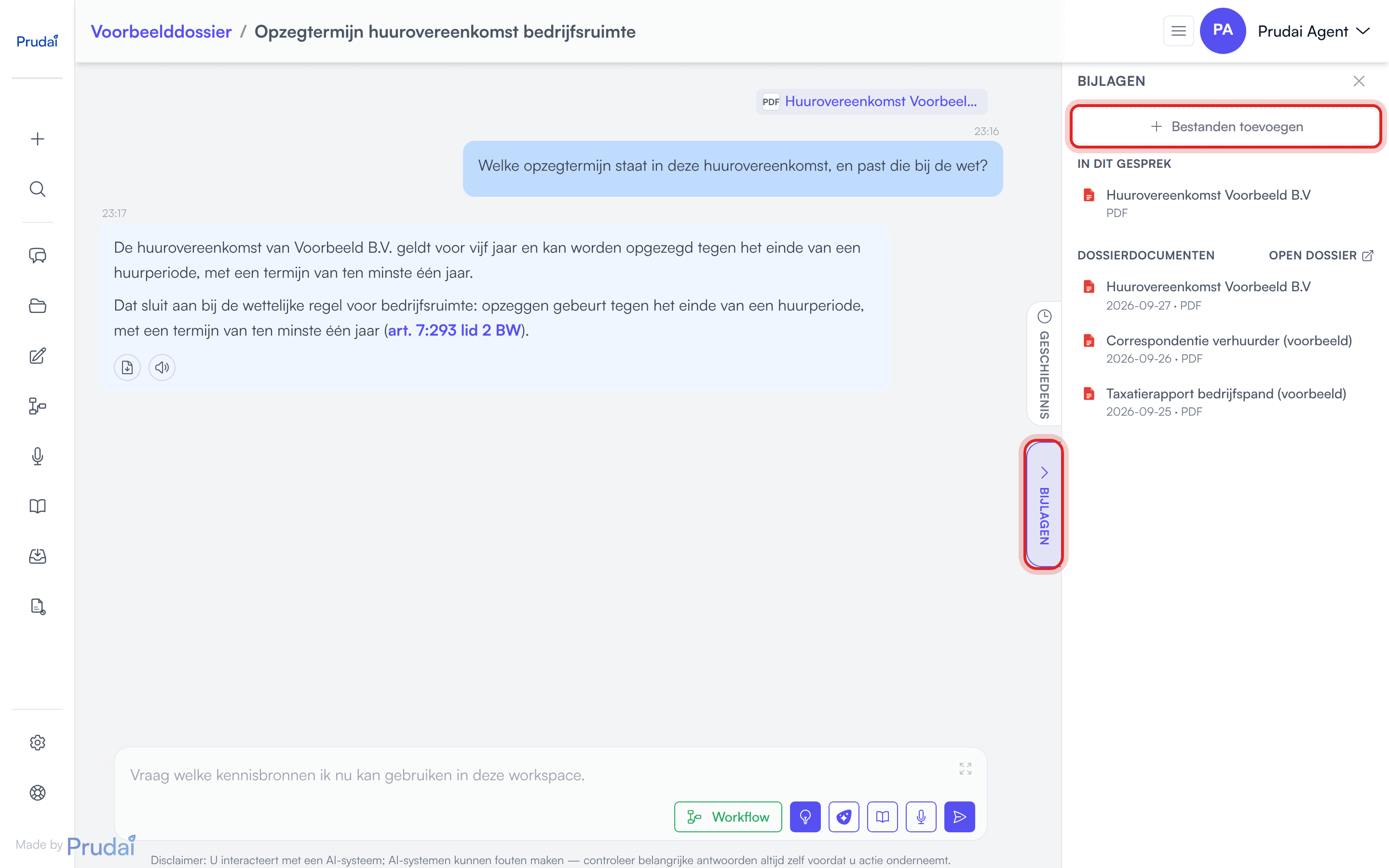
Do you see “Uploads are disabled by your organisation”? Then your organisation has had uploading switched off for this persona. That is a setting, not a fault; existing documents stay available. See Quick start: restrict uploads for exactly what is blocked.
Choosing a destination
Section titled “Choosing a destination”When you are not in a chat inside a dossier, the chat first asks where the files should go (Place files in a project instead?):
- Keep in My Files: your personal files;
- Choose existing project: a dossier you already have;
- Create new project: a new dossier, with a suggested name.
If you choose a dossier, the conversation moves along into that dossier.
Processing and sending
Section titled “Processing and sending”A new attachment shows its status in the input field, for example Pending, Processing or Indexing, and then Processed. As long as an attachment has not been processed, you cannot send. You then see “Processing attachments… please wait before sending.” That way the assistant only answers once the file is actually searchable.
If processing fails, you see Failed. Remove the attachment and try again.
Removing
Section titled “Removing”You can remove an attachment with:
- Remove from chat only: the file stays in the knowledge base;
- Delete from knowledge base: the file disappears for everyone who uses that knowledge base.
More on supported file types: Files.
Workspaces inside the chat
Section titled “Workspaces inside the chat”Many extra screens open inside the conversation itself. That way you stay in one conversation instead of switching screens all the time.
Examples:
- conversation search;
- the prompt library;
- knowledge controls;
- the dossier overview and the dossier documents;
- Tasks (the task board);
- workflows and research (LEO and LEO Fiscaal).
Slash commands
Section titled “Slash commands”Type / in the input field and the command list appears. These commands are always available:
/searchopens the platform-wide search, the same one you get with ⌘K: pages, dossiers, documents, chats and legislation./conversationsbrowses your conversations inside the chat itself./knowledgeopens the knowledge controls (tools and knowledge sources)./promptsopens the prompt library inside the chat./projectopens the overview of your dossiers.
Only in a chat inside a dossier:
/documentsopens the dossier documents inside the chat./tasksopens the dossier’s task board inside the chat. The command is no longer called/kanban.
Only in LEO and LEO Fiscaal:
/researchopens the research runs for this workspace./jurisprudence-promptdrops the legal research starter prompt into your input field.
Thinking depth
Section titled “Thinking depth”In the button row of the prompt bar sits the Thinking depth button. It lets you decide, per message, how much thinking the assistant puts in. There are four settings:
| Setting | What you get |
|---|---|
| Quick | Short, direct answer. For simple questions and look-ups. |
| Standard | The best balance for most questions. |
| Thorough | Thinks longer. For complex analyses; slower. |
| Ultra | Maximum thinking power. May propose its own workflow with a counter-review. Considerably slower. |
Where the button starts differs per persona: ZIA starts on Quick, every other persona on Standard. Your choice sticks for later messages, separately per persona.
How high you can go also differs per persona. LEO and LEO Fiscaal go up to Ultra; ZIA and VERA up to Thorough; IRMA, BEVER and MAIA (on request) stay on Standard. That is the maximum: Prudai switches Thorough (and in LEO and LEO Fiscaal also Ultra) on per organisation, on request, for LEO, LEO Fiscaal, ZIA and VERA. If your organisation does not have them, Standard is the highest. A setting you cannot pick stays visible, with the reason next to it: “This setting is not switched on for your organisation yet. Your administrator can enable it.” or “This setting is not available in this product.” In IRMA, Thorough does show greyed out in the menu, with that first note. Even so, your administrator cannot switch that setting on for IRMA.
Ultra does not stick. It applies only to the message you send at that moment; afterwards the button returns to your persona’s starting setting. A daily allowance applies as well: once it runs out, your question continues one step lower.
Ultra may think for a long time. On Ultra the assistant can think for several minutes before any text appears. The chat then waits up to about eleven minutes and does not cut the answer off early.
Workflow proposals. On Standard and on Ultra the assistant may propose handling your question as a workflow instead of answering it straight away. On Standard that is the exception, on Ultra the rule. This works in LEO and LEO Fiscaal. A proposal is always an intake card in the conversation that you confirm; the assistant never starts a run by itself. The extra counter-review, a critical second pass over the answer, belongs to Ultra alone. More: Workflows and research jobs (login required).
Do not see the button at all? Then your organisation has switched the choice off and everyone works on the persona’s starting setting. That is a deliberate setting, not a fault. See Quick start: fix the thinking depth.
Buttons in the prompt bar
Section titled “Buttons in the prompt bar”The prompt bar, meaning the input field and the button row around it, holds more than send: the large prompt editor, Workflow, Thinking depth, improve prompt, the prompt library and the microphone. On a phone or narrow screen there is also a paperclip for attachments; on desktop you add attachments through the Attachments handle or by dragging.
- Workflow (LEO and LEO Fiscaal) opens the workflow catalog. You pick a template there first. The legal research starter prompt is available through
/jurisprudence-prompt. - Which buttons sit loose in the row, and in which order, is yours to set under Settings → Chat, in Buttons in the prompt bar. Hidden buttons do not disappear: they move into the expand menu (☰) in the prompt bar. Send and the input field always stay visible. This preference applies per device. More: Settings.
Below the input field sits a fixed disclaimer: “Disclaimer: You are interacting with an AI system; AI systems can make mistakes — always verify important answers yourself before acting.” It is there by law (AI Act, article 50) and cannot be dismissed.
Suggested prompts and prompt library
Section titled “Suggested prompts and prompt library”Suggested prompts
Section titled “Suggested prompts”Suggested prompts can appear above the input field (not on a phone).
What you can do:
- the
Xbutton hides them for the rest of your session; - the refresh button requests three new suggestions;
- after a refresh you wait 10 seconds before you can refresh again.
If you hide them three times in a row, the chat asks Turn off suggestions? Choose Yes and they stay away. You switch them back on under Settings → Chat with Show suggestion prompts.
Prompt library
Section titled “Prompt library”You open the prompt library via the book button in the prompt bar. Through the library you can:
- use standard prompts;
- filter by tags;
- create and order your own prompts;
- manage your organisation’s prompts or the prompts provided by Prudai if your permissions allow it;
- export your personal prompts and import them again.
More: Prompt library.
Improve your prompt
Section titled “Improve your prompt”Type your question as it comes to mind, half-finished is fine, and click the Prudai button (the logo icon in the prompt bar, tooltip “Improve prompt with AI”). The assistant turns it into a complete, structured instruction, using the latest messages of the conversation as context. The rewritten prompt appears in the large Prompt editor: you review it, adjust where needed, and only then send. If you do not like the rewrite, Restore original brings your own text back.
Note: the bulb next to it is a different button. That is the Thinking depth button on its Standard setting.
More: Improve a prompt in chat.
Seeing what the assistant does
Section titled “Seeing what the assistant does”While the assistant works, the sources bar sits above the answer. It lists every source the assistant consults and every action it takes. That lets you check afterwards how an answer came about.
The sources bar
Section titled “The sources bar”- While the assistant works, the header of the bar shows live what it is doing right now.
- Afterwards the header shows a summary, for example “Used 5 sources”, or with steps “3 steps · 5 sources used”. Click the header to expand or collapse everything.
- Each row shows the source’s brand mark, what was searched for (your query, for instance) and how many results came back. Expand a row for the details: Source, Query and Found.
- If an action fails, the row says “failed”, with a short reason in plain language.
For work that takes several steps, the assistant first sets out a step list and works through it visibly. Each step has a status: To do, In progress or Done. The steps are the main rows of the sources bar. Under each step sit the calls, and sometimes a short piece of in-between text. That text is a finding from what the assistant just retrieved, such as “The objection period is six weeks.”, not an announcement of what it is about to do. When it has nothing to report, there is no text.
- While the assistant works, the step it is working on is open. If not every step was completed, for example because you stopped the answer, the header shows how far it got, such as “3 of 5 steps”.
- Once the answer is ready, everything collapses. Click a step to see what happened inside it.
- The step list is kept when you reload the page or when the conversation is summarised.
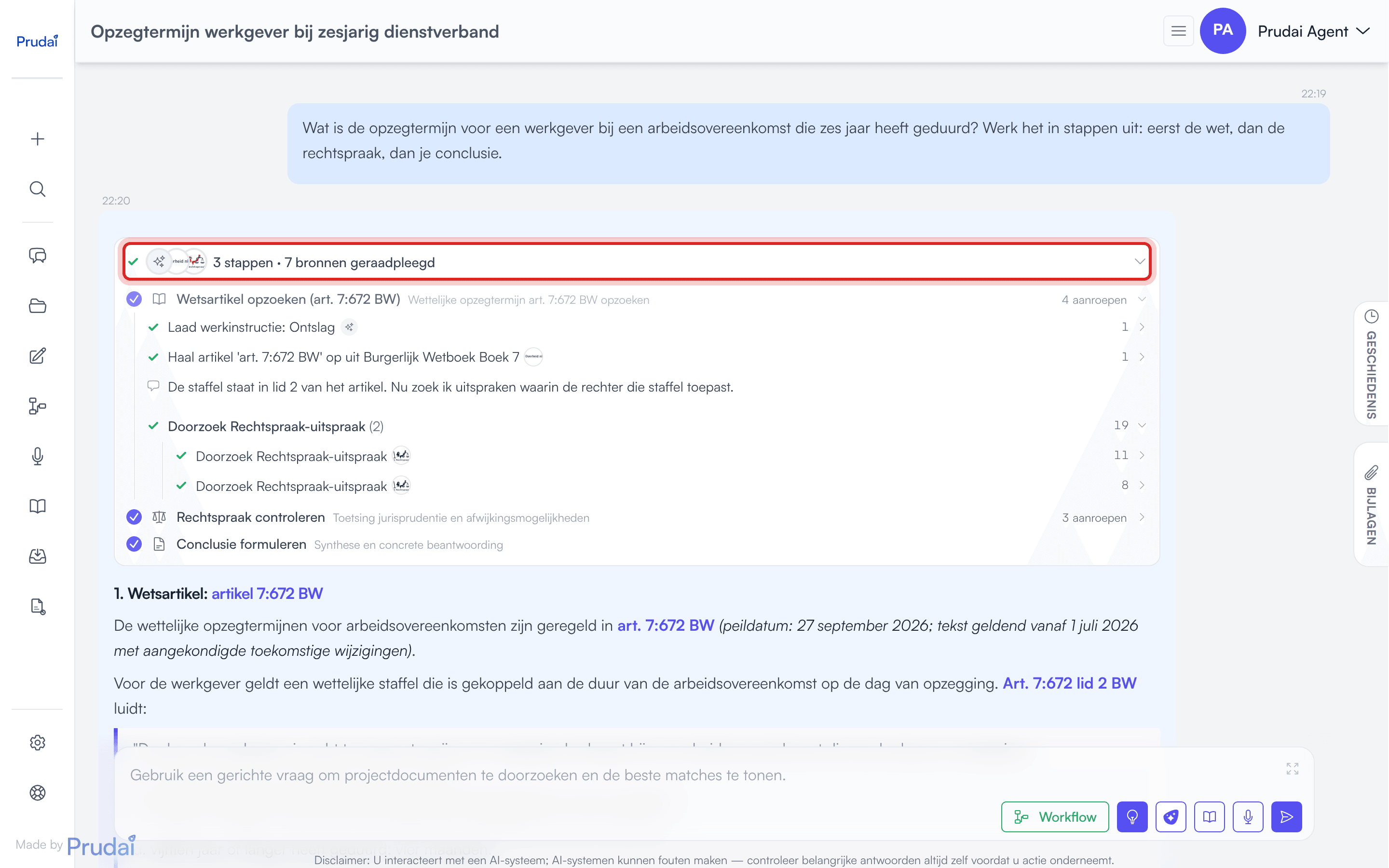
That in-between text belongs to the bar, not to the answer. Copying, Word, PDF, the add-ins and read-aloud therefore only take the final answer.
Watching live
Section titled “Watching live”When the assistant writes a document, a note or a query, that step appears straight away and the text grows live in the row. When it does several things at once, each action gets its own row. If the model goes quiet for a moment during a long turn, the assistant redoes only that step. You then see Step retried (the model went quiet for a moment).
Rows you will see often
Section titled “Rows you will see often”- Several items in one row: for example Read 3 files: … with the file names.
- The outcome in the title: for example Document written: …, 3 changes proposed: … or No changes proposed. Proposals in a document show Suggested or Comment, with their status, such as “awaiting your review”.
- Large sources: a large document is not truncated. The assistant keeps it in full and reads it selectively. You then see rows such as Viewing the source outline, Searching ’…’ for ’…’ and Reading further in ’…’. A series of these becomes one row, Searched and read the source, with Searched and Read below it. A citation or the Source row always opens the original source.
- Notes: for every conversation the assistant keeps its own notepad, so agreements and interim results do not evaporate once a conversation gets long. That shows up as Updating the notes for this conversation and Reading the notes for this conversation.
Work instructions
Section titled “Work instructions”For recurring tasks, the assistant first loads a fixed work instruction. In the bar you then see Load instructions: …. Which work instructions exist depends on your persona and your practice area (login required). So your practice area determines not only which sources the assistant uses, but also how it works.
Examples:
- LEO, personal injury: a letter to the insurer, estimating loss of earning capacity, a medical chronology, a settlement agreement, or reviewing a document from the other side.
- LEO Fiscaal: among others a notice of objection or a tax opinion.
Question card: choices and confirmations
Section titled “Question card: choices and confirmations”When the assistant needs a choice or your approval, a question card appears directly above the input field. At its place in the answer you see “This question is waiting for you above the input field.”
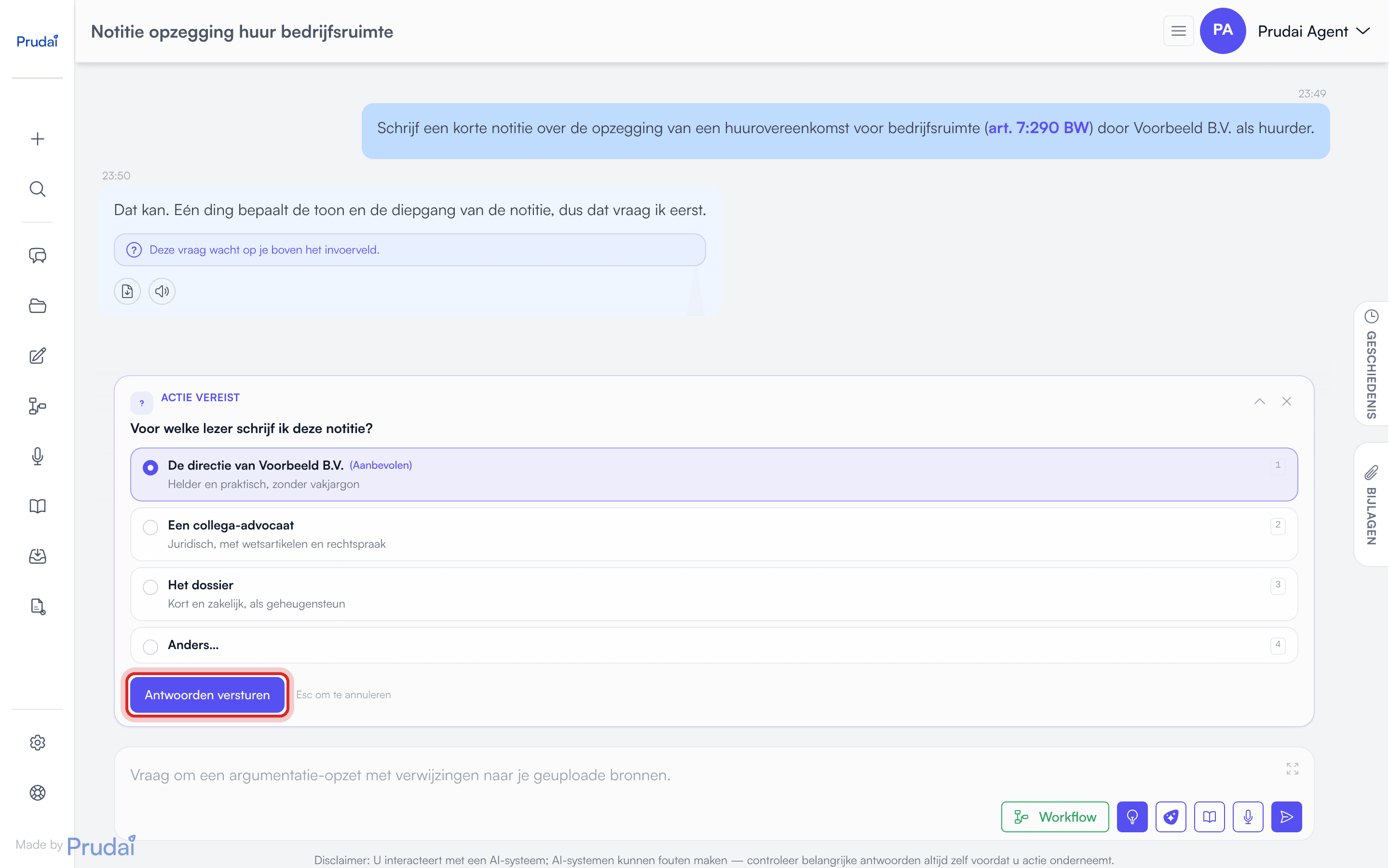
This is how you answer the card:
- Read the question. A card holds one to four questions; with more than one you see tabs and “Question 1 of 3”.
- Pick an option: radio buttons for a single choice, checkboxes when several choices are allowed. (Recommended) follows the option the assistant recommends.
- None of the options fits? Choose Other… and describe it in your own words.
- Click Send answers. The button works once every question has an answer.
Some options carry the note “you complete it in the input field afterwards”. If you pick such an option, the chat puts that option’s text into your input field after Send answers. You complete it there and send it yourself.
The keyboard works too: 1–9 picks an option, the arrow keys switch questions, Enter sends and Escape closes the card. This does not work while you are typing in a text field, such as the input field: typing always comes first. Only Enter in the text field of Other… does send the card. A closed card then shows as Skipped in the conversation, an answered one as Answered.
When the assistant asks for approval before it carries something out, the card shows Confirmation required. The app itself puts the label Approve, Decline or Revise on each option. That way you always know what a choice does, even when the assistant’s wording sounds different.
Checking sources in chat
Section titled “Checking sources in chat”Citations in the text
Section titled “Citations in the text”Citations appear as source pills carrying the source’s brand mark, for example the Rechtspraak logo on an ECLI. Click one and the source text opens in a side panel. Two kinds of citation look different:
- statute references stay ordinary links that read inside the sentence, for example “Art. 6:162 BW”; “Boek 7 BW” and bare law names open the same side panel;
- document citations from your own files carry the file icon and open the file in a side panel, with the verbatim passage.
When a verbatim quote belongs to a citation, that passage sits in italics in front of the source pill. So you read the quoted sentence in the running text, and only open the side panel to check it against the source itself.
LEO and LEO Fiscaal are meant to also name the other sources they have read and rely on, such as a knowledge page, an explanation from the Dutch Tax Administration or professional literature, with their own source pill next to the statute article. That shows you where an amount, deadline or practical rule comes from, and not only which article applies.
Which sources exist and which persona uses them is on Knowledge sources. More about citations: Citations (login required).
Use this actively:
- click a source pill or document citation to open the side panel;
- verify the quote in the source;
- treat every answer as a draft until the sources check out.
Warning for an ECLI that was not retrieved
Section titled “Warning for an ECLI that was not retrieved”If the assistant names an ECLI that was not retrieved in the conversation, it first tries to retrieve it after all. If that fails, a warning appears below the answer: ⚠️ Unverified case-law reference: with the ECLI and the advice to check the reference before relying on it. What counts as confirmation: a retrieved source, one of your own documents or your own message. An earlier answer by the assistant does not count.
Review by LEO
Section titled “Review by LEO”When you ask LEO to review a document, it first states which kind of document and which reader it has assumed. It then gives at most three to five findings, each with a proposal for rephrasing the passage. Every finding starts with a coloured label with an icon: Error, Attention or Suggestion (in Dutch answers: Fout, Aandachtspunt, Suggestie). A cautiously worded statement is never an Error. In Word the label simply stays a word. More: Reliable answers.
Drafts, charts and workflows from the chat
Section titled “Drafts, charts and workflows from the chat”- Drafts: in LEO, LEO Fiscaal, VERA, BEVER and IRMA you write a document together with the assistant, beside the chat. You can start one with Turn this into a document in the export menu below an answer, for example. When the conversation has documents, the Drafter handle on the right shows how many. Everything about this: Drafts.
- Charts, map and worksheet: the assistant can draw figures as a chart, show locations on a map and put figures in a worksheet beside the chat. It only uses values from a source or a calculation. Everything about this: Charts, worksheet and maps.
- Workflows (LEO and LEO Fiscaal): in an ordinary conversation you can ask which workflows exist, what a template does, how your runs are doing and what a checkpoint asks of you. The assistant then quotes from the deliverable; in the bar you see Workflow. You only see your own runs. More: Workflows and research jobs (login required).
Voice chat
Section titled “Voice chat”You can speak your message instead of typing — often three times faster, for example right after a meeting or hearing. Chat transcribes your speech automatically and places the text in the input field.
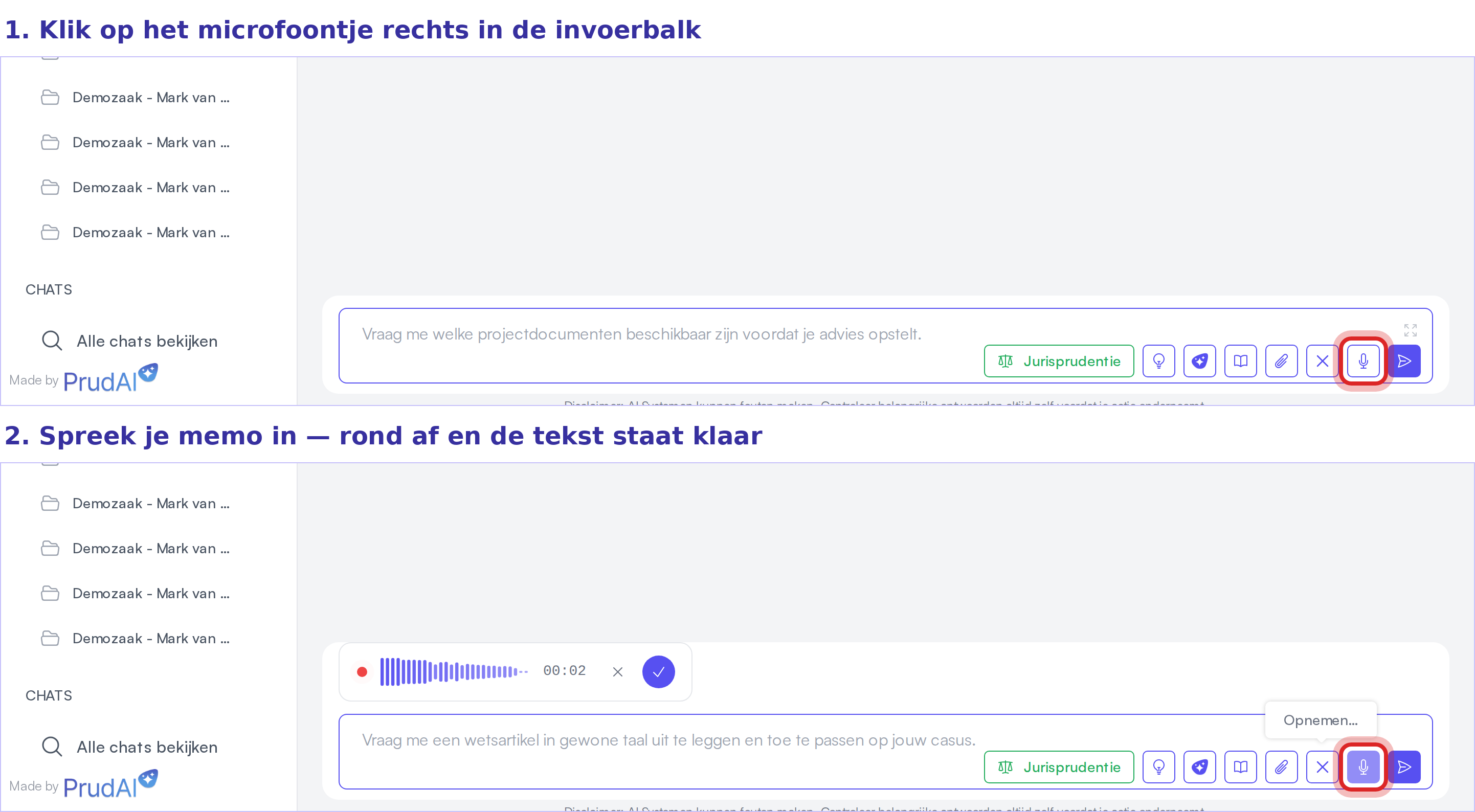
Want a longer memo to land directly in your dossier (as a searchable transcript)? Use the dictaphone in your project — see Projects.
Recording
Section titled “Recording”- Click the microphone button next to the send button.
- A recording panel appears with a waveform and a timer.
- Speak your message.
- Click the checkmark (Done recording) or click the microphone again to stop recording.
- The transcribed text appears in the input field — you can edit it before sending.
- Press Send (or Enter) as usual.
Auto-stop on silence
Section titled “Auto-stop on silence”If you are silent for more than 5 seconds, the recording stops automatically and the text is transcribed. No need to click stop manually.
Appending multiple recordings
Section titled “Appending multiple recordings”Each recording is appended to existing text in the input field. You can record multiple times to build your message piece by piece.
Your recording is kept
Section titled “Your recording is kept”If the transcription fails or comes back empty, the chat does not throw your recording away. For temporary faults the chat first retries by itself. If it still does not work, you see a recovery bar, for example with “The transcription came back empty. Your recording was kept, please try again.” You then choose:
- Transcribe again;
- Download, to keep the recording as a file;
- Delete.
Even after a page reload the chat still offers a kept recording (“Your last recording was saved.”).
Protection against accidental input
Section titled “Protection against accidental input”The voice feature has multiple safety layers:
- Microphone on by request only: the microphone only activates when you explicitly click the button.
- Noise gate: background noise below -40 dB is ignored.
- Minimum recording duration: recordings shorter than 0.8 seconds are discarded.
- Text confirmation: transcribed text is never sent automatically — you always press Send yourself.
Requirements
Section titled “Requirements”- A modern browser (Chrome, Firefox, Edge, or Safari) with microphone access.
- The microphone button only appears if your browser supports audio recording.
- If you deny microphone access, you can enable it later in your browser settings.
Feedback and read-aloud
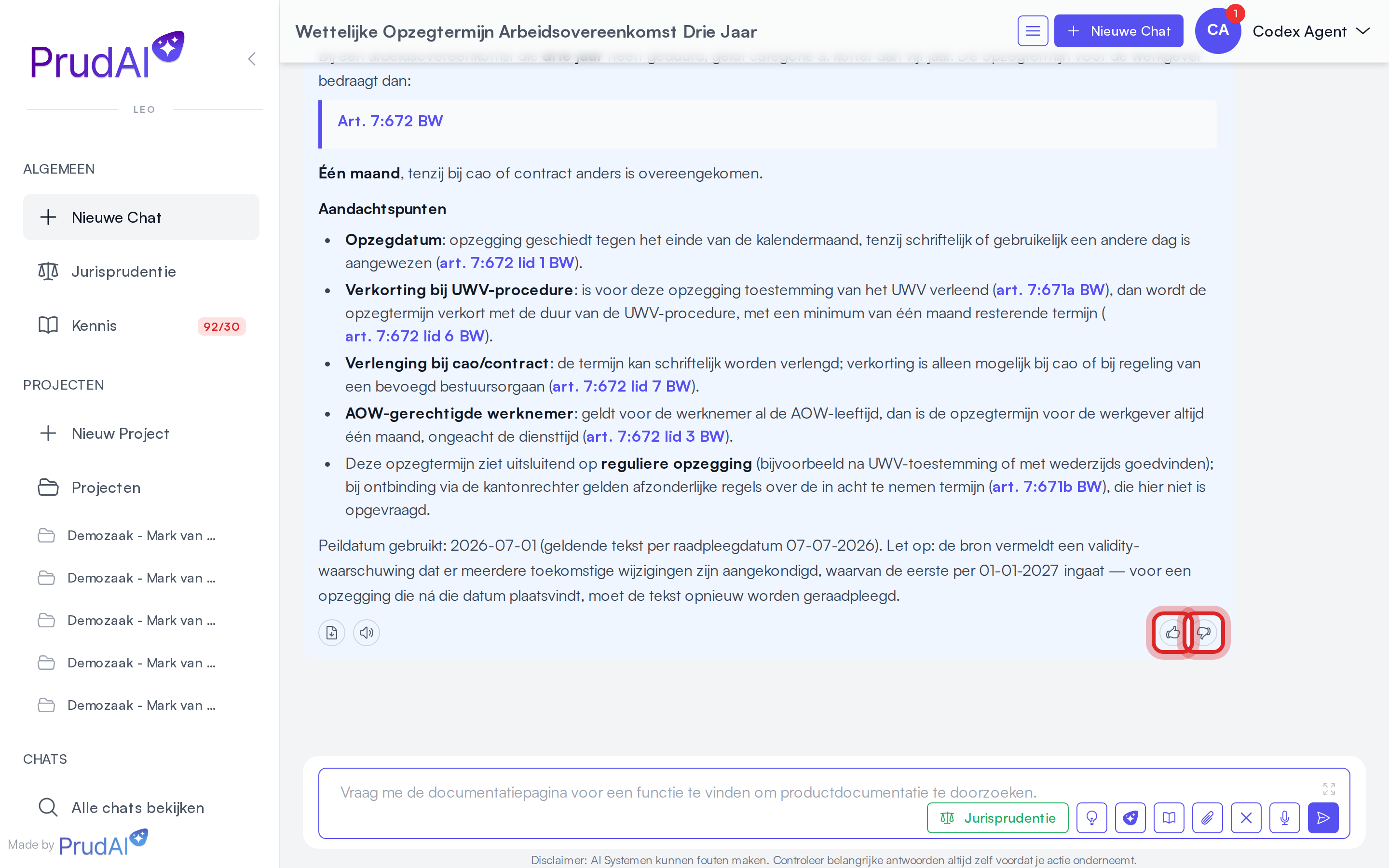
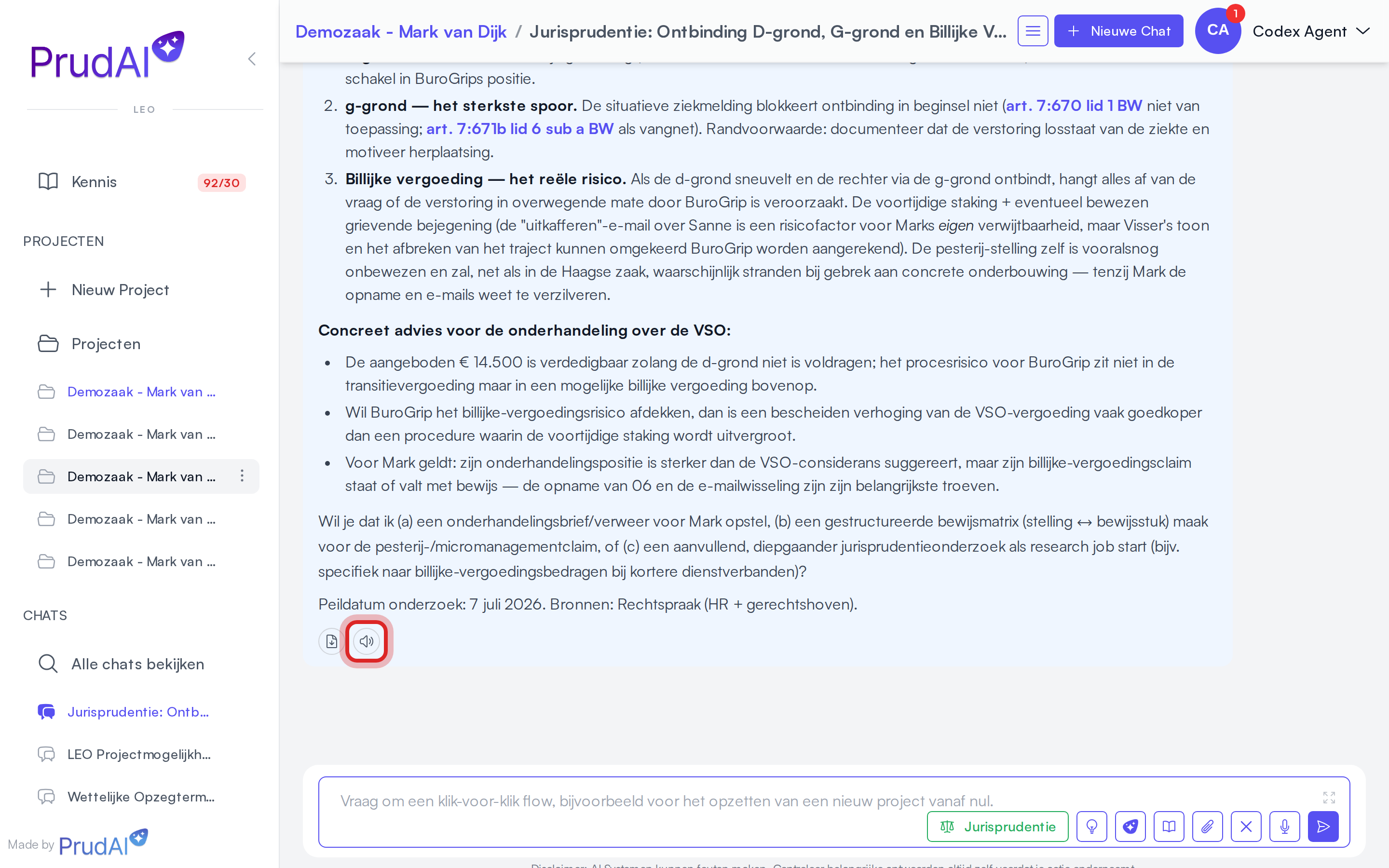
Section titled “Feedback and read-aloud”Under every assistant answer there is a button row that, next to the export button, also contains:
- Feedback (👍/👎): thumbs up is labelled Good, thumbs down Could be better. On “Could be better” the field “What went wrong? (optional)” appears. That note is optional, but a single sentence is what makes the report usable for quality monitoring. Clear rating removes your rating again.
- Play response: have the final answer read out loud, for example as a briefing on your way to court. During playback the same button becomes Stop playback.
Documentation lookup questions
Section titled “Documentation lookup questions”When you ask “how do I use …” in chat, the assistant can search the docs and cite the right page.
That helps for:
- exact click paths,
- persona-specific differences,
- support questions.
Exports and follow-up actions
Section titled “Exports and follow-up actions”Every export action sits behind one export button under the answer. The menu behind it holds Download PDF, Download Word (.docx), Copy as text and Copy as markdown. Depending on where you work, more actions join them:
- in a persona with drafts: Turn this into a document;
- in a chat inside a dossier: Save Word to project files;
- in the Word, Excel or Outlook add-in: the actions for that program.
So copying lives in the same menu, not as a separate button next to it. Every export takes only the final answer, without the in-between steps from the sources bar.
More: Export.