
Projects
A dossier (matter file) is the workspace for one case: documents, drafts, tasks, timeline, chats and collaboration all meet in one place. Everything you ask inside it is answered with knowledge of that dossier.
Dossier or project? LEO and LEO Fiscaal call this workspace a dossier (matter file), while VERA, ZIA, BEVER and IRMA call it a project. In MAIA (on request) it is called a folder; see MAIA (login required). It is exactly the same feature; only the word in the interface differs. This page uses “dossier” and gives the MAIA names where they differ. If you work in VERA, ZIA, BEVER or IRMA, read “project” throughout. Where the page is about SharePoint, as with Add folders, “folder” means a folder in SharePoint, not a MAIA folder.
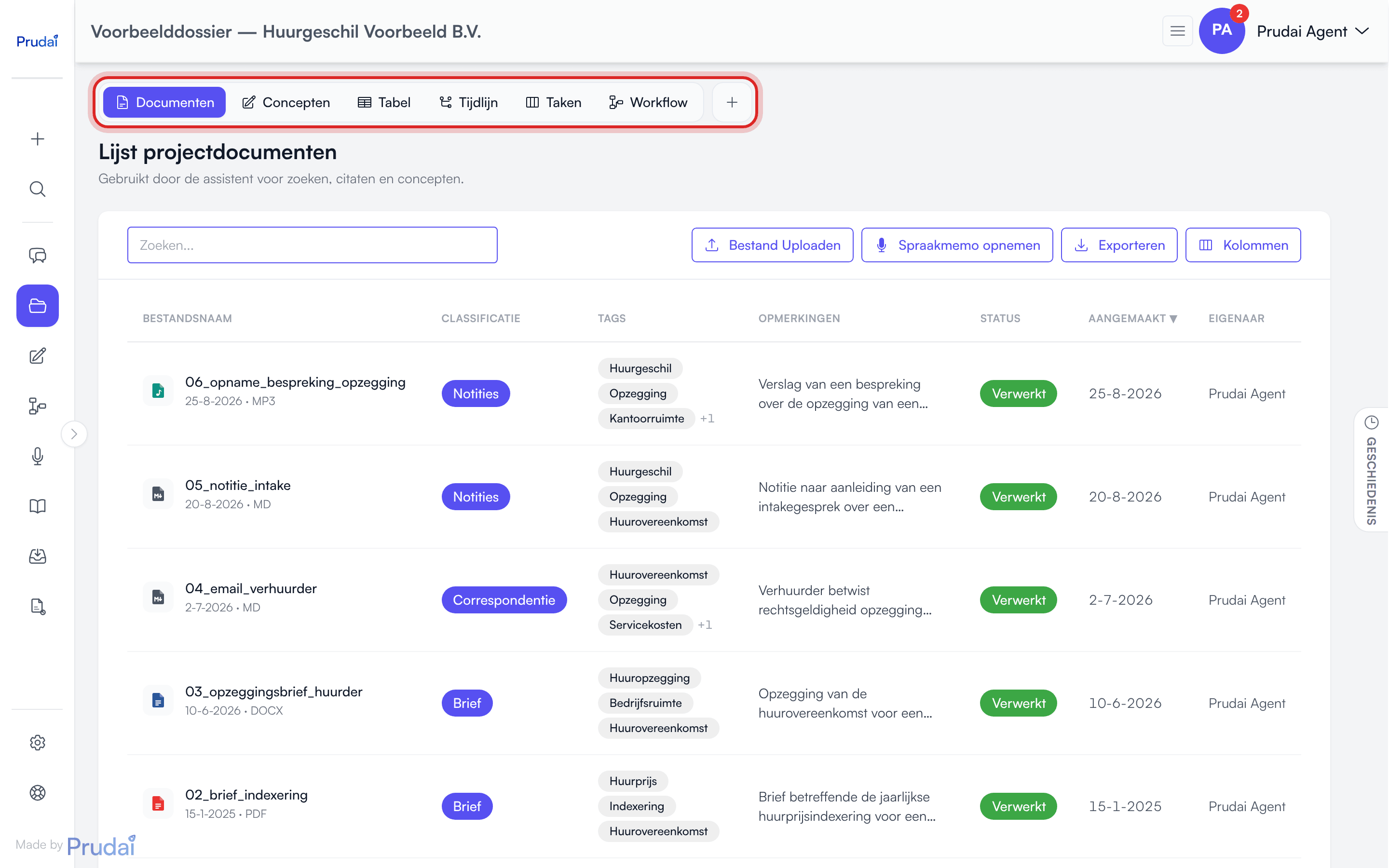
One dossier, six views
Section titled “One dossier, six views”A dossier has no tabs. It is one page with an always-visible views pill at the top. The pill holds up to six segments, in a fixed order:
| View | What it shows | Available in |
|---|---|---|
| Documents | the document list with a processing status per file; the default view | all personas |
| Drafts | the documents you wrote with the assistant in this dossier (see Drafts) | LEO, LEO Fiscaal, VERA, BEVER and IRMA |
| Table | the document grid with AI columns (see Table) | LEO and LEO Fiscaal |
| Timeline | the documents by date, with an activity chart (see Timeline) | all personas |
| Tasks | this dossier’s task board (see Tasks) | all personas |
| Workflow | this dossier’s workflows and runs (see Workflows and research jobs, login required) | LEO and LEO Fiscaal |
Practical consequences:
- The pill navigates nowhere. Each segment changes what the page shows, on the same page. The chosen view is part of the page address, so a link or a refresh keeps your view.
- Which segments you see depends on your persona. ZIA and MAIA show Documents, Timeline and Tasks. VERA, BEVER and IRMA add Drafts. LEO and LEO Fiscaal have all six.
- Workflow stays inside the dossier. The Workflow view lists the workflows and runs of this dossier. Opening a run or the builder does take you to a page of its own.
- Chat is not a view. Next to the pill sits a plus button (New chat in this dossier). It starts a chat with this dossier as context; see below.
New chat: chat only or with a document beside it
Section titled “New chat: chat only or with a document beside it”In LEO, LEO Fiscaal, VERA, BEVER and IRMA the plus button first asks how you want to start:
- Chat only: the conversation across the full width.
- Chat with a document beside it: the conversation on the left, an empty document on the right that you write together with the assistant. The document belongs to this dossier straight away. See Drafts.
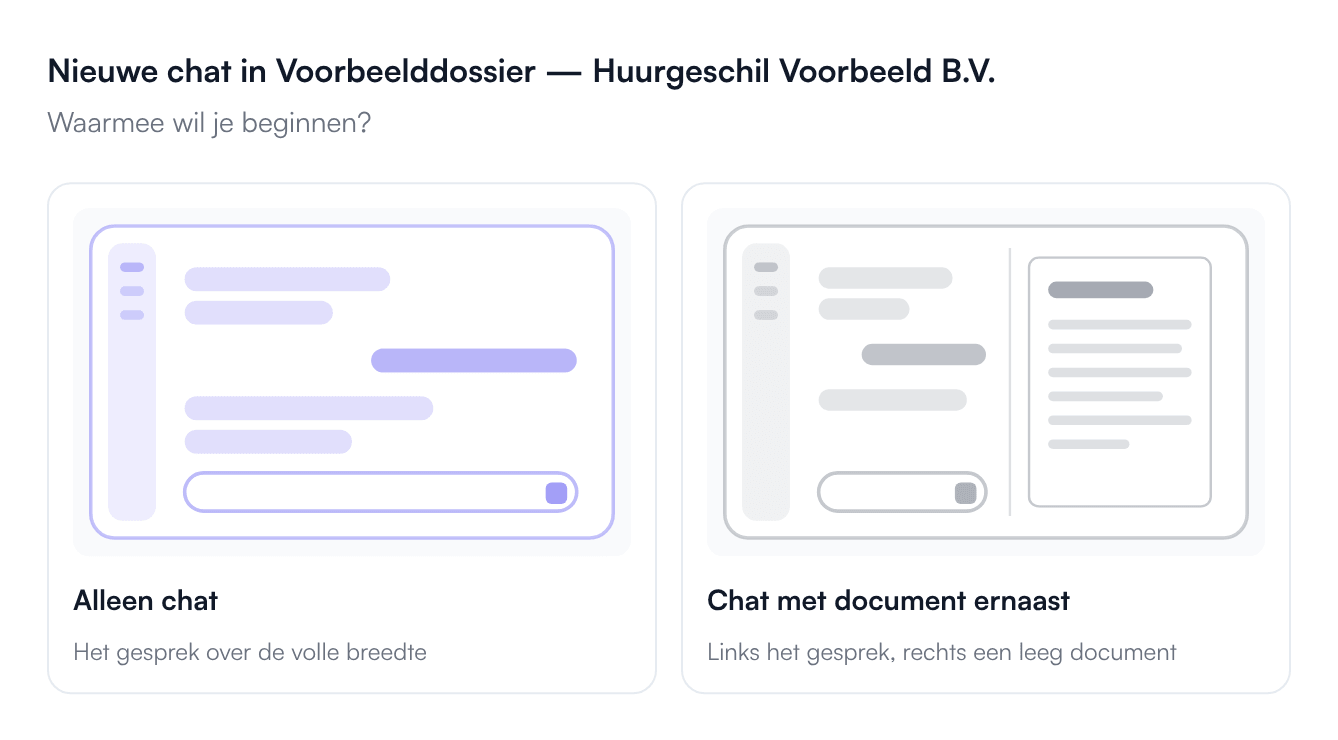
In ZIA and MAIA the plus button opens a new chat directly.
Dossier list
Section titled “Dossier list”Your dossiers live in My work, on the Dossiers tab (in VERA, ZIA, BEVER and IRMA: Projects; in MAIA: Folders). The list is a row list, not a card grid, and it shows dossiers only. Knowledge bases are not part of it; you find those under Knowledge.
The list has these columns:
| Column | What it holds |
|---|---|
| Name | the dossier name, with its description underneath |
| Owner | who created the dossier |
| Documents | how many documents it holds |
| Period | the time span of the dossier |
| When | when something last happened |
| Actions | the row’s ⋯ menu |
Two controls sit above the list, side by side:
- a search field that filters on name and description;
- a filter menu with three options, each carrying a count: Shared, Archived and Linked to SharePoint. You can stack them. Archived is always there; Shared and Linked to SharePoint only appear once there is something to filter on.
Creating a dossier
Section titled “Creating a dossier”- Click the dashed New dossier row at the top of the list.
- Type a name in the window that opens.
- Click New Dossier.
If your organization has connected SharePoint and uploading is switched on, the same window also offers Import from SharePoint. That creates the dossier and fills it straight from a SharePoint site; see SharePoint inside a dossier.
In LEO and LEO Fiscaal the assistant can also create a dossier for you from the chat; see Creating a dossier from the chat.
The row menu
Section titled “The row menu”Click a row to open the dossier. The row’s ⋯ menu holds:
- Latest chat: opens the dossier’s most recent conversation, or a new chat if there is none yet;
- Rename and Generate description with AI;
- Documents, which opens the dossier;
- Tasks and (in LEO and LEO Fiscaal) Workflow, which open the board or the workflows as a card in that dossier’s chat;
- Archive (for an archived dossier: Manage archive) and Delete permanently;
- Leave, instead of archive and delete, on a dossier a colleague shared with you.
Which dossiers you see
Section titled “Which dossiers you see”Dossiers belong to the persona you are working in. That means:
- each persona shows only its own dossiers (a LEO dossier is not visible from VERA, and vice versa);
- LEO and LEO Fiscaal share the same dossiers;
- switching persona can change your list without anything actually disappearing;
- the chats inside a dossier stay within that persona as well.
Archive vs. delete
Section titled “Archive vs. delete”- Use Archive when the matter is finished but you still want to find it back. The Archived filter shows archived dossiers. Through Manage archive you then pick Reopen dossier or Delete permanently.
- Use Delete permanently only when the dossier may really go: the dossier, its tasks, its knowledge base and its conversations are removed for good. An active dossier is archived first and then deleted, under the same confirmation.
Documents inside a dossier
Section titled “Documents inside a dossier”Drag the case file in and then ask in the dossier chat: “which defences does the opposing party raise and where are the weak spots?” The assistant reads the documents and cites from them directly.
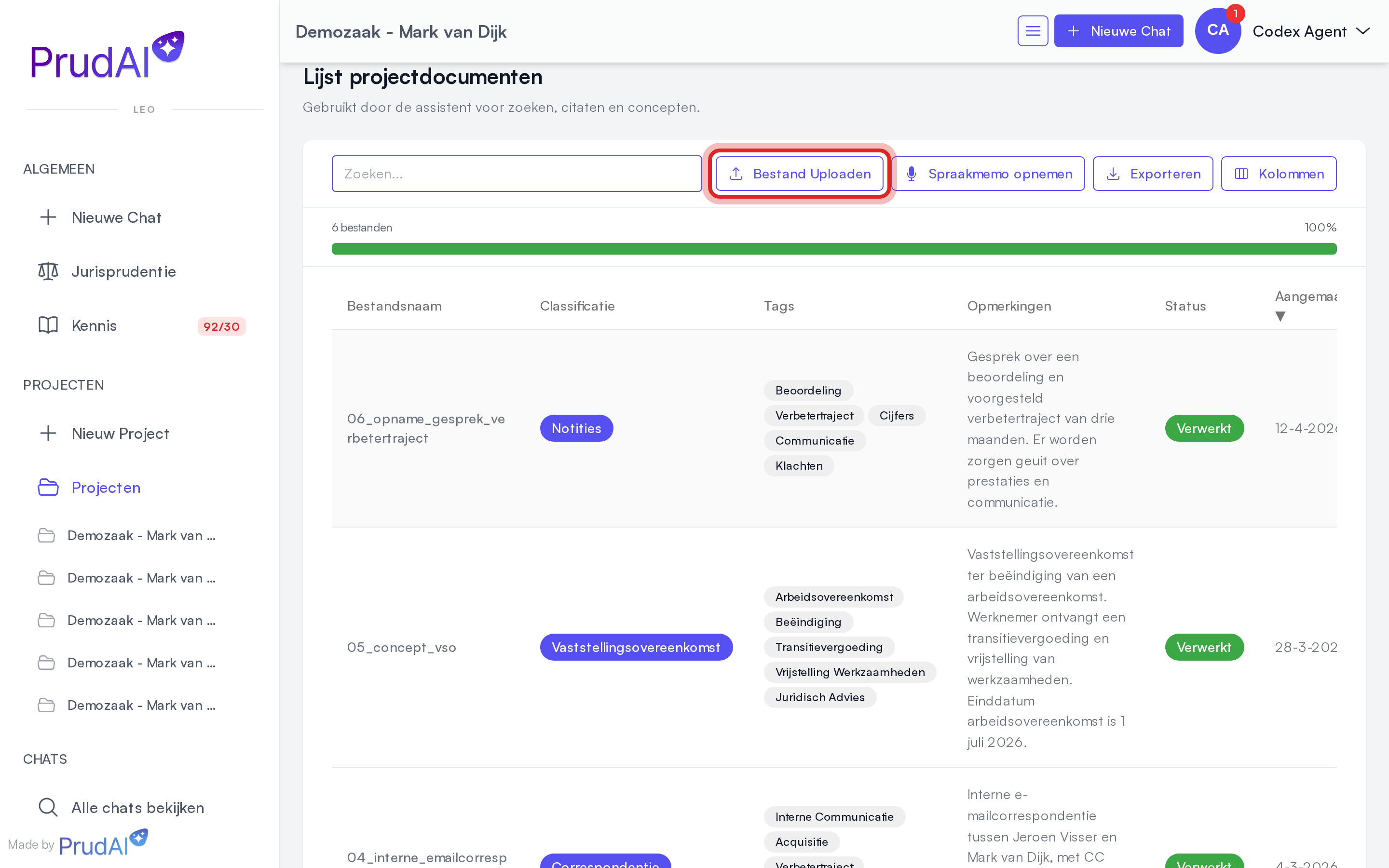
Dossier documents use the same upload contract as Files.
That means a dossier also accepts:
- standard documents,
- images,
- email files,
- CAD and BIM,
- point clouds (
.e57), - transcripts (
.vtt,.srt), - ZIP,
- audio such as
.mp3,.m4a,.wav, - presentations such as
.pptxand.ppt.
Use Files as the source page for:
- exact supported extensions,
- processing statuses,
- the preview screen, the text view and downloading.
Review status per document
Section titled “Review status per document”A hundred exhibits and three case handlers? With the review status you see per document how far the review has got and what is still outstanding. The document table has an optional Review status column for this. It is hidden by default and can be enabled through Columns (you decide which columns the table shows).
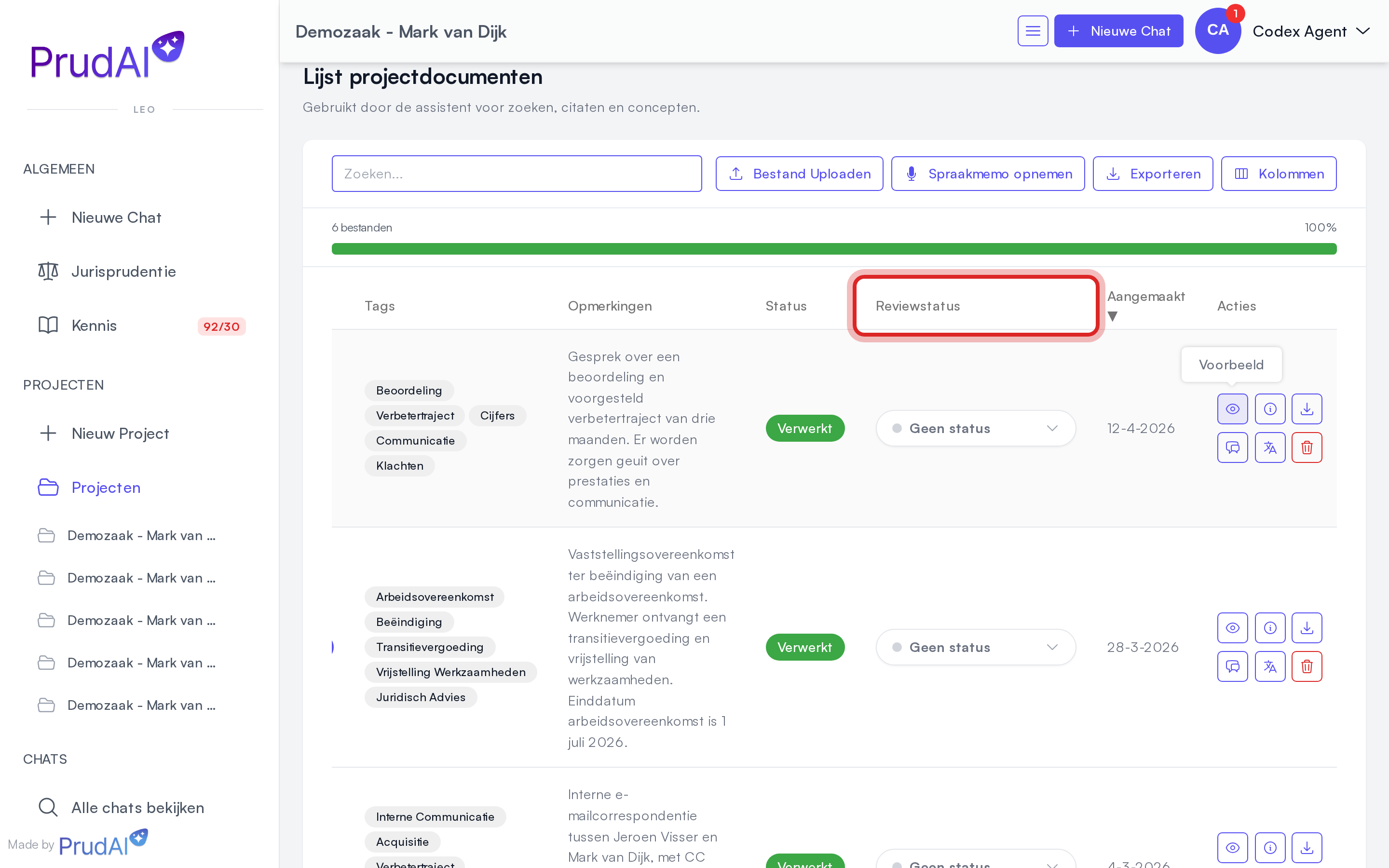
| Review status | Use it for |
|---|---|
| No status | not labelled yet |
| Needs my review | the file still needs a first review |
| Reviewing | someone is actively reviewing it |
| Reviewed with notes | reviewed, but still has open points |
| Approved | ready for downstream use |
| Not applicable | a review label is not relevant here |
Document actions
Section titled “Document actions”Every document has one menu with the same actions, wherever you meet that document.
You open that menu in three ways:
- click the file name; the name is the handle;
- click anywhere else in the row, including the empty space;
- click the ⋯ on the right of the row, on the surfaces where the name itself is not a handle.
The menu holds, in this order:
| Action | What it does |
|---|---|
| Preview | opens the document in the preview screen, in a new tab |
| Open in Word | replaces Preview when the document comes from SharePoint and has its own address there; you then open the live SharePoint copy. PDFs always keep the in-app preview, even when SharePoint holds a copy |
| Info | the metadata card, read-only |
| Edit details | the same metadata, editable; only where you have that right |
| Download | the original file |
| Translate | opens Translate with this document loaded |
| Chat | starts a conversation with this document as an @ mention |
| Delete | with confirmation; the only item at the bottom |
Not every surface offers every action: an action that cannot work there is left out.
Restrictions set by your organization
Section titled “Restrictions set by your organization”Your organization can switch off uploading and sharing. The upload button, the drop zone and the dictaphone then disappear from the dossier, or the share option does. Existing documents stay available: opening, downloading, translating and deleting keep working. What these two restrictions close off exactly is described on Quick start.
One nuance that applies to dossiers only: if a SharePoint source is already linked, Sync now keeps working. That refreshes a source your organization linked itself. Only Add folders, which brings in new material, disappears.
Drafts inside a dossier
Section titled “Drafts inside a dossier”In LEO, LEO Fiscaal, VERA, BEVER and IRMA you write a document together with the assistant in a panel beside the chat. Such a document is called a draft. The Drafts segment shows the drafts of this dossier, most recently updated first.
- Click New draft at the top of the list: an empty document opens with the chat beside it.
- Or pick Chat with a document beside it from the plus button next to the pill.
- To add a draft to the dossier documents, choose Export → Save to dossier in the document panel. A Word version is then added to the dossier’s documents.
Everything about writing, reviewing suggestions, comments and exporting is on Drafts.
Table: let LEO fill in columns
Section titled “Table: let LEO fill in columns”In LEO and LEO Fiscaal the Table view lists the dossier’s documents as rows. You decide the columns; LEO reads each document and fills them in, with the source passage alongside.
- Open Columns and choose Add your own column. You ask one question per column and pick the kind of answer: Text, Yes/no, Date, Number or Choice.
- In the same menu you can switch on Document columns: details already known from document processing.
- Click Start! to fill in all empty fields in one go.
- Click a cell for the answer, the Source passage and the Confidence. Always check the source passage.
Export downloads the table as CSV, Excel (.xlsx) or PDF. Ask about this table lets you ask a question about the whole table in the chat.
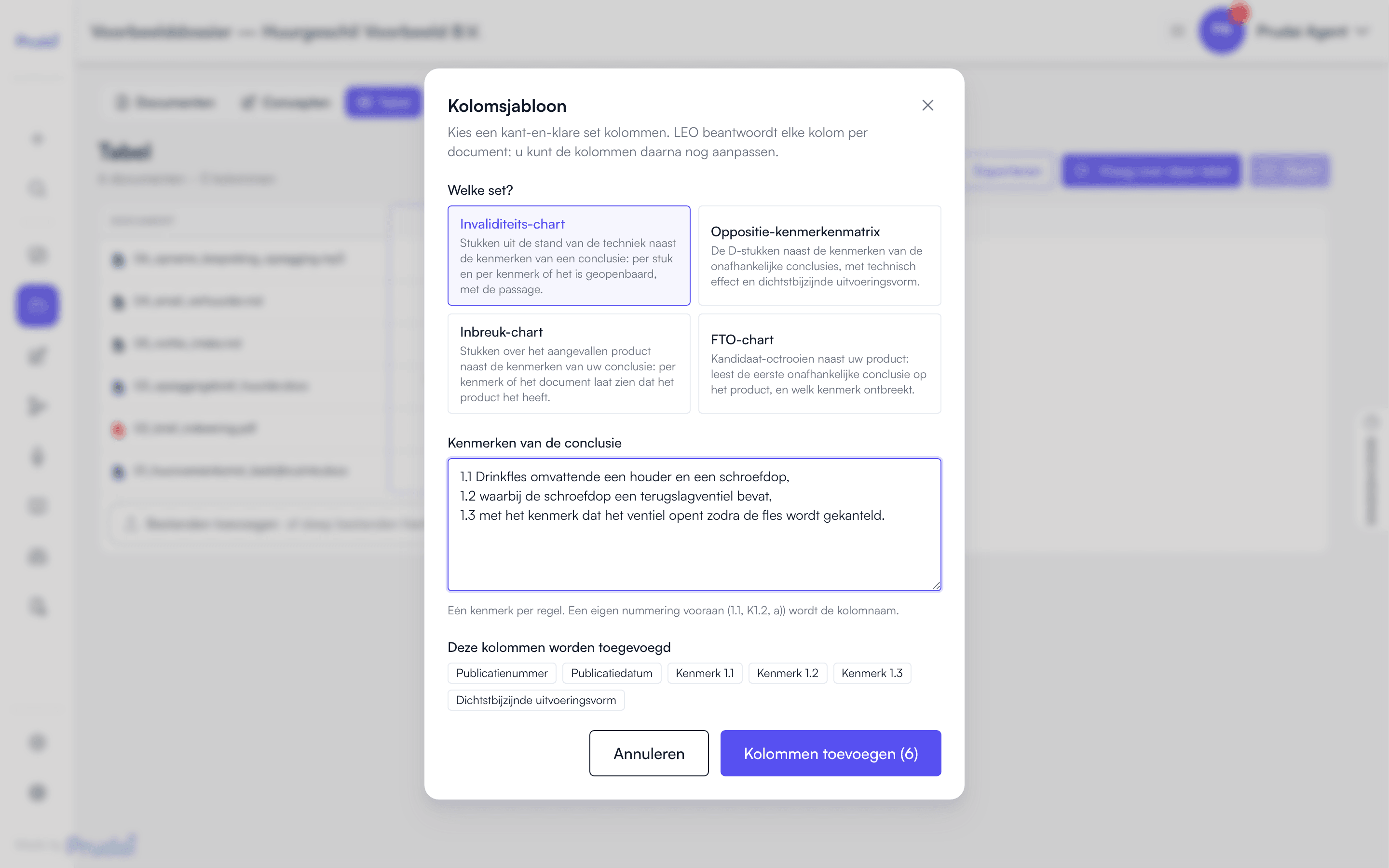
Column templates for patent work
Section titled “Column templates for patent work”Columns also holds Choose a column template. It adds a ready-made set of columns in one go:
| Template | What you enter | What the table shows per document |
|---|---|---|
| Invalidity chart | the features of the claim | per feature whether the document discloses it, plus Publication number, Publication date and Closest embodiment |
| Opposition feature matrix | the features of the independent claims | per feature whether the document discloses it, plus Technical effect and Closest embodiment, among others |
| Infringement chart | the features of your claim | per feature whether the document shows the accused product has it, plus Product and version and Document date |
| FTO chart | a description of your product or process | per candidate patent Publication number, Patent holder, Claim 1, Reads on product and Missing feature |
You enter features one per line, with at most 25 per set. Your own numbering at the start of a line (for example 1.1) becomes the column name. Each feature gets a column that LEO answers per document, with the passage the answer rests on. After adding them you can edit the columns as usual.
Collaboration
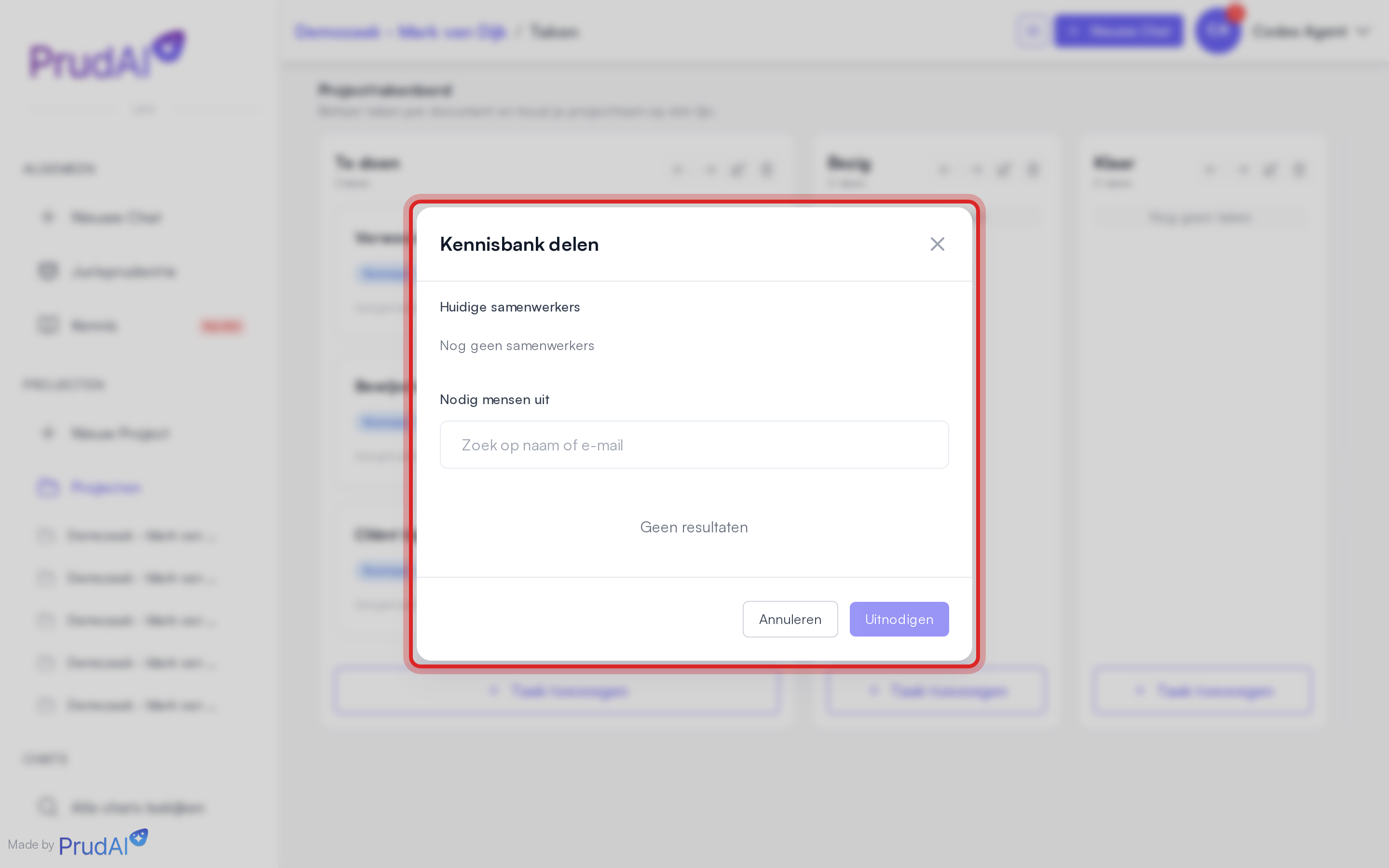
Section titled “Collaboration”You share a dossier through Share in the menu with the three stripes (☰) at the top right of the dossier. You only see that option if you own the dossier.
Practical impact:
- the chats in the dossier are visible to the dossier’s members; if you delete a shared dossier conversation, it is gone for everyone;
- tasks and review statuses are visible to those members;
- documents you delete from the dossier disappear for everyone with access.
If your organization has disabled sharing, Share is not there.
Dossiers linked to ORDO. If you work with ORDO, a LEO dossier can be linked to an ORDO matter (label ORDO matter). Such a dossier stays personal: colleagues who may see the documents of the ORDO matter do not see your conversations and tasks in LEO. See ORDO and LEO (login required).
SharePoint inside a dossier
Section titled “SharePoint inside a dossier”If SharePoint is enabled for your organization, you can connect a dossier to a site. The full explanation lives on SharePoint; below is only what you see inside the dossier itself.
When creating through Import from SharePoint, you first pick a site, then a document library, and then folders or files in an expandable tree. So you are not limited to top-level folders. You can also import the whole site. The import runs in the background. A dossier holds at most 1000 SharePoint files in total; folders you add later count toward that limit.
In a linked dossier you see:
- the linked site;
- the import status (running / completed / failed);
- a status line when there is something to sync: the number of available updates plus a note that syncing is required, or Full synchronisation required when the source has drifted far enough to need a complete pass;
- the Sync now button when changes are detected;
- the Add folders button when the dossier tracks parts of the site rather than all of it.
What syncing does:
- re-ingests new and changed files;
- removes files deleted in SharePoint from the dossier.
There is no separate button to check for changes first. The app tracks the source itself and puts up the status line as soon as there is something to do.
SharePoint from the chat
Section titled “SharePoint from the chat”In LEO and LEO Fiscaal you can also ask the assistant in the dossier chat to fetch documents from SharePoint, for example: “Put the Correspondence folder from our SharePoint into this dossier.” The assistant searches and browses SharePoint and imports the files or folders into the dossier of the conversation. Your request is the approval: there is no extra confirmation.
Good to know:
- this only works if your organization has connected SharePoint;
- only the dossier owner can import, with their own Microsoft permissions;
- a dossier takes documents from one document library; later imports add from that same library;
- nothing is ever written back to SharePoint.
The chat’s sources bar shows this, with rows such as Search SharePoint: ’…’ and Import from SharePoint into the dossier.
Voice memos
Section titled “Voice memos”Walk to your car after the hearing and dictate five minutes on what happened. The recording is transcribed automatically and lands in the dossier as a document: searchable, citable, and usable as input for your next submission.
There are two entrances.
Voice memo in the sidebar
Section titled “Voice memo in the sidebar”The sidebar carries a permanent Voice memo item. You record first and pick a dossier afterwards. Useful when you do not yet know, or do not want to go look up, where the memo belongs.
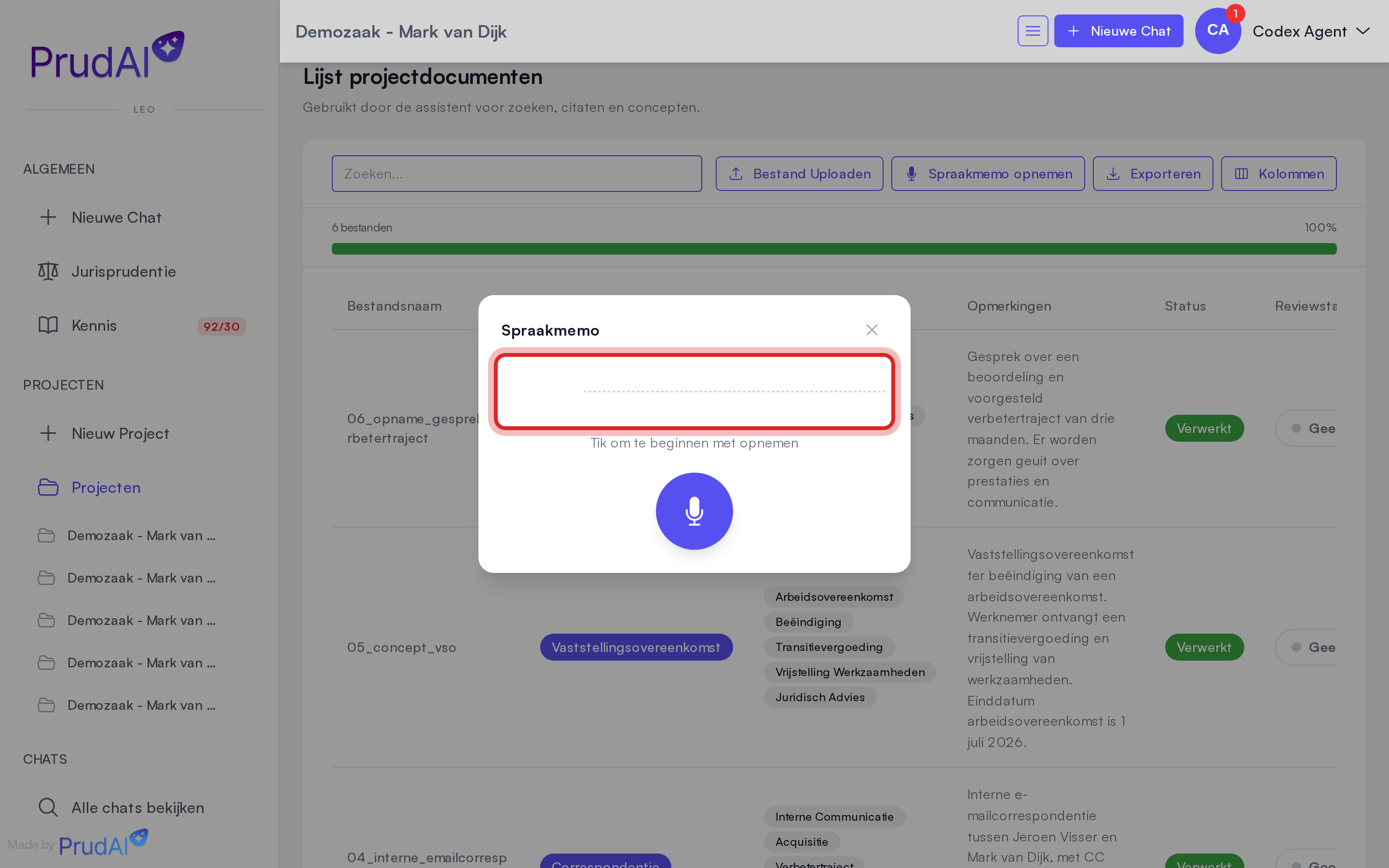
- Click Voice memo; a compact recording overlay opens and you stay where you are.
- Speak your memo. Pausing and resuming is possible.
- Stop the recording. You then pick the dossier it belongs to from a searchable list.
- The memo is uploaded and transcribed automatically.
If you close the overlay while a recording is still waiting for a dossier, it is kept. The sidebar shows a dot until you have assigned the memo.
Dictaphone: voice memos in your project
Section titled “Dictaphone: voice memos in your project”If you are already in the dossier, use the Record voice memo button in the documents view.
- Open your dossier and start the dictaphone with Record voice memo.
- Speak your memo: hearing report, client conversation, ideas for oral argument.
- Stop the recording; the file is saved with the dossier documents and transcribed automatically.
- Pick a follow-up step (see below), ask the dossier chat about it right away, or use it as the starting point for a workflow.
Practical notes, for both entrances:
- keep the screen on while recording. Locking your phone or switching apps stops the recording;
- if a recording is interrupted, what was already recorded is preserved: you can still save or download it;
- an already-recorded audio file (for example an mp3 from your phone) can simply be uploaded as a document, see Files;
- if your organization has disabled uploading, the dictaphone inside the dossier is not there.
Follow-up steps after a voice memo
Section titled “Follow-up steps after a voice memo”Once a memo has been processed, What would you like to do with this memo? appears with up to three suggested follow-up steps. The assistant picks them from:
- Summarise
- Extract action items
- Ask a follow-up
- Use in a report
- Draft a document (only in personas with Drafts)
- Create a day report for ONS (only in ZIA, when your organization may record day reports in the client file through the Nedap ONS connection; on request)
Nothing happens until you choose. Pick a step and the dossier chat opens with the question ready and the memo attached; you send it. In LEO, LEO Fiscaal, VERA, BEVER and IRMA, Use in a report and Draft a document also open a new document beside the chat. In ZIA and MAIA, Use in a report only puts the question ready in the chat.
While the memo is still being transcribed, you see an estimate of how long it takes before the follow-up steps are ready.
Don’t want them? Click Hide suggestions for this memo, or Don’t show again to switch them off on this device. You switch them back on under Settings → Chat → Show follow-up steps after a voice memo; see Settings.
Dossier chat
Section titled “Dossier chat”Type @ in a dossier chat and reference a specific document: “compare @statement-of-defence with our position in @summons”. No copy-pasting, the documents are the context.
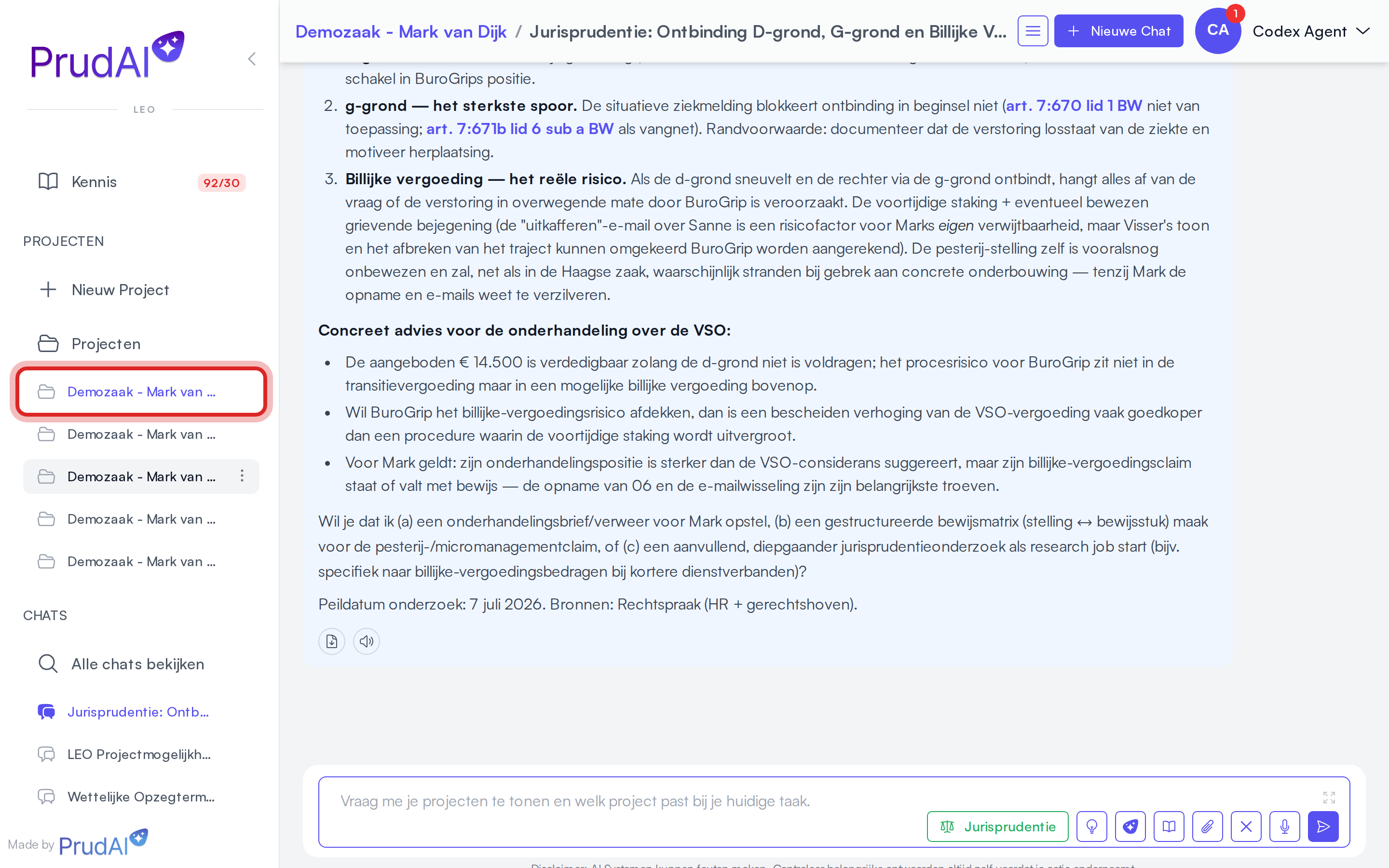
You start such a chat with the plus button next to the views pill. For matter work, prefer this chat:
- the dossier documents become the main context;
#mentions of tasks work directly;- drafts you write here belong to the dossier straight away;
- the same chat also drives search, knowledge, prompt library, and (in LEO and LEO Fiscaal) workflows.
Finding a dossier’s chats
Section titled “Finding a dossier’s chats”A dossier’s chats live in the History drawer. On the dossier page on desktop you open it with the History handle on the right edge.
- On the Chats tab the drawer then shows only the chats of the dossier you are working in, with the label Dossier · followed by the dossier name at the top.
- Click the cross in that label (Show all chats) to see all your chats again.
- If the dossier has no conversations yet, it says No chats in this dossier yet.
For a quick jump to a dossier’s most recent conversation, use Latest chat in the row menu of the dossier list.
Creating a dossier from the chat
Section titled “Creating a dossier from the chat”In LEO and LEO Fiscaal you simply ask the assistant for a dossier: “Create a new dossier for the lease dispute and put this conversation in it.” The assistant creates the dossier and the conversation moves along with it. The sources bar shows the row Create dossier: ….
- If you give no name, the assistant picks a short, businesslike name from the conversation.
- Drafts you already wrote in this conversation that did not belong to a dossier yet move along too.
- The assistant does not create a dossier on its own initiative; at most it suggests one.
- If the conversation is already in a dossier, it does not create a second one.
You can then carry on in the same conversation, for example with documents from SharePoint (see SharePoint from the chat).
Moving an existing chat into a dossier
Section titled “Moving an existing chat into a dossier”Started in a personal chat and the conversation really belongs to a dossier? Move it:
- In the chat, open the menu with the three stripes (☰) at the top right, or the chat’s ⋯ menu in My work → Chats.
- Choose Move to dossier.
- Under Which dossier does this chat move to? pick the dossier.
After that:
- the conversation sits in the dossier and continues there, with the dossier documents alongside;
- colleagues with access to the dossier can open the conversation as well.
Moving it back to personal is not possible. The option only appears on personal chats. In VERA, ZIA, BEVER and IRMA it is called Move to project, in MAIA Move to folder.
More: Chat.
Requesting a second opinion
Section titled “Requesting a second opinion”This flow only exists in LEO and LEO Fiscaal, and only if your organization has had it enabled (on request). VERA, ZIA, BEVER, IRMA and MAIA have no second-opinion flow.
The request starts from a dossier.
Requirements:
- your organization has had second opinions enabled;
- you are the owner of the dossier;
- the dossier is not linked to an ORDO matter; such a dossier cannot be shared for a second opinion.
How it works:
- Choose Request second opinion in the menu with the three stripes (☰) at the top right of the dossier.
- LEO fills in the intake as far as it can from your profile and the dossier documents (Automatic intake):
- Expertise tags,
- Counterparty name,
- Deadline urgency,
- Jurisdiction region,
- and optionally Context for the partner.
- You review and complete the intake.
- You look at the suggested Partner offices, each with a Match score.
- You select one or more offices yourself and click Send request.
Important:
- the match score is advisory; nothing is routed automatically;
- the score is driven mainly by expertise, with urgency and jurisdiction as additional signals;
- the partner office only gets access to the dossier after the conflict check and acceptance;
- that access goes to the colleague the partner office assigns, not to the whole office;
- once the request is Revoked or Completed, that access ends again;
- the AI case brief only becomes visible after the conflict check is cleared.
AI case brief
Section titled “AI case brief”After a second-opinion request is sent, LEO drafts an AI case brief in the background for the partner office.
Typical contents:
- a summary of the dispute;
- Key legal questions;
- Missing documents or annexes.
Visibility:
- hidden while the status is Conflict pending;
- visible after Conflict cleared;
- not visible when Conflict blocked.
Partner inbox
Section titled “Partner inbox”This inbox is only for partner offices that receive second-opinion requests, and is enabled per organization (on request). It exists in LEO only, not in LEO Fiscaal, VERA, ZIA, BEVER, IRMA or MAIA.
You see the Inbox item in the sidebar when:
- your organization is a partner office,
- you are working in LEO,
- you are an owner or admin of your organization.
Handling is deliberately split into two steps.
Step 1: conflict check
Section titled “Step 1: conflict check”You only see limited data:
- the requesting organization,
- the counterparty,
- redacted context.
You choose:
- Clear conflict, or
- Block conflict.
Step 2: full review
Section titled “Step 2: full review”After clearance you see:
- the full intake,
- the AI case brief,
- the Assign to choice for a colleague within your own office.
Then you can:
- assign a colleague and Accept the request;
- Decline the request.
Notifications for this flow show up on Notifications.