
Translate
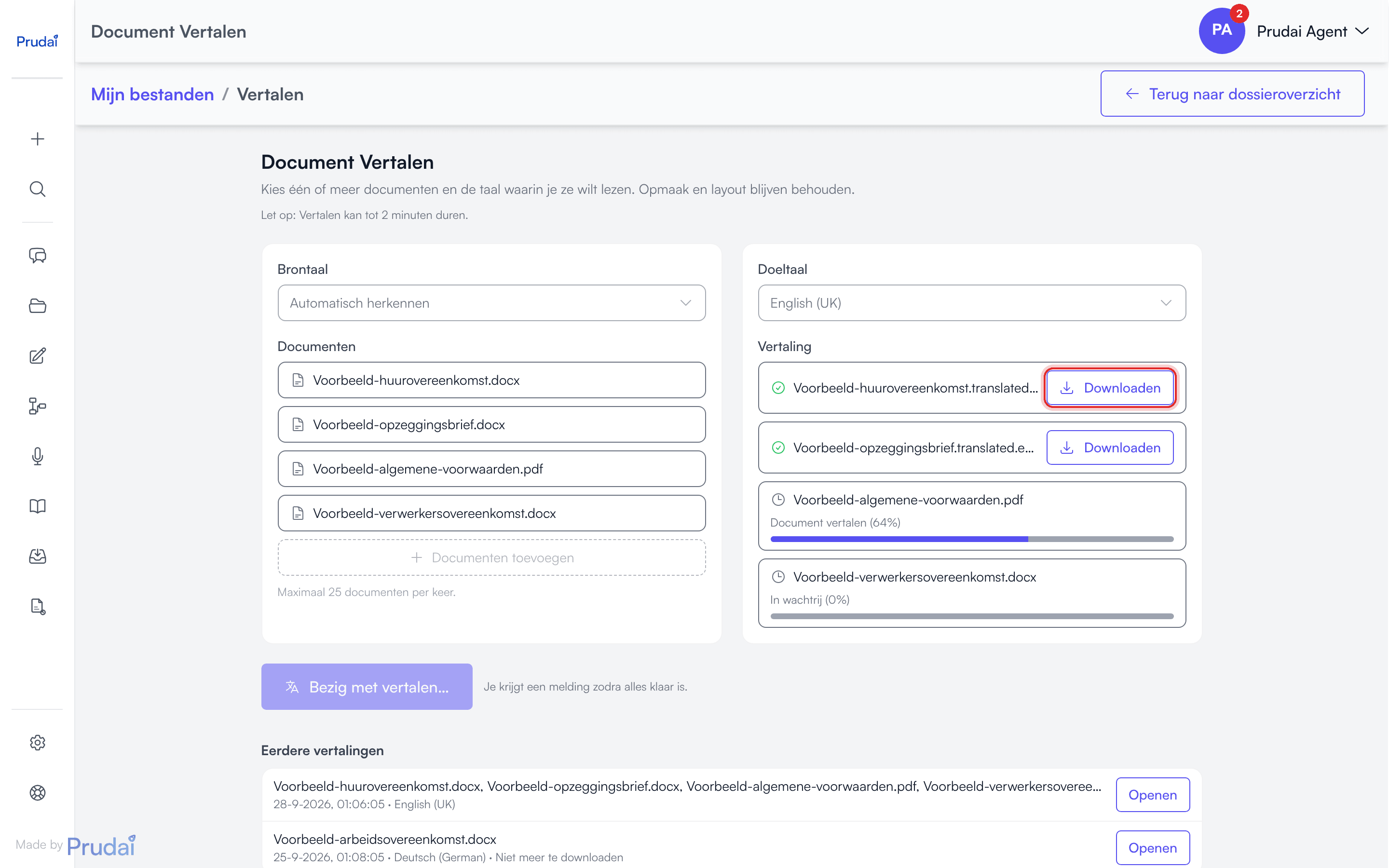
Use Translate to translate existing documents from your personal files or from a dossier. The screen is called Translate Document and works as a translation workbench: you line up a set of documents, pick one target language, and then follow the progress per document. The translation is delivered as a download; the app does not automatically write it back into your files or the dossier.
There are three ways in:
- the Translate action in a document’s menu, including in the preview screen (behind the ⋯);
- the notification you get when a set of several documents is done (see The notification when your translation is done);
- directly at app.prudai.com/translate.
If you are not allowed to download a document, Translate is not offered for it either.
The workbench in brief
Section titled “The workbench in brief”The screen has two columns.
Left: where you are coming from.
- Source language, defaulting to Detect automatically. Leave it there if you are unsure.
- Documents: the list of what you are about to translate. The dashed Add documents button opens the document picker.
Right: where you are going.
- Target Language, required.
- Translation: one row per document with a progress bar, the current stage and a percentage. Before you start it reads Start the translation to see results here.
Below the two columns sits the start button, carrying the count: Translate {n} document(s).
The document picker
Section titled “The document picker”The picker (Select documents) shows your documents with a search box above them and is multi-select: you tick everything that should go in one pass and confirm with Add {n}. A document you changed your mind about goes out again with Remove from list.
Which documents you see depends on where you came from: open Translate from a dossier and you see that dossier’s documents; otherwise your own My Files.
Two things to know:
- Up to 25 documents at a time. Once you hit that number the Add documents button is disabled. Split the work into several jobs.
- Documents with the same filename count as one document. The translator looks up the source file by name, so two documents with the same name would produce a single translation between them. The app therefore filters the duplicates out immediately.
The language picker
Section titled “The language picker”Both language pickers have a search box (Search a language) and are split in two:
- Most used at the top: Nederlands (Dutch), English (UK), Deutsch (German), Français (French), English (US) and Español (Spanish);
- All languages below that, 30 in total.
For the source language, Detect automatically sits above everything else as an extra option.
Translating a set of documents
Section titled “Translating a set of documents”- Open Translate.
- Leave the source language on Detect automatically, or pick one yourself.
- Click Add documents and tick what should go in (25 at most).
- Choose the Target Language on the right.
- Click Translate {n} document(s).
- Wait until a row on the right gets a green check mark and a Download button, and download per document.
The top of the page says Note: Translation may take up to 2 minutes. While it runs, the start button reads Translating… and next to it you see You’ll get a notification once everything is done. So you can leave the page and come back later; your set is then under Earlier translations.
If you request a translation that is still running or that finished within the last 24 hours (same document, same source-language choice and same target language), the app reuses that result and marks the row Already translated. That saves time. A translation that failed earlier is never reused: it simply starts again.
What you see along the way
Section titled “What you see along the way”While a document is in progress, its stage and percentage appear below its name:
| Stage | What is happening |
|---|---|
| Queued | The job is lined up but has not been picked up yet. |
| Processing | The job has been picked up. |
| Downloading source | The source file is being fetched. |
| Translating document | The file is translated as a document, preserving layout. |
| Translating text | The file is translated as plain text. The result will be a .txt. |
When a document is done, its row gets a green check mark and a Download button. If it fails, the row gets a red warning sign with the reason below it, or Translation failed when no reason is known.
The notification when your translation is done
Section titled “The notification when your translation is done”Which notification you get depends on how many documents in your job are actually translated:
- Several documents: you get one notification for the whole set, not one per document. It is titled Translations ready, or Translations finished if a document failed, and says how many documents were translated. The notification takes you to Translate; open your set there under Earlier translations.
- One document: the notification is titled Translation ready or Translation failed and names the file. It takes you to the dossier or to My Files, but the translation is not there. You download it on the Translate page, under Earlier translations.
Documents marked Already translated do not count here. If everything in your job was reused, you get no notification for it.
Which format produces what?
Section titled “Which format produces what?”Not every upload format is a genuine translation format.
| Source file | Translated as | Result | Notes |
|---|---|---|---|
.docx | document | new .docx file | preserves Word formatting |
.pdf | document | new .pdf file | useful for non-editable documents |
.pptx | document | new .pptx file | .ppt uploads fine, but does not translate as a presentation |
.xlsx | document | new .xlsx file | spreadsheet stays spreadsheet |
.htm, .html | document | new HTML file | mainly relevant if such files already exist in your knowledge layer |
.txt | document | new .txt file | plain text stays plain text |
| Any other format | plain text | new .txt file | the file is read as plain text; formatting and structure are lost |
The translated file carries the language code in its name, for example samplecontract.translated.en-GB.docx.
Note: the app blocks nothing up front
Section titled “Note: the app blocks nothing up front”This is the biggest trap on this page. The Translate action appears in the menu of every file, including an audio file, an image, a .doc, a .ppt or a .zip. And there is no format check up front: if your file is not in the table above, you get no warning beforehand. The app reads the file as plain text and tries to turn it into a .txt.
For .md, .json and .xml that is still usable: you get the translated text back, just as a .txt file. A small .doc or .ppt produces an unusable .txt that nevertheless looks like a successful translation. A larger file, such as audio, a photo or a large .doc, usually fails: the row then gets a red warning sign.
So stick to the format table above, even though the menu offers more. To translate a .doc or .ppt, save it as .docx or .pptx first. To translate a scanned PDF, check the text layer first.
Earlier translations
Section titled “Earlier translations”At the bottom of the page sits Earlier translations: a list of your previous jobs with the filenames, the timestamp and the target language. Open brings such a job back into the workbench, download buttons included.
A translation stays downloadable for 24 hours. After that the translated file is cleaned up. The row itself stays, marked No longer downloadable; nothing ever disappears silently from your overview. Once the window has passed, simply translate the document again.
To keep a translation longer, download it and put it in your dossier or in your personal files. That does not happen by itself.
Quality tips
Section titled “Quality tips”- Make sure the source is readable; poor OCR produces poor translations.
- Manually verify legal key terms.
- Use chat afterwards to review terminology and consistency.
- Translate a set of documents that belong together in one job, so the results also sit together under Earlier translations.
More: Files, Notifications and Chat.