
Prudai for Outlook: getting started (users)
This page is for end users of Prudai for Outlook. What the add-in does is covered on Prudai for Outlook; deployment is handled by your administrator via the administrator guide.
Opening the add-in
Section titled “Opening the add-in”- Open Outlook (web or desktop) and select or open an email message.
- Click Prudai voor Outlook (in the Prudai group) in the ribbon, or choose it via the message’s Apps menu.
- The task pane opens on the right.
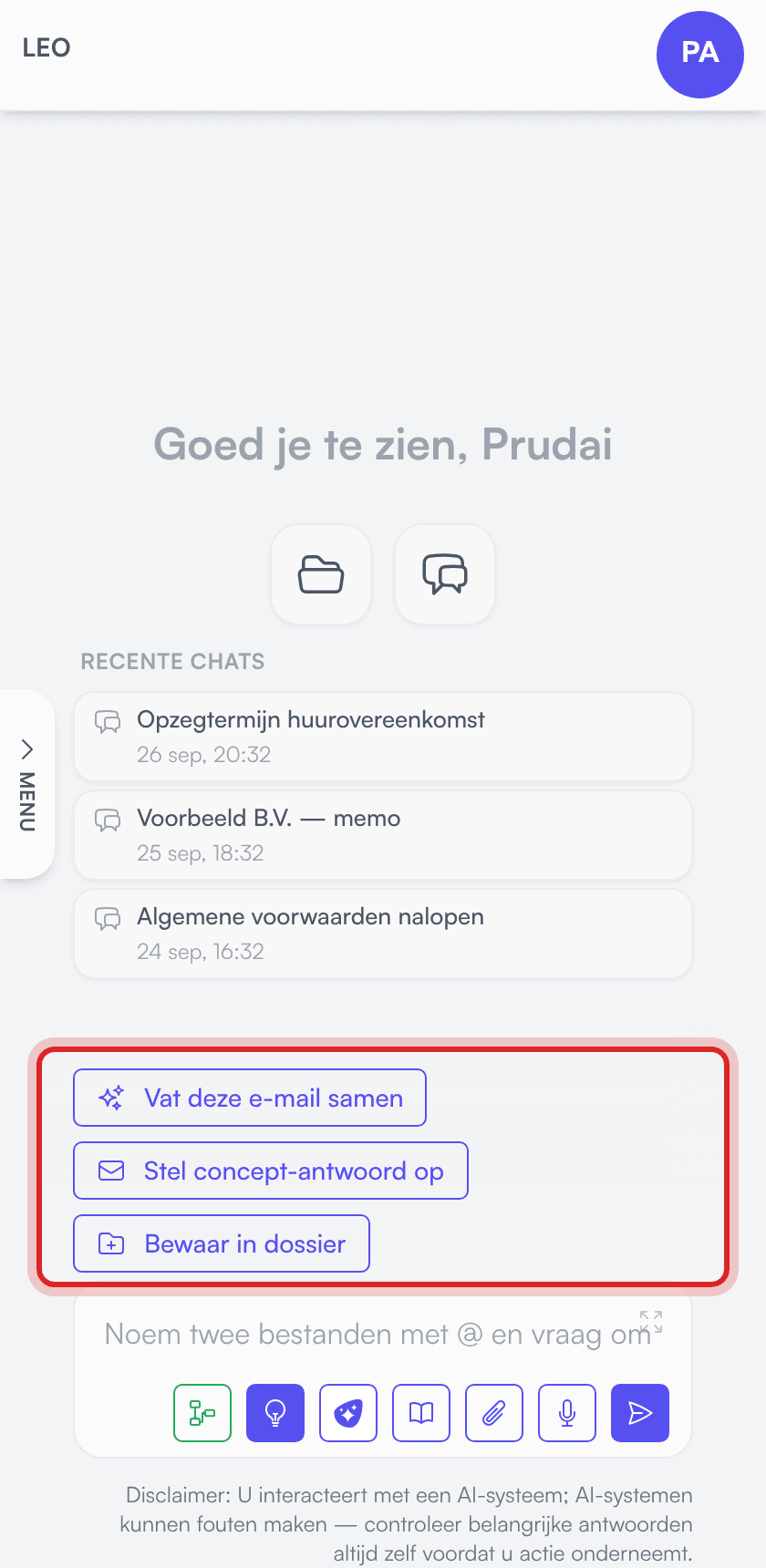
The email actions (summarize, reply, save) appear above the input field as soon as you are reading a received message. While you are composing a message yourself, you do not see those actions; you can then insert text from your assistant into your draft.
Don’t see Prudai voor Outlook, not even in the Apps menu? Then the add-in has not been rolled out to you (yet). Ask your administrator.
Signing in for the first time
Section titled “Signing in for the first time”- Click Sign in in the task pane.
- A separate dialog window opens (SSO logins often cannot run inside embedded frames; hence a pop-up).
- Sign in with your Prudai account, the same account as for the web app. If your organization has the Microsoft mail connection, sign in via Microsoft; only then do the full-conversation features work.
- The window closes and the task pane picks up your session.
You need an active license for a persona the add-in works in: LEO, LEO Fiscaal, ZIA, VERA or BEVER. See also Sign-in & persona selection.
Features
Section titled “Features”Summarize an email or conversation
Section titled “Summarize an email or conversation”Open a message and click Summarize this email. The add-in places the email content visibly in the chat and your assistant summarizes it: key points, requested actions, and deadlines.
- If the Microsoft mail connection is active, the add-in includes the entire conversation where possible, ordered chronologically. Otherwise only the open message.
- If the full conversation could not be retrieved (for instance because it is too long), you see the notice Email conversation incomplete. Your assistant then relies only on the messages that were retrieved and states that the conversation is incomplete.
- A very long message is truncated; the chat then shows [truncated].
Draft a reply
Section titled “Draft a reply”- Open the message you want to answer and click Draft a reply. Your assistant writes a proposal in the language of the received email. If the mail connection is active, it reads the entire conversation; here too you see Email conversation incomplete if not everything was retrieved.
- Steer via the chat if needed (“shorter”, “more formal”, “mention the deadline from the attachment”) until the draft is right.
- Open the Export menu on the answer and choose Open as reply in Outlook or Open as reply to all. Outlook opens a regular reply window, pre-filled with the text.
- Review, edit, and send it yourself. The add-in never sends anything on your behalf.
If you are already composing a message (new message or reply), choose Insert as draft reply in the Export menu of an assistant answer: the text is inserted into your draft at the cursor position.
Save an email or attachments to a dossier
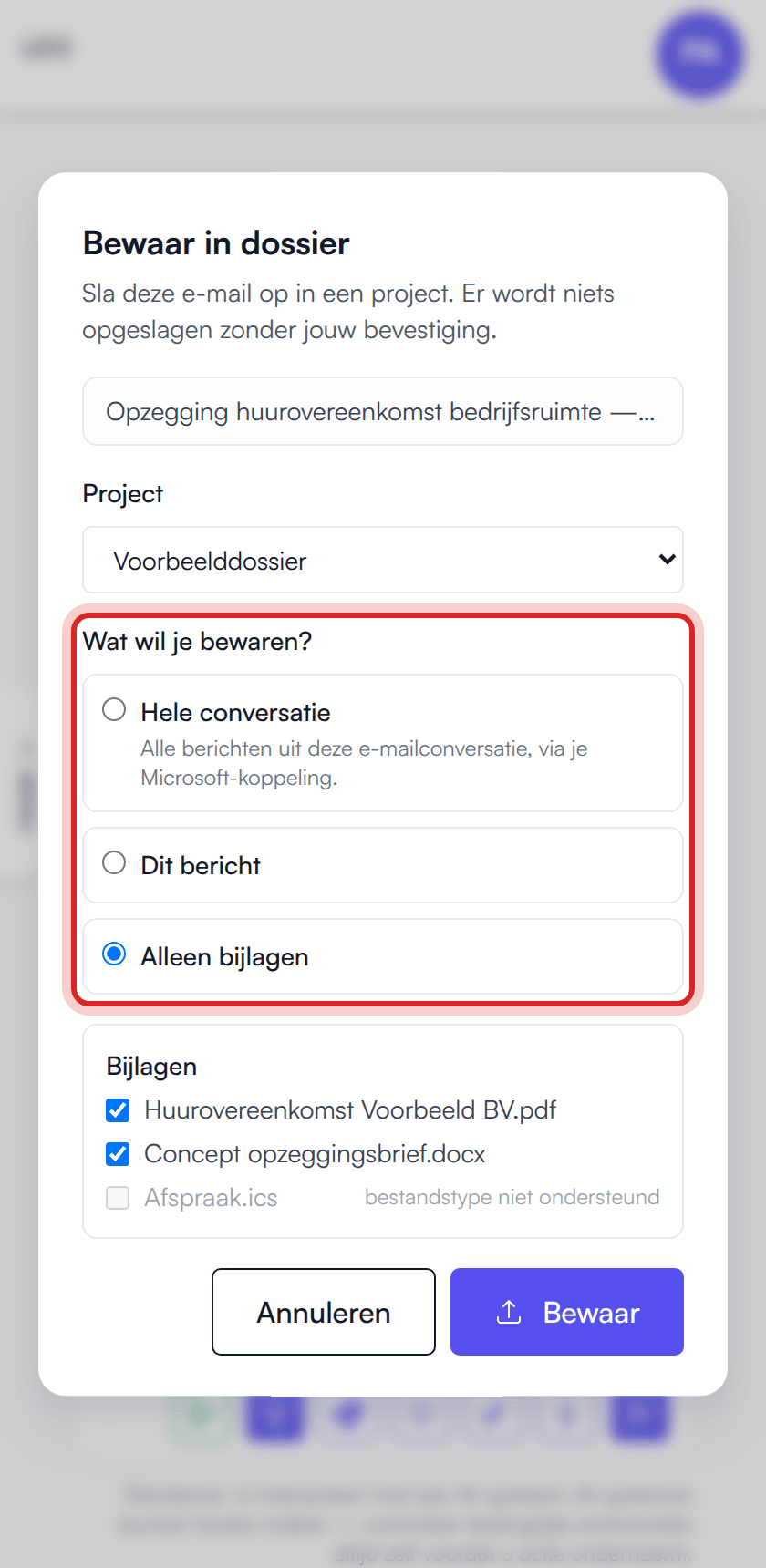
Section titled “Save an email or attachments to a dossier”- Open the message and click Save to project.
- Under Project, pick an existing dossier (project), or choose Create a new project and fill in a New project name.
- Under What do you want to save?, choose:
- Entire conversation: all messages in the conversation (only visible when the Microsoft mail connection is active for your organization),
- This message: only the open email,
- Attachments only: tick which attachments to store as separate documents (only visible when the message has at least one attachment of a supported file type and Outlook can hand attachments to the add-in).
- Click Save. Afterwards you see which files were saved. When the Microsoft mail connection is active, each file also shows where it went: Knowledge base or, for a dossier linked to ORDO, ORDO.
If saving fails after you created a new dossier, that dossier stays selected. Click Save again: the add-in uses the same dossier and does not create a second one.
What happens to attachments:
- Emails are added to the dossier as email files (
.eml), with their attachments inside. Those attachments are read and then become searchable for your assistant: PDFs, Office files, images (up to 10 per email), the contents of ZIP files, and forwarded emails. Small logos and signature images are skipped. - If an attachment in a saved message cannot be read, the document text contains a line like “Bijlage: … — niet geïndexeerd” (attachment: … — not indexed) with the reason. That way you always see which attachment is missing.
- With Attachments only you can only tick file types that are supported as a separate document. The rest is greyed out with the label file type not supported. Which formats do work is listed under Files. Such attachments are still included when you save This message, embedded in the email file.
- If the add-in could not read an attachment from Outlook, it reports afterwards how many attachments were skipped. If the dossier refuses a file, you see which file and why.
Long conversations: if a conversation contains more messages than can be saved in one go, the add-in says the full conversation is not in the dossier, and how many messages were not saved.
Once saved, emails are searchable context for your assistant, just like other project documents. See Projects.
Nothing is ever filed silently: without your confirmation in this dialog, nothing leaves your mailbox.
If Restrict uploads is on for your organization, you cannot save emails and attachments to a dossier; you then see “Uploads are disabled by your organisation”. Which features your organization can have switched off is covered in the quick start.
Troubleshooting
Section titled “Troubleshooting”| Symptom | Likely cause | Fix |
|---|---|---|
| Prudai voor Outlook is missing from the ribbon or Apps menu | Add-in not (or only just) deployed; rollout can take up to 24 hours | Ask your administrator (deployment guide) |
| Task pane stays blank | Glitchy Office webview or cache | Close and reopen the pane; restart Outlook; clear the Office cache if needed; check that app.prudai.com is reachable |
| Sign-in fails | Wrong account, or no active license for one of the supported personas | Sign in with your Prudai account (not a personal account); no license → administrator or support |
| Email actions (summarize/reply/save) are missing | You are composing a message, or no message was selected | Open a received message and reopen the add-in |
| Entire conversation choice is missing | Microsoft mail connection not active for your organization | Only the open message is used; ask your administrator about the mail connection |
| ”Only the current message was saved.” | The connection is not usable for you: not signed in via Microsoft, consent missing, or the message is not in your own mailbox (for example a shared mailbox) | The open message itself was saved. Sign in again via Microsoft; if you keep seeing “Connect Microsoft mail to save entire conversations.”, ask your administrator about the consent |
| Notice that the full conversation is not in the dossier, or that messages were not saved | The conversation contains more messages than can be saved in one go | What was saved is in the dossier; save missing messages separately by opening them and choosing This message |
| Email conversation incomplete when summarizing or replying | Not all messages in the conversation could be retrieved | The answer only covers the retrieved messages; check yourself whether anything is missing |
| ”… attachment(s) could not be read and were skipped.” | Outlook could not hand the attachment to the add-in, for instance in an older Outlook version | Try Outlook on the web or a current desktop version, or save the attachment and upload it to the dossier yourself |
| Line “Bijlage: … — niet geïndexeerd” in a saved message | That attachment could not be read or is not supported | The reason is in the line; upload the attachment separately in a supported format if needed |
More: Prudai for Outlook · Chat · Troubleshooting & support.