
Adding attachments and uploading files in the chat
To add a file to your question in the chat, use the + at the bottom left of the input field (the prompt bar). That is where the upload button is: choose Add a file, the row with the paperclip icon. You can also simply drag a file into the conversation.
Where is the upload button? Add a file through the +
Section titled “Where is the upload button? Add a file through the +”- Click the + at the bottom left of the input field; it is the first button in the button row. When you hover over it, you see Add attachment or action.
- In the menu, choose Add a file (the paperclip icon).
- Pick one or more files on your computer.
There is no separate paperclip button next to the input field any more: the paperclip is in the + menu, on a computer and on a phone. Looking for “the upload button”, “upload a file”, “add a document”, “attach a file” or “the paperclip” in the chat? It is this row.
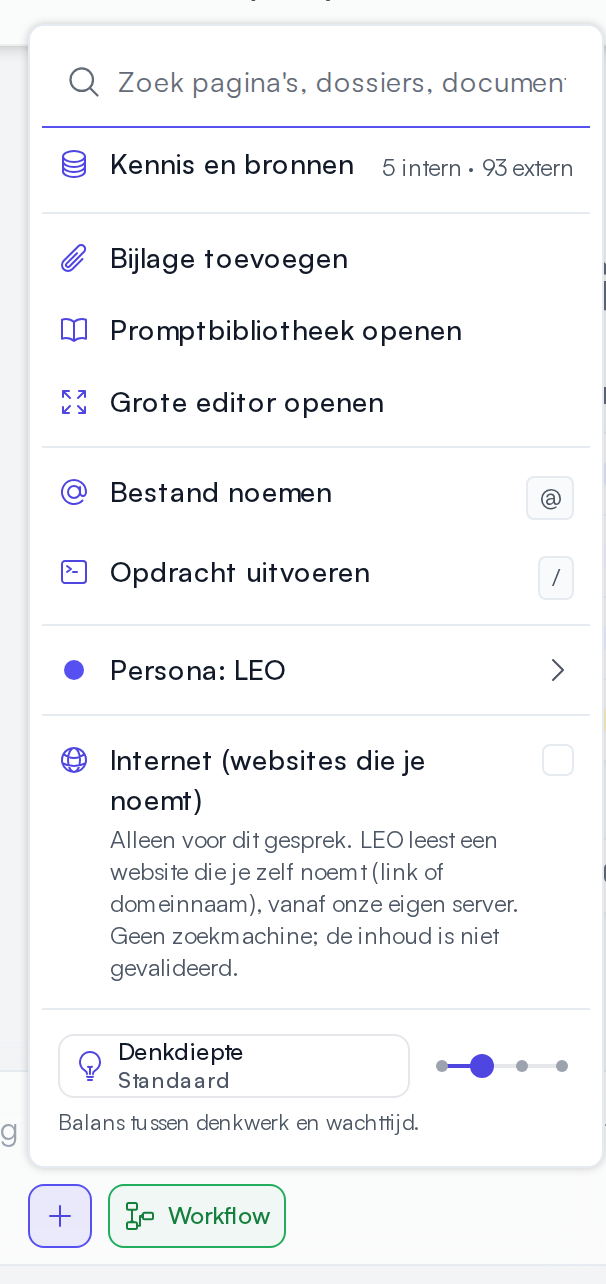
The screenshot shows the Dutch interface; in English the rows have the names used on this page.
Dragging files
Section titled “Dragging files”Drag one or more files from your desktop, File Explorer or Finder into the chat window. You then see Drop files to attach; let go and the upload starts.
There are two other routes:
- open the Attachments handle to the right of the chat and choose Add files;
- type
@(or choose Mention a file in the + menu) to mention a file that is already in Prudai. Then you upload nothing again. See Mention a file.
What happens after adding
Section titled “What happens after adding”- Outside a dossier the chat first asks where the files should go: My Files, an existing dossier or a new dossier. See Chat: choosing a destination.
- In a dossier chat the upload starts straight away; the files then belong to the conversation in that dossier.
- The attachment shows in the input field with its status, for example Processing or Indexing. You can only send once the attachment has been processed; that way the assistant really reads the file.
- If you add exactly one Word file, the app asks whether you want to use it as an attachment or edit it next to the chat. See Files.
Which file types work, and how large they may be (at most 500 MB per file), is on Files.
Is Add a file greyed out?
Section titled “Is Add a file greyed out?”Do you see the notice Uploads are disabled by your organisation at Add a file? Then your organisation has switched uploads off for this persona. That is a setting, not a fault and not a problem with your account. Dragging does not work either then. Existing documents stay available. Ask the owner of your organisation what is enabled, or see Quick start: restrict uploads.
Is Add a file not in the + menu at all? Then uploading is not part of your organisation’s plan. That is not an account problem either; ask the owner of your organisation what your plan includes.
Everything in the + menu
Section titled “Everything in the + menu”The + menu is also the place for the other actions for your message. From top to bottom:
| Row | What it does |
|---|---|
| Search field Search pages, dossiers, documents, chats and laws… | The same search as ⌘K or Ctrl+K: find a page, dossier, document, chat or law, or an action from this menu. |
| Knowledge and sources | Opens the knowledge settings. Next to it you see how many internal and external sources are on, for example “5 internal · 93 external”. See Knowledge. |
| Add a file | Adds a file from your computer to your message (paperclip icon). |
| Open prompt library | Opens the prompt library in the chat. |
| Open large editor | Opens a large text box for a long prompt. |
Mention a file (shortcut @) | Puts an @ in the input field so you can pick a document that is already in Prudai. In a dossier chat the row is called Mention a project file. |
Mention a task (shortcut #) | Only in a dossier chat: mention one of the dossier’s tasks. |
Run a command (shortcut /) | Puts a / in the input field and shows the slash commands. |
| Persona: … | Shows your current persona, for example Persona: LEO, and opens the choice to switch. |
| Thinking depth | At the bottom, with a slider: choose Quick, Standard, Thorough or Ultra. See Thinking depth. |
Not every row is always there:
- Persona: … only shows if you have more than one persona, and not in the Office add-ins.
- Thinking depth is missing if your organisation has fixed that choice.
- If your organisation has it switched on, there is also Internet (websites you name): a switch for this conversation.
- A greyed-out row carries the reason, for example There are no files to mention yet. at Mention a file, or Only works in an empty input field. at Run a command.
Mention a file with @
Section titled “Mention a file with @”Mention a file refers to a document that is already in Prudai, in your files or in the dossier. You can also type @ directly. Pick the file from the list; it then goes along as context with your question and lands in the conversation’s Attachments drawer. If the file is not in Prudai yet, use Add a file. More: Chat.
Run a command with /
Section titled “Run a command with /”Run a command works in an empty input field and shows the list of commands, such as /prompts (prompt library) and /search (search). You can also type / directly. The full list is in Chat.
The other buttons in the prompt bar
Section titled “The other buttons in the prompt bar”Next to the +, the prompt bar holds:
- on the left: Workflow (in LEO, LEO Fiscaal and VERA), which opens the workflow catalog;
- on the right: Choose project (the folder), Improve prompt (the Prudai logo), Start voice conversation where you have it, and at the far right the round button: Dictate when the input field is empty, Send (or Enter) once there is text.
More about the chat itself: Chat.