
IRMA: privacy
This page is for everyone who keeps the privacy side of the ISMS in the IRMA app: data protection officers (DPOs, FG in Dutch), privacy officers, CISOs and owners of a processing activity or an information system. It explains how to record processing activities, carry out a DPIA, register and follow up a data breach, keep track of a data subject’s request and register your algorithms.
New to IRMA? Start with IRMA: getting started: it covers how to open the app at app.prudai.com/irma, how the menu works and how registers work in general. The risks and controls you link privacy data to are covered in IRMA: risk management and IRMA: controls and audit.
The IRMA app is in Dutch. This page quotes its labels in Dutch, with an English gloss in parentheses. Privacy is a section that Prudai turns on per organization; it brings Risicomanagement (Risk management) along. If you do not see the main menu item Privacy, it is not turned on for your organization or you do not have the role. See Menu sections. IRMA helps you keep these registers; it does not decide whether a processing activity is lawful.
Where you find it
Section titled “Where you find it”Everything is in the menu under Privacy:
| Menu item | What you do there |
|---|---|
| Verwerkingsregister (Record of processing activities) | The record of processing activities (GDPR art. 30). |
| Datalekken (Data breaches) | The data breach register, with the notification chain and the clocks for the internal report and the report to the Dutch Data Protection Authority (AP). |
| Privacyverzoeken (Privacy requests) | Requests from data subjects (GDPR art. 15 to 22) and complaints (art. 77), with the statutory deadline. |
| Algoritmeregister (Algorithm register) | Algorithms and AI applications with their risk profile and the status of the publication in the national register. |
| DPIA | Data protection impact assessments (GDPR art. 35), per information system. |
By default the Functionaris Gegevensbescherming (FG) (Data protection officer) role may create, edit and delete in Privacy (PMS). See Roles and rights.
How the parts fit together
Section titled “How the parts fit together”- You link a processing activity to the DPIAs, risks, controls and processors (suppliers) that belong to it. These links are in the processing activity’s window.
- A DPIA belongs to an information system in the Informatiesystemen (Information systems) register. You link documents, controls and risks to a DPIA.
- You assign a data breach to a processing activity in the record, so it is clear which one was affected.
- From a data breach and from a privacy request you set up a follow-up action with Actie uitzetten (Set up action). It lands on the central task list, see My tasks.
- You link an algorithm to the DPIA or IAMA (Impact Assessment for Human Rights and Algorithms) that was carried out on it.
Record of processing activities
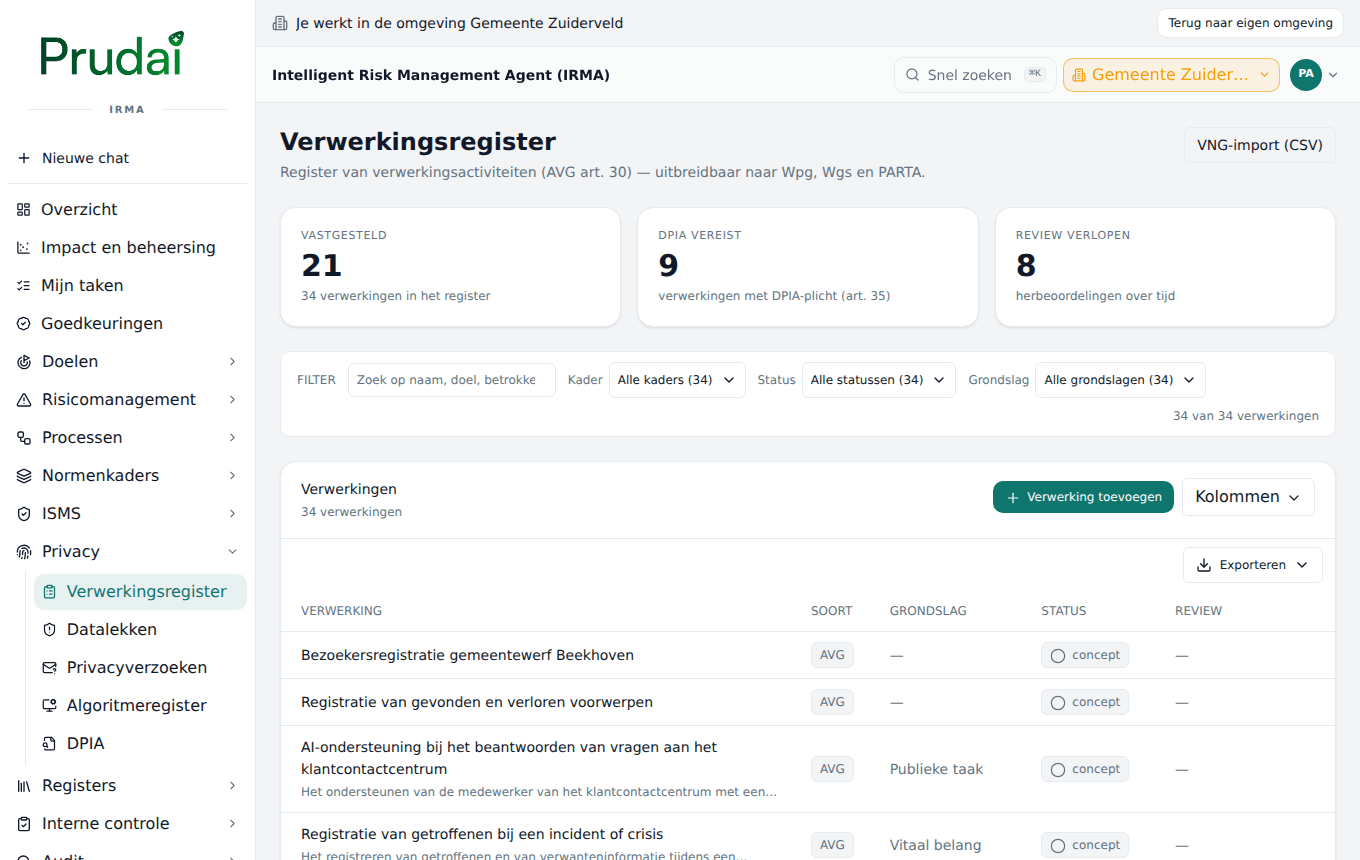
Section titled “Record of processing activities”Open Privacy → Verwerkingsregister (Record of processing activities). At the top are three counters: Vastgesteld (Established), DPIA vereist (DPIA required) and Review verlopen (Review overdue).
Adding a processing activity
Section titled “Adding a processing activity”Click Verwerking toevoegen (Add processing activity). The form contains the article 30 fields:
- Naam verwerking (Name) and Wettelijk kader (Legal framework). Choose AVG (GDPR, the default), Wpg, Wgs or PARTA.
- Verwerkingsdoelen (Purposes) and Rechtsgrondslag (art. 6) (Legal basis): Toestemming (Consent), Overeenkomst (Contract), Wettelijke verplichting (Legal obligation), Vitaal belang (Vital interest), Publieke taak (Public task) or Gerechtvaardigd belang (Legitimate interest). If you do not know yet, choose — nog te bepalen — (to be determined).
- Categorieën betrokkenen (Categories of data subjects), Categorieën persoonsgegevens (Categories of personal data) and Bijzondere persoonsgegevens (Special categories). For the last one, name which special categories (art. 9) apply; leave it empty if there are none.
- Categorieën ontvangers (Categories of recipients), Doorgifte derde landen (Transfers to third countries) and Waarborg doorgifte (Safeguard for the transfer: an adequacy decision, standard contractual clauses or another suitable safeguard).
- Bewaartermijn (Retention period) and Beveiligingsmaatregelen (samenvatting) (Security measures, summary). The summary is free text; you link the real controls in the processing activity’s window.
- Verwerkingsverantwoordelijke (Controller), FG betrokken (DPO involved) and DPIA vereist (art. 35) (DPIA required).
- Volgende review (Next review): when the processing activity needs another look. And the Eigenaar (Owner).
Only the Naam verwerking is required; fill in the rest as far as you know. The window shows how many of the fields are filled in.
Establishing
Section titled “Establishing”A processing activity starts as a concept (draft). With Vaststellen (Establish), in the Verwerkingsdetails (Processing activity details) window that opens when you click a processing activity, you make the register line formal: the status becomes vastgesteld (established) and IRMA records the time (Vastgesteld op). In the Status filter you choose between concept, vastgesteld and vervallen (lapsed).
Click a processing activity. Verwerkingsdetails has the sections Registergegevens (art. 30) (Register data), DPIA’s & risico’s (DPIAs & risks) and Maatregelen & verwerkers (Controls & processors). Expand a section for the links. With Bewerken (Edit) and Verwijderen (Delete) in the window you change or remove the processing activity.
- DPIAs: DPIA koppelen (Link DPIA).
- Risks: Risico koppelen (Link risk). This way privacy risks follow the same cycle as information security risks.
- Controls: Maatregel koppelen (Link control), the controls that protect the processing activity (art. 32).
- Processors: Verwerker koppelen (Link processor), the (sub)processors or suppliers that work for the processing activity (art. 28).
Searching, filtering, importing and exporting
Section titled “Searching, filtering, importing and exporting”- Use Kolommen (Columns) to choose which columns you see. All article 30 fields are available as a column.
- Search in the field next to Filter on name, purpose, data subjects or data.
- Filter on Kader (Framework), Status and Grondslag (Basis). Wis filters (Clear filters) removes the filters.
- Exporteren (Export) gives an Excel or CSV file.
- Do you have a record in the VNG model? Import it with VNG-import (CSV). The import wizard is described in IRMA: reporting, import and export.
Open Privacy → DPIA. A DPIA belongs to an information system. At the top are the counters Open (planned, in progress or revision needed), Afgerond (Completed) and Review verlopen (Review overdue).
- Click Toevoegen (Add). The DPIA toevoegen (Add DPIA) window opens.
- Give a Titel (Title) and choose the Informatiesysteem (Information system). Both are required. Other assets can also be chosen, with their kind shown.
- Record the Aanleiding (Reason): a new processing activity, a change, an incident or a periodic reassessment.
- Choose the Status: Gepland (Planned), In uitvoering (In progress), Afgerond (Completed) or Herziening nodig (Revision needed).
- Fill in the Uitkomst / samenvatting (Outcome / summary; Markdown is supported) and choose the Advies over de verwerking (Advice on the processing): Doorgaan (Proceed), Doorgaan met maatregelen (Proceed with measures) or Niet doorgaan (Do not proceed). As long as you choose nothing, it says Nog geen advies (No advice yet).
- Set the Herbeoordelingsdatum (Reassessment date) and, if you like, the Herzieningscyclus (maanden) (Review cycle in months). If you leave the cycle empty, there is no periodic reassessment. Choose an Eigenaar (Owner).
Click a DPIA and choose Openen (Open). In DPIA-details you link documents (the full DPIA report and the underlying documents), controls (that put the advice “proceed with measures” into practice) and risks (the risks assessed in the DPIA). So you add the report itself as a document; the DPIA in IRMA records the reason, the outcome, the advice and the reassessment.
A DPIA whose reassessment date has passed gets the label Review verlopen and counts in the counter. In the Informatiesystemen register you see per system how many DPIAs there are.
Data breaches
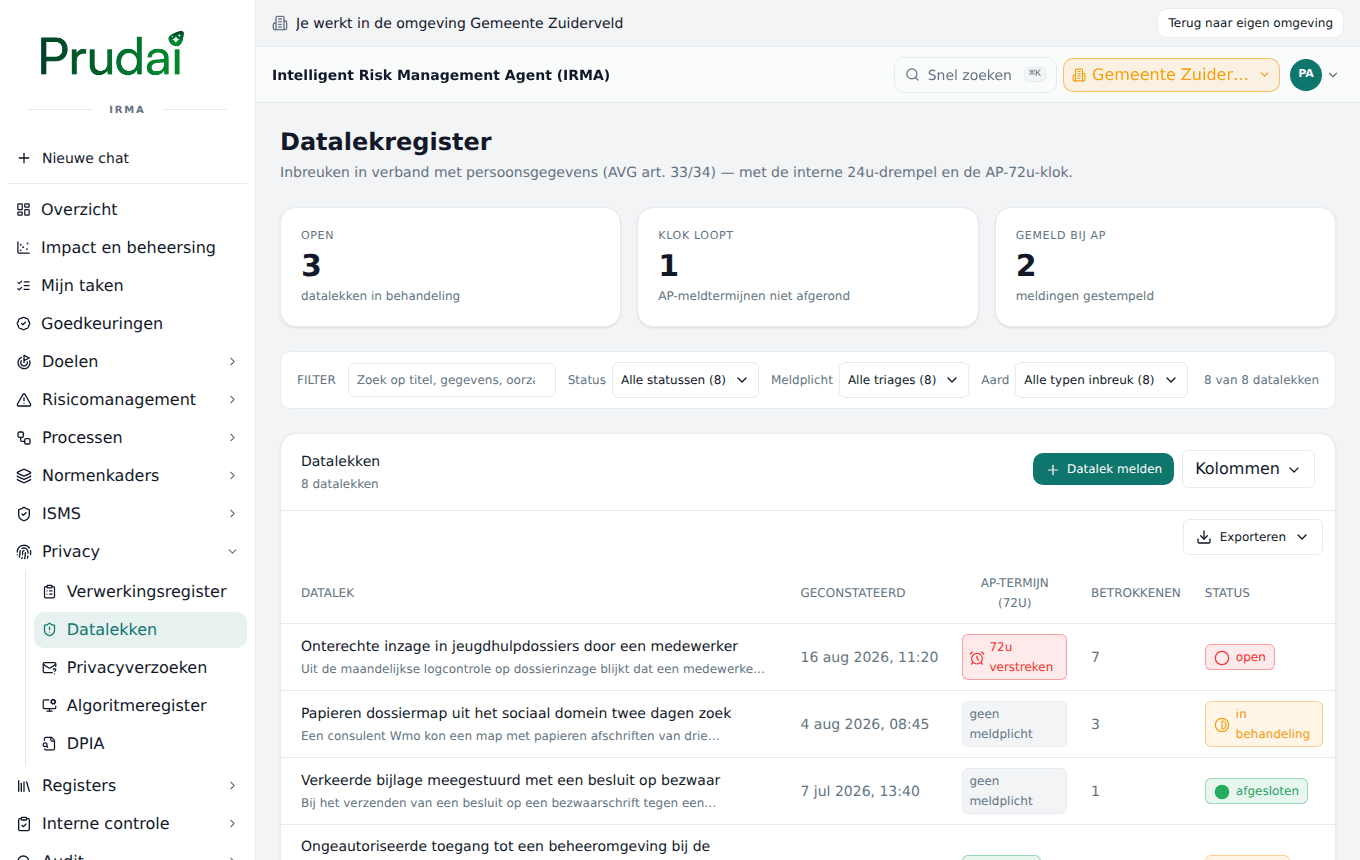
Section titled “Data breaches”Open Privacy → Datalekken (Data breaches). The register follows the notification chain of a personal data breach (GDPR art. 33 and 34), with two clocks: the internal report to the DPO within 24 hours and the report to the AP within 72 hours. At the top are the counters Open, Klok loopt (Clock running) and Gemeld bij AP (Reported to the AP).
Reporting a data breach
Section titled “Reporting a data breach”Click Datalek melden (Report data breach). You fill in:
- Titel (Title), Geconstateerd op (Detected on) and Omschrijving (Description). The moment of detection starts both clocks.
- Aard van de inbreuk (Nature of the breach): vertrouwelijkheid (confidentiality), integriteit (integrity) or beschikbaarheid (availability).
- Categorieën persoonsgegevens (Categories of personal data), Aantal betrokkenen (schatting) (Number of data subjects, estimate) and the Geraakte verwerking (Affected processing activity) from the record of processing activities.
- AP-meldplicht (art. 33) (Duty to notify the AP): ja — melden (yes, notify), nee — geen risico (no, no risk) or nog te beoordelen (still to be assessed). You notify unless the breach is unlikely to result in a risk; this is the triage by the DPO.
- Betrokkenen informeren (art. 34) (Inform data subjects), Oorzaak (Cause) and Genomen maatregelen (Measures taken).
The notification chain
Section titled “The notification chain”Click a data breach. In Datalekdetails (Data breach details) you see the Meldketen (Notification chain) in three steps:
- Interne melding aan de FG (24u) (Internal report to the DPO). The step shows gemeld (reported), nog niet gemeld — binnen 24 uur (not yet reported, within 24 hours) or, after 24 hours, 24u-drempel verstreken — leg alsnog vast (24-hour threshold passed, record it anyway). Under Triage you record Interne melding aan de FG nu vastleggen (Record the internal report to the DPO now).
- Melding aan de AP (72u, art. 33) (Report to the AP) with the deadline. The list has the column AP-termijn (72u), showing nog … u (… hours left), 72u verstreken (72 hours passed), gemeld or geen meldplicht (no duty to notify). If you report through the AP’s reporting desk, record the time and the AP-referentie (optioneel) (AP reference) under AP-melding stempelen (Stamp AP report) with Melding stempelen.
- Betrokkenen geïnformeerd (art. 34) (Data subjects informed): nog te doen (still to do) or niet vereist (not required). Under Triage, tick that Betrokkenen zijn geïnformeerd.
IRMA does not report anything to the AP itself; it watches the deadlines and records what you do. The status of a data breach is open, in behandeling (in progress), gemeld (reported) or afgesloten (closed).
Under Opvolg-actie uitzetten (Set up follow-up action) you set up an action, for example “inform data subjects (art. 34)”. It lands on the central task list with the data breach as its origin. The Opvolgingslogboek (Follow-up log) shows per data breach what happened: created, internal report, action set up, reported to the AP, data subjects informed and status changes.
You filter the register on Status, Meldplicht (Duty to notify) and Aard (Nature), and search on title, data, cause or reference.
Privacy requests and complaints
Section titled “Privacy requests and complaints”Open Privacy → Privacyverzoeken. Here you keep track of requests from data subjects (GDPR art. 15 to 22) and complaints (art. 77), with the statutory deadline of one month (art. 12). At the top are Lopend (Ongoing), Over termijn (Over deadline) and Klachten (Complaints).
- Click Toevoegen (Add). The Verzoek/klacht registreren (Register request/complaint) window opens.
- Choose the Soort (Kind: request or complaint) and the Ingeroepen recht (Right invoked): Inzage (art. 15) (Access), Rectificatie (art. 16) (Rectification), Verwijdering (art. 17) (Erasure), Beperking (art. 18) (Restriction), Dataportabiliteit (art. 20) (Data portability), Bezwaar (art. 21) (Objection), Geautomatiseerde besluitvorming (art. 22) (Automated decision-making) or Klacht (art. 77) (Complaint).
- Fill in the Verzoeker (naam/relatie) (Requester), with as little data as possible: the file itself belongs in your case system. Fill in the Contactkanaal (Contact channel) and Ontvangen op (Received on).
The statutory deadline starts on the date of receipt; IRMA derives it by itself. In the list, the Termijn (Deadline) column shows how many days are left (nog … dagen), how many days a request is over the deadline, or that it is afgerond (completed).
Click a request and choose Openen. In Verzoekdetails (Request details):
- Termijn verlengen (Extend deadline; Verlengen (+2 maanden)) is possible once for complex or numerous requests (art. 12(3)). You inform the data subject of the extension yourself. The window then shows verlengd, art. 12 lid 3.
- Under Behandeling (Handling) you record the Besluit / onderbouwing (Decision / justification) and the status: nieuw (new), in behandeling (in progress), verlengd (extended), afgehandeld (handled) or afgewezen (rejected).
- With Opvolg-actie uitzetten you create a task that takes over the statutory deadline as its deadline, for example “compile access file”. You see it again in Mijn taken (My tasks).
Algorithm register
Section titled “Algorithm register”Open Privacy → Algoritmeregister. You register your organization’s algorithms and AI applications, with some of the fields that also appear in the national Algorithm Register (algoritmes.overheid.nl), such as purpose, legal basis and human intervention. At the top are In gebruik (In use), Nationaal gepubliceerd (Published nationally) and Hoog risicoprofiel (High risk profile).
Click Toevoegen (Add). In the Algoritme toevoegen (Add algorithm) window you fill in:
- Naam (Name), Doel (Purpose) and Toepassingsgebied (Scope of application).
- Type: regelgebaseerd (rule-based), zelflerend (self-learning), statistisch (statistical) or overig (other).
- Wettelijke grondslag (Legal basis), Menselijke tussenkomst (Human intervention: how the human in the loop is ensured) and Proportionaliteit (Proportionality).
- Risicoprofiel / impactniveau (Risk profile / impact level): laag, middel or hoog (low, medium, high). A high risk profile (AI Act) calls for an IAMA and a DPIA.
- Status: in ontwikkeling (in development), in gebruik (in use) or uitgefaseerd (phased out).
- IAMA uitgevoerd (IAMA carried out), Nationaal gepubliceerd and URL nationaal register (URL in the national register).
You publish in the national register yourself at algoritmes.overheid.nl, with all the fields requested there. IRMA remembers in the register that it was done and under which URL; it publishes nothing on your behalf. Under DPIA / IAMA you link the impact assessments carried out on the algorithm.
What IRMA does not do for you
Section titled “What IRMA does not do for you”- IRMA does not judge whether a processing activity, a DPIA or a report is correct in substance. You and your DPO decide; IRMA keeps what was decided, by whom and when. Changes are in the Audit trail.
- IRMA does not send a report to the AP and no reply to a data subject.
- You choose the frameworks Wpg, Wgs and PARTA as Wettelijk kader and use them to filter. For those frameworks the form has no extra fields of its own.